 Retro Replay Retro Gaming History, Reviews & Emulation
EMULATOR DATABASE
mGBA
A versatile open-source emulator for Game Boy Advance, Game Boy, and Game Boy Color games, with a friendly desktop interface and serious tools when you need them.
Download Tutorials & guidesSign in to download. Files are hosted by the emulator project.

About mGBA
mGBA keeps Game Boy Advance, Game Boy, and Game Boy Color play in one dependable app. It starts simply, then leaves room for save states, controller mapping, patches, screenshots, rewind, and debugging.
Use it for a clean first run of a GBA classic, then use the same program to test a translation patch, inspect a save state, map a controller, or explore a handheld homebrew project.
Supported systems and capabilities
- Game Boy Advance, Game Boy, and Game Boy Color software.
- Save states, rewind, screenshots, fast-forward, and remappable keyboard or gamepad controls.
- ROM loading from common archive formats, plus IPS, UPS, and BPS patch support.
- Cheats, video recording, Lua scripting, and debugging tools for advanced use.
- Desktop builds for Windows, macOS, and Linux, with additional ports maintained by the project community.
The people behind mGBA / history
mGBA began as an open-source Game Boy Advance emulator and has grown through community development into a cross-platform project with Game Boy and Game Boy Color support. Its public source code, issue tracker, releases, and documentation make its development easy to follow.
The project remains useful because its everyday player features and its technical tools develop together: a quick game session can coexist with reproducible testing, patch work, debugging, and preservation-minded save handling.
mGBA arrived in the 2010s, when handheld emulation was no longer just about getting a game to boot. The project paired broad compatibility with tools that make preservation and testing useful: dependable save handling, inspectable states, patch support, a debugger, and active public development.
It remains a strong all-purpose choice for GBA players and a capable companion for Game Boy and Game Boy Color libraries. Its open development has also made it a useful reference point for players who want a maintained emulator without losing access to deeper options.
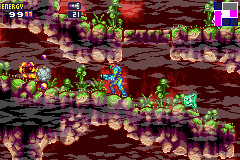
Screenshots
Tutorials & guides
mGBA setup guide
Setup note: Keep games, save files, screenshots, and patches in separate folders so a long-running handheld library stays tidy and easy to back up.
- Install the official build. Download mGBA from the official project page, extract it if your platform uses an archive, and launch the graphical application.
- Open one game from your own collection. Use File → Load ROM. For a patched game, keep the original dump and its IPS, UPS, or BPS patch together so you can return to a clean copy when troubleshooting.
- Map a comfortable controller layout. Open Tools → Settings → Controllers, select the active input device, and bind A, B, L, R, Start, Select, and the D-pad. Test shoulder buttons before beginning a game that relies on them.
- Set the display for the system you are running. Choose an integer-sized window or fullscreen mode that keeps the GBA’s 3:2 picture sharp. For Game Boy and Game Boy Color games, choose the intended model and palette before judging their colours.
- Use saves carefully. Let the game make its normal in-game save whenever possible. Treat save states as quick checkpoints, keep them with the matching game, and do not overwrite a good battery save with a state from a different revision or patch.
- Use mGBA’s extras when they help. Turn on rewind for practice, fast-forward only during routine grinding, and take a PNG screenshot when recording a bug or sharing a memorable moment. The debugger and scripting tools are ready when a homebrew or patch needs closer inspection.
ROM reminder: mGBA does not include commercial games or Nintendo system files. Retro Replay links to emulator software and documentation, not copyrighted game collections.
Android availability
Use mGBA on Android
An Android ARM64 Libretro build exists for mGBA. Run the core through RetroArch for Android; the standalone desktop download and Android core may have different menus and features.
Emulates: Game Boy Advance.
Verified Android core build ↗ · Browse all Android emulators →
Android availability: install this emulator as a RetroArch core through RetroArch’s Core Downloader. This listing includes the core version.
READMEs & documentation
mGBA official project README
mGBA
====
mGBA is an emulator for running Game Boy Advance games. It aims to be faster and more accurate than many existing Game Boy Advance emulators, as well as adding features that other emulators lack. It also supports Game Boy and Game Boy Color games.
Up-to-date news and downloads can be found at [mgba.io](https://mgba.io/).
[](https://buildbot.mgba.io)
[](https://hosted.weblate.org/engage/mgba)
Features
--------
- Highly accurate Game Boy Advance hardware support[<sup>[1]</sup>](#missing).
- Game Boy/Game Boy Color hardware support.
- Fast emulation. Known to run at full speed even on low end hardware, such as netbooks.
- Qt and SDL ports for a heavy-weight and a light-weight frontend.
- Local (same computer) link cable support.
- Save type detection, even for flash memory size[<sup>[2]</sup>](#flashdetect).
- Support for cartridges with motion sensors and rumble (only usable with game controllers).
- Real-time clock support, even without configuration.
- Solar sensor support for Boktai games.
- Game Boy Camera and Game Boy Printer support.
- A built-in BIOS implementation, and ability to load external BIOS files.
- Scripting support using Lua.
- Turbo/fast-forward support by holding Tab.
- Rewind by holding Backquote.
- Frameskip, configurable up to 10.
- Screenshot support.
- Cheat code support.
- 9 savestate slots. Savestates are also viewable as screenshots.
- Video, GIF, WebP, and APNG recording.
- e-Reader support.
- Remappable controls for both keyboards and gamepads.
- Loading from ZIP and 7z files.
- IPS, UPS and BPS patch support.
- Game debugging via a command-line interface and GDB remote support, compatible with Ghidra and IDA Pro.
- Configurable emulation rewinding.
- Support for loading and exporting GameShark and Action Replay snapshots.
- Cores available for RetroArch/Libretro and OpenEmu.
- Community-provided translations for several languages via [Weblate](https://hosted.weblate.org/engage/mgba).
- Many, many smaller things.
#### Game Boy mappers
The following mappers are fully supported:
- MBC1
- MBC1M
- MBC2
- MBC3
- MBC3+RTC
- MBC30
- MBC5
- MBC5+Rumble
- MBC7
- M161
- Wisdom Tree (unlicensed)
- NT "old type" 1 and 2 (unlicensed multicart)
- NT "new type" (unlicensed MBC5-like)
- Pokémon Jade/Diamond (unlicensed)
- Sachen MMC1 (unlicensed)
The following mappers are partially supported:
- MBC6 (missing flash memory write support)
- MMM01
- Pocket Cam
- TAMA5 (incomplete RTC support)
- HuC-1 (missing IR support)
- HuC-3 (missing IR support)
- Sachen MMC2 (missing alternate wiring support)
- BBD (missing logo switching)
- Hitek (missing logo switching)
- GGB-81 (missing logo switching)
- Li Cheng (missing logo switching)
- Sintax (missing logo switching)
### Planned features
- Networked multiplayer link cable support.
- Dolphin/JOY bus link cable support.
- MP2k audio mixing, for higher quality sound than hardware.
- Re-recording support for tool-assist runs.
- A comprehensive debug suite.
- Wireless adapter support.
Supported Platforms
-------------------
- Windows 7 or newer
- OS X 10.9 (Mavericks)[<sup>[3]</sup>](#osxver) or newer
- Linux
- FreeBSD
- Nintendo 3DS
- Nintendo Switch
- Wii
- PlayStation Vita
Other Unix-like platforms, such as OpenBSD, are known to work as well, but are untested and not fully supported.
### System requirements
Requirements are minimal. Any computer that can run Windows Vista or newer should be able to handle emulation. Support for OpenGL 1.1 or newer is also required, with OpenGL 3.2 or newer for shaders and advanced features.
Downloads
---------
Downloads can be found on the official website, in the [Downloads][downloads] section. The source code can be found on [GitHub][source].
Controls
--------
Controls are configurable in the settings menu. Many game controllers should be automatically mapped by default. The default keyboard controls are as follows:
- **A**: X
- **B**: Z
- **L**: A
- **R**: S
- **Start**: Enter
- **Select**: Backspace
Compiling
---------
Compiling requires using CMake 3.1 or newer. GCC, Clang, and Visual Studio 2019 are known to work for compiling mGBA.
#### Docker building
The recommended way to build for most platforms is to use Docker. Several Docker images are provided that contain the requisite toolchain and dependencies for building mGBA across several platforms.
Note: If you are on an older Windows system before Windows 10, you may need to configure your Docker to use VirtualBox shared folders to correctly map your current `mgba` checkout directory to the Docker image's working directory. (See issue [#1985](https://mgba.io/i/1985) for details.)
To use a Docker image to build mGBA, simply run the following command while in the root of an mGBA checkout:
docker run --rm -it -v ${PWD}:/home/mgba/src mgba/windows:w32
After starting the Docker container, it will produce a `build-win32` directory with the build products. Replace `mgba/windows:w32` with another Docker image for other platforms, which will produce a corresponding other directory. The following Docker images available on Docker Hub:
- mgba/3ds
- mgba/switch
- mgba/ubuntu:xenial
- mgba/ubuntu:bionic
- mgba/ubuntu:focal
- mgba/ubuntu:groovy
- mgba/vita
- mgba/wii
- mgba/windows:w32
- mgba/windows:w64
If you want to speed up the build process, consider adding the flag `-e MAKEFLAGS=-jN` to do a parallel build for mGBA with `N` number of CPU cores.
#### *nix building
To use CMake to build on a Unix-based system, the recommended commands are as follows:
mkdir build
cd build
cmake -DCMAKE_INSTALL_PREFIX:PATH=/usr ..
make
sudo make install
This will build and install mGBA into `/usr/bin` and `/usr/lib`. Dependencies that are installed will be automatically detected, and features that are disabled if the dependencies are not found will be shown after running the `cmake` command after warnings about being unable to find them.
If you are on macOS, the steps are a little different. Assuming you are using the homebrew package manager, the recommended commands to obtain the dependencies and build are:
brew install cmake ffmpeg libzip qt5 sdl2 libedit lua pkg-config
mkdir build
cd build
cmake -DCMAKE_PREFIX_PATH=`brew --prefix qt5` ..
make
Note that you should not do a `make install` on macOS, as it will not work properly.
#### Windows developer building
##### MSYS2
To build on Windows for development, using MSYS2 is recommended. Follow the installation steps found on their [website](https://msys2.github.io). Make sure you're running the 32-bit version ("MSYS2 MinGW 32-bit") (or the 64-bit version "MSYS2 MinGW 64-bit" if you want to build for x86_64) and run this additional command (including the braces) to install the needed dependencies (please note that this involves downloading over 1100MiB of packages, so it will take a long time):
pacman -Sy --needed base-devel git ${MINGW_PACKAGE_PREFIX}-{cmake,ffmpeg,gcc,gdb,libelf,libepoxy,libzip,lua,pkgconf,qt5,SDL2,ntldd-git}
Check out the source code by running this command:
git clone https://github.com/mgba-emu/mgba.git
Then finally build it by running these commands:
mkdir -p mgba/build
cd mgba/build
cmake .. -G "MSYS Makefiles"
make -j$(nproc --ignore=1)
Please note that this build of mGBA for Windows is not suitable for distribution, due to the scattering of DLLs it needs to run, but is perfect for development. However, if distributing such a build is desired (e.g. for testing on machines that don't have the MSYS2 environment installed), running `cpack -G ZIP` will prepare a zip file with all of the necessary DLLs.
##### Visual Studio
To build using Visual Studio is a similarly complicated setup. To begin you will need to install [vcpkg](https://github.com/Microsoft/vcpkg). After installing vcpkg you will need to install several additional packages:
vcpkg install ffmpeg[vpx,x264] libepoxy libpng libzip lua sdl2 sqlite3
Note that this installation won't support hardware accelerated video encoding on Nvidia hardware. If you care about this, you'll need to install CUDA beforehand, and then substitute `ffmpeg[vpx,x264,nvcodec]` into the previous command.
You will also need to install Qt. Unfortunately due to Qt being owned and run by an ailing company as opposed to a reasonable organization there is no longer an offline open source edition installer for the latest version, so you'll need to either fall back to an [old version installer](https://download.qt.io/archive/qt/5.12/5.12.9/qt-opensource-windows-x86-5.12.9.exe) (which wants you to create an otherwise-useless account, but you can bypass temporarily setting an invalid proxy or otherwise disabling networking), use the online installer (which requires an account regardless), or use vcpkg to build it (slowly). None of these are great options. For the installer you'll want to install the applicable MSVC versions. Note that the offline installers do not support MSVC 2019. For vcpkg you'll want to install it as such, which will take quite a while, especially on quad core or less computers:
vcpkg install qt5-base qt5-multimedia
Next, open Visual Studio, select Clone Repository, and enter `https://github.com/mgba-emu/mgba.git`. When Visual Studio is done cloning, go to File > CMake and open the CMakeLists.txt file at the root of the checked out repository. From there, mGBA can be developed in Visual Studio similarly to other Visual Studio CMake projects.
#### Toolchain building
If you have devkitARM (for 3DS), devkitPPC (for Wii), devkitA64 (for Switch), or vitasdk (for PS Vita), you can use the following commands for building:
mkdir build
cd build
cmake -DCMAKE_TOOLCHAIN_FILE=../src/platform/3ds/CMakeToolchain.txt ..
make
Replace the `-DCMAKE_TOOLCHAIN_FILE` parameter for the following platforms:
- 3DS: `../src/platform/3ds/CMakeToolchain.txt`
- Switch: `../src/platform/switch/CMakeToolchain.txt`
- Vita: `../src/platform/psp2/CMakeToolchain.vitasdk`
- Wii: `../src/platform/wii/CMakeToolchain.txt`
### Dependencies
mGBA has no hard dependencies, however, the following optional dependencies are required for specific features. The features will be disabled if the dependencies can't be found.
- Qt 5: for the GUI frontend. Qt Multimedia or SDL are required for audio.
- SDL: for a more basic frontend and gamepad support in the Qt frontend. SDL 2 is recommended, but 1.2 is supported.
- zlib and libpng: for screenshot support and savestate-in-PNG support.
- libedit: for command-line debugger support.
- ffmpeg or libav: for video, GIF, WebP, and APNG recording.
- libzip or zlib: for loading ROMs stored in zip files.
- SQLite3: for game databases.
- libelf: for ELF loading.
- Lua: for scripting.
- json-c: for the scripting `storage` API.
SQLite3, libpng, and zlib are included with the emulator, so they do not need to be externally compiled first.
Footnotes
---------
<a name="missing">[1]</a> Currently missing features are
- OBJ window for modes 3, 4 and 5 ([Bug #5](http://mgba.io/b/5))
<a name="flashdetect">[2]</a> Flash memory size detection does not work in some cases. These can be configured at runtime, but filing a bug is recommended if such a case is encountered.
<a name="osxver">[3]</a> 10.9 is only needed for the Qt port. It may be possible to build or run the Qt port on 10.7 or older, but this is not officially supported. The SDL port is known to work on 10.5, and may work on older.
[downloads]: http://mgba.io/downloads.html
[source]: https://github.com/mgba-emu/mgba/
Copyright
---------
mGBA is Copyright © 2013 – 2026 Jeffrey Pfau. It is distributed under the [Mozilla Public License version 2.0](https://www.mozilla.org/MPL/2.0/). A copy of the license is available in the distributed LICENSE file.
mGBA contains the following third-party libraries:
- [inih](https://github.com/benhoyt/inih), which is copyright © 2009 – 2020 Ben Hoyt and used under a BSD 3-clause license.
- [LZMA SDK](http://www.7-zip.org/sdk.html), which is public domain.
- [MurmurHash3](https://github.com/aappleby/smhasher) implementation by Austin Appleby, which is public domain.
- [getopt for MSVC](https://github.com/skandhurkat/Getopt-for-Visual-Studio/), which is public domain.
- [SQLite3](https://www.sqlite.org), which is public domain.
If you are a game publisher and wish to license mGBA for commercial usage, please email [licensing@mgba.io](mailto:licensing@mgba.io) for more information.
Download original READMERelease log
Selected releases and changes, with coverage from our weekly emulation roundup.
Sources & further reading
FROM THE COMMUNITY
Player reviews
Starting site scores are provisional editorial scores. Established mainstream projects receive a higher starting score; other imported entries begin at a neutral 6/10 pending individual review. Member scores change the average after approval.
Your take on mGBA
Spam has been overwhelming. To help us approve your review, sign up and introduce yourself in the Introductions forum so we know you’re not a bot.
Sign in with your Retro Replay account to rate this project and share your experience.
Sign in to review