 Retro Replay Retro Gaming History, Reviews & Emulation
EMULATOR DATABASE
smsplus64
A Sega Master System, Game Gear and SG-1000 emulator that runs on Nintendo 64 hardware (built with Libdragon).
Download Tutorials & guidesSign in to download. Files are hosted by the emulator project.

About smsplus64
smsPlus64 ports Sega Master System, Game Gear and SG-1000 emulation to the Nintendo 64 so those systems can be run on real N64 hardware via flashcarts. It targets users who want to run 8-bit Sega titles on a native N64 with supported flashcart hardware.
Runs Master System, Game Gear and SG-1000 ROMs on real Nintendo 64 consoles using flashcarts such as EverDrive-64 and SummerCart64; includes a built-in game browser and settings stored on the SD card.
Supported systems and capabilities
- Sega Master System (emulated)
- Sega Game Gear (emulated)
- Sega SG-1000 (emulated)
- Nintendo 64 (host hardware where the emulator runs)
- Flashcarts: EverDrive-64 (V3, X7, PRO), SummerCart64 (documented as tested)
The people behind smsplus64 / history
The project repository contains a multi-version changelog documenting development and fixes up through release v0.13. The changelog lists progressive improvements: better speed and frameskip handling, a built-in settings screen, compatibility fixes for many Master System and Game Gear titles, EverDrive and SummerCart integration, and support for SG-1000 ROMs. Releases and tags are published in the repository's Releases section. The project is built with Libdragon and is distributed under the GPL-3.0 license.
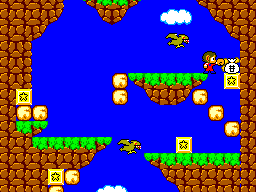
Screenshots
Tutorials & guides
smsplus64 setup guide
This setup guide follows the project's official documentation and changelog. It describes how to build or prepare smsPlus64 for running on real Nintendo 64 hardware using a supported flashcart.
- 1) Review compatibility and requirements Confirm your target hardware is supported. The README documents testing on Nintendo 64 NTSC and PAL consoles and lists flashcarts that have been tested (SummerCart64, EverDrive-64 V3, EverDrive-64 X7, EverDrive-64 PRO). The emulator is built with Libdragon and expects to run on a real N64 via a flashcart.
- 2) Obtain the official source or release Download the source or release artifacts from the repository's Releases page. The project maintains tags and release notes (for example v0.13). Do not expect commercial game ROMs, BIOS, or firmware to be included; obtain those separately and ensure you have legal rights to them.
- 3) Build from source (optional) If you need a custom build, clone the repository and follow the included build scripts. The repo provides build.sh and variants (build_debug.sh, build_dfs.sh, etc.) and uses Libdragon. Make sure you have Libdragon and its toolchain installed; use the provided scripts rather than undocumented instructions. The Makefile and build scripts in the repository are the authoritative build steps.
- 4) Prepare flashcart files and filesystem layout Follow the README and changelog instructions for filesystem layout and EverDrive or SummerCart installation. For example, the changelog documents how to place the emulator on EverDrive-64 X7 or PRO (copying to specific ED64/edapp paths) and notes behavior differences between flashcarts. The emulator also supports running with no filesystem baked into the ROM using the provided build options.
- 5) Copy ROMs and settings to the flashcart SD card Place your Master System, Game Gear or SG-1000 ROM files on the SD card or flashcart filesystem in the locations the project documentation expects (see README for recommended folders). The emulator's built-in browser reads the SD card; the changelog documents auto-start behavior and settings persistence on the SD card.
- 6) Running the emulator on your N64 Load the smsPlus64 ROM via your flashcart menu or by placing it in the emulator path expected by the flashcart (the README and changelog include practical examples for EverDrive and SummerCart64). Use the built-in game browser or start games directly from the flashcart menu where supported. If you encounter a flashcart-specific issue, consult the repository issues and changelog for noted workarounds (for example, EverDrive V3 shows an invalid checksum warning but runs).
- 7) Troubleshooting and compatibility notes Refer to the changelog for known issues, fixes, and per-release notes (for example which game compatibility issues were fixed in specific versions). The README enumerates tested consoles and flashcarts and documents special cases such as ModRetro M64 behavior. For flashcart-specific placement and naming of emulator files, follow the examples provided in the changelog entries and README.
READMEs & documentation
smsplus64 official project README
# smsPlus64

A Sega Master System, Game Gear and SG-1000 Emulator running on the Nintendo 64. Use it on real hardware with a flashcart. See [Compatibility](#compatibility) for the hardware it has been tested on.


Built with [Libdragon](https://github.com/DragonMinded/libdragon)

## Compatibility

✅ works    ⚠️ works, with a catch    ❌ does not work    ❔ untested

### Consoles

| Console | Status | Notes |
| --- | --- | --- |
| Nintendo 64, NTSC | ✅ | Tested with a SummerCart64, an Everdrive-64 V3, an EverDrive-64 X7 and an EverDrive-64 PRO. |
| Nintendo 64, PAL | ✅ | Tested with a SummerCart64, an Everdrive-64 V3, an EverDrive-64 X7 and an EverDrive-64 PRO. |
| [ModRetro M64 (FPGA)](https://modretro.com/products/m64) | ⚠️ | Tested with a SummerCart64, an Everdrive-64 V3, an EverDrive-64 X7 and an EverDrive-64 PRO. With an EverDrive-64 X7, games start from the Everdrive menu, but the built-in game browser does not see the SD card. [#12](https://github.com/fhoedemakers/smsplus64/issues/12)|
| [Analogue 3D (FPGA)](https://www.analogue.co/3d) | ✅ | Tested with a SummerCart64 and an EverDrive-64 X7. |

### Flashcarts

| Flashcart | Status | Notes |
| --- | --- | --- |
| [SummerCart64](https://summercart64.dev/) | ✅ | Games can also be started straight from [N64FlashcartMenu](https://github.com/Polprzewodnikowy/N64FlashcartMenu), see [below](#how-to-use-on-real-hardware-with-a-summercart64-and-n64flashcartmenu). |
| [EverDrive-64 X7](https://krikzz.com/our-products/cartridges/ed64x7.html) | ✅ | Games can also be started straight from the Everdrive menu, see [below](#how-to-use-on-real-hardware-with-an-everdrive-64-x7). Needs Everdrive OS v3.09 or higher. |
| [EverDrive-64 PRO](https://krikzz.com/our-products/cartridges/everdrive-64-pro.html) | ✅ | Games can also be started straight from the Everdrive menu, see [below](#how-to-use-on-real-hardware-with-an-everdrive-64-pro). |
| [EverDrive-64 V3](https://krikzz.com/our-products/legacy/everdrive-64-v3.html) | ✅ | Shows an invalid checksum warning at boot; the emulator itself runs fine. The checksum test can be turned off in the Everdrive settings menu. |
| ED64Plus | ✅ | Works as reported by [Valkristh](https://github.com/Valkristh)  - [#18](https://github.com/fhoedemakers/smsplus64/issues/18) |
| 64drive | ❔ | Untested. |

### Emulators

| Emulator | Status | Notes |
| --- | --- | --- |
| [Ares](https://ares-emu.net/download) | ✅ | There is no SD card, so build with `build_dfs.sh` to bake your roms into the rom, see [Using an Emulator](#using-an-emulator). |

Reports for anything untested here are welcome.


<img src="/assets/libdragon.png" width="200" />

The emulator code is a port of smsPlus.

Download smsPlus64.z64 from the [releases](https://github.com/fhoedemakers/smsplus64/releases/latest) page and copy it to your flashcart.

## How to use on real hardware with an Everdrive 64 X7

You can launch ROMs directly from the Everdrive menu. Download
[sms.v64](https://github.com/fhoedemakers/smsplus64/releases/latest/download/sms.v64),
[gg.v64](https://github.com/fhoedemakers/smsplus64/releases/latest/download/gg.v64) and [sg.v64](https://github.com/fhoedemakers/smsplus64/releases/latest/download/sg.v64) from the
[releases](https://github.com/fhoedemakers/smsplus64/releases/latest) page and copy them to
the `ED64/emu` folder on your SD card. No renaming needed: all three are the emulator itself,
just under the names the Everdrive menu looks for.

Selecting a `.sms`, `.gg` or `.sg` rom in the Everdrive menu then starts it in the emulator.
See [SG-1000 games](#sg-1000-games) for what to expect from `.sg` roms started this way.

> [!NOTE]
> Everdrive OS **v3.09 or higher** is required.
> Downloads: https://krikzz.com/pub/support/everdrive-64/x-series/OS/

---

## How to use on real hardware with an Everdrive 64 PRO

Copy **smsPlus64.z64** to the SD card and start it from the Everdrive menu. The built-in
game browser reads the card directly, so roms in a `smsPlus64` folder at the root of the
card are found straight away. If there is no such folder, the browser starts at the root
of the card instead.

You can also launch roms directly from the Everdrive menu. Copy **smsPlus64.z64** into each
of these folders on the SD card:

```
/ED64/edapp/sms/
/ED64/edapp/gg/
/ED64/edapp/sg/
```

Selecting a `.sms`, `.gg` or `.sg` rom in the Everdrive menu then starts it in the emulator. The
file name does not matter, unlike on the X-series.

The `cp64pro.sh` script in this repository copies the emulator to the root of the card and to
all three folders over USB.

How the PRO is driven, and why it does not go through libcart like the other flashcarts, is
described in [ED64PRO.md](ED64PRO.md).

---

## How to use on real hardware with a SummerCart64 and N64FlashcartMenu

Games can be started directly from the [N64FlashCartMenu](https://github.com/Polprzewodnikowy/N64FlashcartMenu) when using a [SummerCart64](https://github.com/Polprzewodnikowy/SummerCart64).

To set this up:

1. Copy [smsPlus64.z64](https://github.com/fhoedemakers/smsplus64/releases/latest/download/smsPlus64.z64)  to the `menu/emulators` folder on your SD card.
2. Launch the menu; the emulator will appear automatically.

More details can be found in the N64FlashcartMenu [Getting Started Guide](https://github.com/Polprzewodnikowy/N64FlashcartMenu/blob/main/docs/10_getting_started_sd.md)
and its [Emulators](https://github.com/Polprzewodnikowy/N64FlashcartMenu/blob/main/docs/18_emulators.md) page.

---

## Run the emulator standalone

To run the emulator as a standalone ROM:

1. On the root of your SD card, create a folder named `smsPlus64`.
2. Place your `.sms`, `.gg` and `.sg` ROMs in this folder.
   Subfolders are supported; the menu will scan them automatically.
3. Download [smsPlus64.z64](https://github.com/fhoedemakers/smsplus64/releases/latest/download/smsPlus64.z64) from the [releases page](https://github.com/fhoedemakers/smsplus64/releases/latest).
4. Copy it to your flashcart.
5. Launch **smsPlus64.z64** from the Everdrive or SummerCart menu.
   The emulator will display its built-in game browser.

## SG-1000 games

Sega SG-1000 cartridge images with the `.sg` file extension can be played alongside Master
System and Game Gear roms.

- SG-1000 games can be started from the built-in game browser, the EverDrive-64 X7 and PRO
  menus and N64FlashcartMenu.
- The EverDrive-64 X7 menu and N64FlashcartMenu pass a game on without its size or file
  name, and SG-1000 images have no header to recognise them by. The emulator therefore
  identifies such a rom from a list of known roms, which also covers Master System and
  Game Gear games whose rom header is missing or names the wrong console, Master System
  and Game Gear games of 48 KB or less, which need their real size, and SG-1000 games
  larger than 48 KB. Any other rom
  without a header is taken to be an SG-1000 game of 48 KB, which suits nearly all of
  them. A game that is not recognised this way can always be started from the game
  browser.
- The RAM expansion used by several Taiwanese releases (for example Knightmare and TwinBee)
  and the extra cartridge RAM of titles such as The Castle are detected automatically.
- SG-1000 cartridges have no battery-backed saves.
- SC-3000 (`.sc`) and SF-7000 (`.sf`) software is not supported.


## Controls

### In the game browser

- D-pad Up / Down: previous or next game
- D-pad Left / Right: previous or next page
- A: open a folder, or start the selected game
- B: go back to the previous folder
- Start: open the settings

### In game

- D-Pad: movement
- Z: Pause (Master System and SG-1000)
- Start: Start (Game Gear)
- B: Button 1
- A: Button 2
- Z + Start: return to the game browser. Does nothing for a game started straight
  from the Everdrive or N64FlashcartMenu; reset the console to get back to that menu.
- Z + C-Right: open the settings

The settings can also be changed with these shortcuts while playing:

- Z + A: show or hide the frame rate
- Z + B: turn sound on or off
- Z + C-Left: change frameskip
- Z + C-Up: show or hide the performance breakdown

> [!NOTE]
> Holding Z while the emulator starts always takes you to the game browser.

## Settings

Press Start in the game browser, or Z + C-Right while playing. Use Up and Down to pick
a setting, Left and Right to change it, and B to go back.

| Setting | What it does |
| --- | --- |
| Frameskip | Skips drawing some frames so games keep running at the right speed. `Auto` only skips when a game cannot keep up, so games that already run at full speed still draw every frame. `Off` never skips, but games may run slow. `1` (default), `2` and `3` always skip that many. |
| Blink fix | Some games blink a character on and off after it is hit. Frameskip can drop exactly the frames the character is drawn on, so it seems to disappear for a moment instead of blinking. This varies which frames are drawn so the blink stays visible. It makes the picture a little less smooth, so it is off unless you turn it on. Only frameskip `1` and `3` are affected; `2` and `Off` never had the problem. |
| Sound | Turns the sound on or off. Turning it off makes games run slightly faster. |
| Frame rate | Shows among other stats a small frame rate display in the corner of the screen. (see below) |
| Profiler | Shows a breakdown of where the emulator spends its time. Mainly useful for troubleshooting. |
| Upscale | Fills the screen with the picture. Turn it off if you would rather have a 1:1 picture with a black border around it. |
| Autostart | When on, a game picked in the Everdrive or flashcart menu starts straight away. Turn it off if you would rather always see the game browser. |

Your settings are saved as `settings.cfg` in the same folder as your games on the SD
card, and are restored the next time you start the emulator. Without an SD card the
settings still work, they just cannot be saved.

The frame rate display reads something like `SS 060/30 A1`:

- first character: `S` for Master System, `G` for Game Gear, `1` for SG-1000
- second letter: `S` when sound is on, `M` when muted
- `060`: how fast the game is running, out of 60
- `30`: how many frames per second are actually drawn
- `A1`: the frameskip setting. `A` means Auto, followed by the level it settled on; a plain digit is a level you set yourself

The performance breakdown reads something like `Z731 R678 B147 A218 I000 S060`. Each
letter is one part of the work of running a game:

- `Z`: emulating the game's own processor
- `R`: drawing the picture
- `B`: handing the finished picture to the Nintendo 64's graphics chip
- `A`: sound
- `I`: spare time, spent waiting so the game runs at the right speed and no faster
- `S`: waiting for the Nintendo 64's graphics chip to catch up

Each number is how long that part took on one frame, in milliseconds with the dot left
out: `R678` means 6.78 milliseconds spent drawing. A frame lasts 16.67 milliseconds, so
when a game is keeping up the numbers add up to roughly `1667`.

`I` is the one to look at first, because it is the time left over. While there is spare
time the game runs at full speed. When `I` reads `000` there is none left and the game is
running slow — and then the biggest of the other numbers is what is costing you. `I` and
`S` stop counting at `999`.

With frameskip on, `R` and `B` are averages over all frames, drawn and skipped, so they
read lower than the drawing of a single frame actually costs. To see the real cost of
drawing a frame, set frameskip to `Off`.

With Upscale on both displays are drawn over the picture, hiding the first few rows.

## Known issues

- Settings are only saved when a `smsPlus64` folder exists on the SD card. The
  settings screen says so if it cannot save them.

### Games that do not work

Some games show a black screen, for one of the reasons below. This is the same however
the game is started: from the game browser, from an Everdrive menu or from
N64FlashcartMenu.

- **Korean unlicensed cartridges** that use bank switching of their own, such as Jang Pung 3
  and Samgukji 3.
- BIOS images, which are not games.

Reports of other games that do not run are welcome.

## Building from source

1. Install the Libdragon SDK. For more info and instructions, see https://github.com/DragonMinded/libdragon
2. Make sure the environment var N64_INST points to the installed SDK
3. Get the sources and build

````bash
git clone https://github.com/fhoedemakers/smsplus64.git
cd smsplus64
chmod +x build*.sh
./build.sh
````

Then copy `smsPlus64.z64` to your flash drive.

`build.sh` leaves the `filesystem` folder out of the rom, so `smsPlus64.z64`
lists only what is on the SD card. Use `./build_dfs.sh` instead to bake that
folder into the rom, so the games in it can be played without a card. No roms
come with this repository: put your own `.sms`, `.gg` or `.sg` files in `filesystem`
first, or you will just get a bigger rom with nothing in it.

The list of known roms used for games started from the EverDrive-64 X7 menu or
N64FlashcartMenu is `injectedroms_table.h`. It is generated from a rom collection with
`tools/injectedroms/gen_injectedroms.py`; run it with `-h` for its usage.

## Using an Emulator

You can also use an Emulator. Libdragon suggests [Ares](https://ares-emu.net/download). This however requires building from source. Since an Everdrive is not used, copy your .gg, .sms or .sg files to the `filesystem` folder of this repository, then run `build_dfs.sh`. The roms will be baked into `smsPlus64.z64`

The files `run64.sh`, `cp64.sh` are used to  run or copy `smsPlus64.z64` to the Everdrive, using an USB cable. (using `usb64.exe`). Since usb64.exe runs on Windows, you need to build the project using WSL (Windows Subsystem for Linux) in order to use these scripts. If you are using Linux, you have to copy the file manually to the Everdrive.

For the EverDrive-64 PRO the equivalents are `run64pro.sh` and `cp64pro.sh`, which use
[edlink.exe](https://github.com/krikzz/ed64-pro-pub/blob/main/edlink.exe) instead. `cp64pro.sh`
copies the emulator to the root of the card and to all three `edapp` folders in one go.

## Credits

This emulator is other people's work brought together on a Nintendo 64.

**Emulation**

- [SMS Plus](https://segaretro.org/SMS_Plus) by **Charles MacDonald** — the Sega Master System and Game Gear emulator core in `smsplus/` that this project is built on.
- The Z80 CPU core is **Juergen Buchmueller**'s portable Z80 emulator.
- The SG-1000 (TMS9918A) video modes are ported from **SMS Plus GX** by **Charles MacDonald** and **Eke-Eke**, as included in [retro-go](https://github.com/ducalex/retro-go).
- Detection of the Taiwanese SG-1000 RAM expansion is based on [PicoDrive](https://github.com/notaz/picodrive).
- The core reached this project by way of [pico-smsplus](https://github.com/PicoPlus-devel/pico-smsplus), the Raspberry Pi Pico version of the same emulator.

**Nintendo 64 side**

- [Libdragon](https://github.com/DragonMinded/libdragon) by **DragonMinded** and its contributors — the open source SDK everything here is built with: display and RDP, audio, controllers, and the filesystem code. The dragon in the game browser is its logo.
- [libcart](https://github.com/devwizard64/libcart) by **devwizard** ([@devwizard64](https://github.com/devwizard64)), as bundled with Libdragon — flashcart detection and SD card access on the EverDrive-64 and the SummerCart64.

- [ed64-pro-pub](https://github.com/krikzz/ed64-pro-pub) by **krikzz** — the EverDrive-64 PRO developer sources, MIT licensed. `ed64pro_drv.c` is a trimmed port of the cartridge command protocol from those sources.
- [FatFs](http://elm-chan.org/fsw/ff/00index_e.html) by **ChaN**, also by way of Libdragon — reading the SD card.
- [SummerCart64](https://summercart64.dev/) and [N64FlashcartMenu](https://github.com/Polprzewodnikowy/N64FlashcartMenu) by **Mateusz Faderewski** ([@Polprzewodnikowy](https://github.com/Polprzewodnikowy)) — the flashcart and menu that games can be started from directly.
- Thanks to **Wayne Reilly** and **Dan Moore** for testing releases on hardware this project does not have and reporting back.

**This project**

- **smsPlus64** — the port to the Nintendo 64, the game browser, the settings screen and the renderer — is by **Frank Hoedemakers** ([@fhoedemakers](https://github.com/fhoedemakers)).
- The game browser and the `Frens::` helpers are the same ideas as in [pico-infonesPlus](https://github.com/PicoPlus-devel/pico-infonesPlus) and the other emulators in that family, rewritten here for Libdragon.

## Use of AI

Part of the code and the documentation was written with the assistance of
[Anthropic Claude Opus](https://www.anthropic.com/claude/opus), through
[Claude Code](https://claude.com/claude-code). It helped with:

- the speed work in v0.8: the per-scanline renderer, frameskip and its automatic cadence, building the sprite list once per frame, and choosing the Z80 optimization level by measurement
- the sound work: generating the PSG per scanline, so digitized speech no longer crackles
- keeping sprite collision correct on skipped frames, and the Blink fix setting
- the settings screen and saving settings to the SD card
- filling the screen with the picture (Upscale), taking the console type from the ROM instead of the file name, and loading the whole ROM whatever its header claims
- the frame rate and profiler overlay, and the `tools/collisioncheck` host harness
- SG-1000 support: porting the TMS9918A renderer, memory map and interrupt fix from pico-smsplus, sprite status on skipped frames, starting SG-1000 games from the flashcart menus, and the SG-1000 checks in `tools/collisioncheck`
- this readme and the changelog
Download original README
Release log
Selected releases and changes, with coverage from our weekly emulation roundup.
Sources & further reading
FROM THE COMMUNITY
Player reviews
Starting site scores are provisional editorial scores. Established mainstream projects receive a higher starting score; other imported entries begin at a neutral 6/10 pending individual review. Member scores change the average after approval.
Your take on smsplus64
Spam has been overwhelming. To help us approve your review, sign up and introduce yourself in the Introductions forum so we know you’re not a bot.
Sign in with your Retro Replay account to rate this project and share your experience.
Sign in to review