 Retro Replay Retro Gaming History, Reviews & Emulation

EMULATOR DATABASE
Dolphin
The established GameCube and Wii emulator, combining mature compatibility, active development, flexible controller support, and high-resolution rendering.
Download Tutorials & guidesSign in to download. Files are hosted by the emulator project.

About Dolphin
Dolphin turned GameCube and Wii emulation into a long-running preservation platform with broad compatibility, careful hardware research, and tools that scale from ordinary play to technical debugging.
It is the first recommendation for players who want controller flexibility, higher internal resolutions, netplay, save states, texture enhancements, and extensive documentation.
Supported systems and capabilities
- Nintendo GameCube and Wii software
- Windows, macOS, Linux, and Android builds
- GameCube controllers, Wii Remotes, keyboard input, and modern gamepads
- Direct3D, Vulkan, OpenGL, and Metal rendering backends depending on platform
- Higher internal resolutions, anti-aliasing, texture filtering, widescreen options, and post-processing
- Save states, memory cards, NAND management, netplay, RetroAchievements, cheats, and per-game settings
The people behind Dolphin / history
Dolphin began in 2003 as an experimental GameCube emulator created by Henrik Rydgård and F|RES. Early releases demonstrated that commercial GameCube software could reach playable states on personal computers.
The project became open source in 2008 and developed into a large community effort. Contributors expanded compatibility, added Wii emulation, documented hardware behavior, created platform ports, and built the modern interface, Android version, debugger, and netplay system.
Dolphin started as a GameCube-only experiment in 2003 and gradually became the first emulator to run a substantial range of GameCube software. Wii support followed after Nintendo's newer console revealed its close architectural relationship to the GameCube.
Open-source development transformed Dolphin into one of emulation's best-known collaborative projects. Its progress reports, compatibility database, technical articles, and hardware research preserve knowledge about both consoles while steady releases keep the emulator practical on current devices.
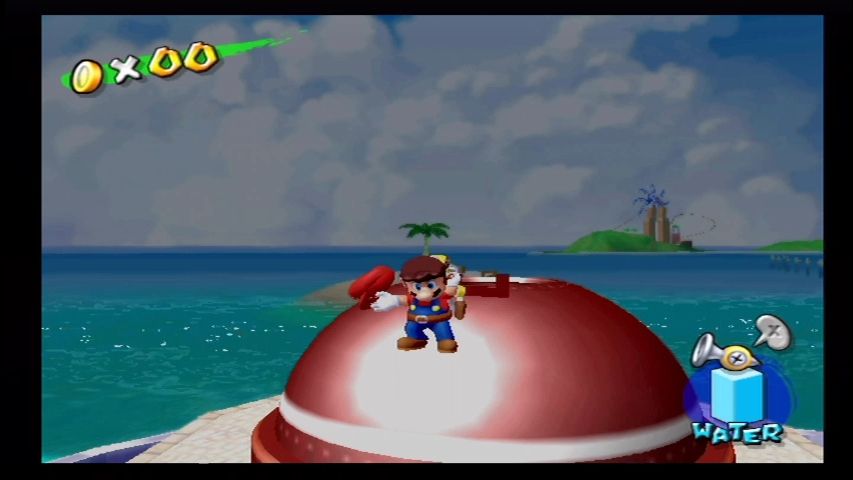
Screenshots
Tutorials & guides
Dolphin setup guide
Setup note: Start with the latest stable release, complete the setup wizard, and test default settings before enabling graphical enhancements.
- Download an official build. Select the current release for Windows, macOS, Linux, or Android.
- Install or extract Dolphin. Keep the application and user-data directory where they can be backed up.
- Add your legal game directory. Point Dolphin to personal disc backups created from software you own.
- Configure controllers. Choose GameCube or Wii controller types and map your input device.
- Test default graphics first. Confirm video, audio, input, and saving before raising resolution.
- Add enhancements gradually. Change one graphics, latency, texture, or widescreen option at a time.
ROM reminder: Dolphin does not include commercial games or Nintendo system files. Retro Replay links to emulator software and documentation, not copyrighted game collections.
Android availability
Use Dolphin on Android
An Android ARM64 Libretro build exists for Dolphin. Run the core through RetroArch for Android; the standalone desktop download and Android core may have different menus and features.
Emulates: GameCube, Wii.
Verified Android core build ↗ · Browse all Android emulators →
Android availability: install this emulator as a RetroArch core through RetroArch’s Core Downloader. This listing includes the core version.
READMEs & documentation
Dolphin official README
# Dolphin - A GameCube and Wii Emulator

[Homepage](https://dolphin-emu.org/) | [Project Site](https://github.com/dolphin-emu/dolphin) | [Buildbot](https://dolphin.ci/) | [Forums](https://forums.dolphin-emu.org/) | [Wiki](https://wiki.dolphin-emu.org/) | [GitHub Wiki](https://github.com/dolphin-emu/dolphin/wiki) | [Issue Tracker](https://bugs.dolphin-emu.org/projects/emulator/issues) | [Coding Style](https://github.com/dolphin-emu/dolphin/blob/master/Contributing.md) | [Transifex Page](https://app.transifex.com/dolphinemu/dolphin-emu/dashboard/) | [Analytics](https://mon.dolphin-emu.org/)

Dolphin is an emulator for running GameCube and Wii games on Windows,
Linux, macOS, and recent Android devices. It's licensed under the terms
of the GNU General Public License, version 2 or later (GPLv2+).

Please read the [FAQ](https://dolphin-emu.org/docs/faq/) before using Dolphin.

## System Requirements

### Desktop

* OS
    * Windows (10 1903 or higher).
    * Linux.
    * macOS (11.0 Big Sur or higher).
    * Unix-like systems other than Linux are not officially supported but might work.
* Processor
    * A CPU with SSE2 support.
    * A modern CPU (3 GHz and Dual Core, not older than 2008) is highly recommended.
* Graphics
    * A reasonably modern graphics card (Direct3D 11.1 / OpenGL 3.3).
    * A graphics card that supports Direct3D 11.1 / OpenGL 4.4 is recommended.

### Android

* OS
    * Android (7.0 Nougat or higher).
* Processor
    * A processor with support for 64-bit applications (either ARMv8 or x86-64).
* Graphics
    * A graphics processor that supports OpenGL ES 3.0 or higher. Performance varies heavily with [driver quality](https://dolphin-emu.org/blog/2013/09/26/dolphin-emulator-and-opengl-drivers-hall-fameshame/).
    * A graphics processor that supports standard desktop OpenGL features is recommended for best performance.

Dolphin can only be installed on devices that satisfy the above requirements. Attempting to install on an unsupported device will fail and display an error message.

## Building

You may find building instructions on the appropriate wiki page for your operating system:

* [Windows](https://github.com/dolphin-emu/dolphin/wiki/Building-for-Windows)
* [Linux](https://github.com/dolphin-emu/dolphin/wiki/Building-for-Linux)
* [macOS](https://github.com/dolphin-emu/dolphin/wiki/Building-for-macOS)
* [Android](#android-specific-instructions) <!-- TODO: Create a "Building for Android" wiki page and link it here -->
* [OpenBSD](https://github.com/dolphin-emu/dolphin/wiki/Building-for-OpenBSD) (unsupported)

Before building, make sure to pull all submodules:

```sh
git submodule update --init --recursive
```

### Android-specific instructions

These instructions assume familiarity with Android development. If you do not have an
Android dev environment set up, see [AndroidSetup.md](AndroidSetup.md).

If using Android Studio, import the Gradle project located in `./Source/Android`.

Android apps are compiled using a build system called Gradle. Dolphin's native component,
however, is compiled using CMake. The Gradle script will attempt to run a CMake build
automatically while building the Java code.

## Uninstalling

On Windows, simply remove the extracted directory, unless it was installed with the NSIS installer,
in which case you can uninstall Dolphin like any other Windows application.

Linux users can run `cat install_manifest.txt | xargs -d '\n' rm` as root from the build directory
to uninstall Dolphin from their system.

macOS users can simply delete Dolphin.app to uninstall it.

Additionally, you'll want to remove the global user directory if you don't plan on reinstalling Dolphin.

## Command Line Usage

```
Usage: Dolphin.exe [options]... [FILE]...

Options:
  --version             show program's version number and exit
  -h, --help            show this help message and exit
  -u USER, --user=USER  User folder path
  -m MOVIE, --movie=MOVIE
                        Play a movie file
  -e <file>, --exec=<file>
                        Load the specified file
  -n <16-character ASCII title ID>, --nand_title=<16-character ASCII title ID>
                        Launch a NAND title
  -C <System>.<Section>.<Key>=<Value>, --config=<System>.<Section>.<Key>=<Value>
                        Set a configuration option
  -s <file>, --save_state=<file>
                        Load the initial save state
  -d, --debugger        Show the debugger pane and additional View menu options
  -l, --logger          Open the logger
  -b, --batch           Run Dolphin without the user interface (Requires
                        --exec or --nand-title)
  -c, --confirm         Set Confirm on Stop
  -v VIDEO_BACKEND, --video_backend=VIDEO_BACKEND
                        Specify a video backend
  -a AUDIO_EMULATION, --audio_emulation=AUDIO_EMULATION
                        Choose audio emulation from [HLE|LLE]
```

Available DSP emulation engines are HLE (High Level Emulation) and
LLE (Low Level Emulation). HLE is faster but less accurate whereas
LLE is slower but close to perfect. Note that LLE has two submodes (Interpreter and Recompiler)
but they cannot be selected from the command line.

Available video backends are "D3D" and "D3D12" (they are only available on Windows), "OGL", and "Vulkan".
There's also "Null", which will not render anything, and
"Software Renderer", which uses the CPU for rendering and
is intended for debugging purposes only.

## DolphinTool Usage
```
usage: dolphin-tool COMMAND -h

commands supported: [convert, verify, header, extract]
```

```
Usage: convert [options]... [FILE]...

Options:
  -h, --help            show this help message and exit
  -u USER, --user=USER  User folder path, required for temporary processing
                        files. Will be automatically created if this option is
                        not set.
  -i FILE, --input=FILE
                        Path to disc image FILE.
  -o FILE, --output=FILE
                        Path to the destination FILE.
  -f rvz|iso|gcz|wia, --format=rvz|iso|gcz|wia
                        Container format to use. Default is RVZ.
  -s, --scrub           Scrub junk data as part of conversion.
  -b BLOCK_SIZE, --block_size=BLOCK_SIZE
                        Block size for GCZ/WIA/RVZ formats, as an integer.
                        Suggested value for RVZ: 131072 (128 KiB)
  -c none|zstd|bzip2|lzma|lzma2, --compression=none|zstd|bzip2|lzma|lzma2
                        Compression method to use when converting to WIA/RVZ.
                        Suggested value for RVZ: zstd
  -l COMPRESSION_LEVEL, --compression_level=COMPRESSION_LEVEL
                        Level of compression for the selected method. Ignored
                        if 'none'. Suggested value for zstd: 5
```

```
Usage: verify [options]...

Options:
  -h, --help            show this help message and exit
  -u USER, --user=USER  User folder path, required for temporary processing
                        files. Will be automatically created if this option is
                        not set.
  -i FILE, --input=FILE
                        Path to input file.
  -a crc32|md5|sha1|rchash, --algorithm=crc32|md5|sha1|rchash
                        Optional. Compute and print the digest using the
                        selected algorithm, then exit.
```

```
Usage: header [options]...

Options:
  -h, --help            show this help message and exit
  -i FILE, --input=FILE
                        Path to disc image FILE.
  -b, --block_size      Optional. Print the block size of GCZ/WIA/RVZ formats,
then exit.
  -c, --compression     Optional. Print the compression method of GCZ/WIA/RVZ
                        formats, then exit.
  -l, --compression_level
                        Optional. Print the level of compression for WIA/RVZ
                        formats, then exit.
```

```
Usage: extract [options]...

Options:
  -h, --help            show this help message and exit
  -i FILE, --input=FILE
                        Path to disc image FILE.
  -o FOLDER, --output=FOLDER
                        Path to the destination FOLDER.
  -p PARTITION, --partition=PARTITION
                        Which specific partition you want to extract.
  -s SINGLE, --single=SINGLE
                        Which specific file/directory you want to extract.
  -l, --list            List all files in volume/partition. Will print the
                        directory/file specified with --single if defined.
  -q, --quiet           Mute all messages except for errors.
  -g, --gameonly        Only extracts the DATA partition.
```
Download original READMERelease log
Selected releases and changes, with coverage from our weekly emulation roundup.
- 2026-10-08 · 2609a (Release)
Hotfixes the 2609 release with an Android settings-crash correction and stronger NetPlay input validation, alongside lower-level stability fixes.
Official release Weekly emulation roundup
Sources & further reading
FROM THE COMMUNITY
Player reviews
Starting site scores are provisional editorial scores. Established mainstream projects receive a higher starting score; other imported entries begin at a neutral 6/10 pending individual review. Member scores change the average after approval.
Your take on Dolphin
Spam has been overwhelming. To help us approve your review, sign up and introduce yourself in the Introductions forum so we know you’re not a bot.
Sign in with your Retro Replay account to rate this project and share your experience.
Sign in to review