 Retro Replay Retro Gaming History, Reviews & Emulation
EMULATOR DATABASE
NitroGrafx
NitroGrafx runs PC Engine and TurboGrafx-16 games on Nintendo DS-family hardware. It also supports some CD-ROM², Super CD-ROM², and Arcade Card software, with documented compatibility limitations and no SuperGrafx emulation.
Download Tutorials & guidesSign in to download. Files are hosted by the emulator project.
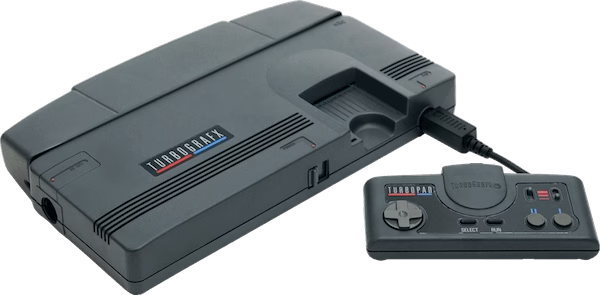
About NitroGrafx
NitroGrafx runs PC Engine and TurboGrafx-16 games on Nintendo DS-family hardware. It also supports some CD-ROM², Super CD-ROM², and Arcade Card software, with documented compatibility limitations and no SuperGrafx emulation.
Supported systems and capabilities
- HuCard loading and partial CD-ROM², Super CD-ROM², and Arcade Card support.
- Save states, controller options, and display settings.
- No SuperGrafx emulation; compatibility varies by game.
The people behind NitroGrafx / history
Fredrik Ahlström, known as FluBBa, developed NitroGrafx for Nintendo DS-family hardware. The project credits Zeograd for debugging help and Charles MacDonald and David Shadoff for PC Engine information. Its documentation records the practical work of fitting HuCard and some CD-system emulation into a handheld homebrew application, including flashcard handling, controller options, display scaling, and save settings. SuperGrafx emulation is explicitly outside its documented scope.
Screenshots

Tutorials & guides
NitroGrafx setup guide
- Obtain NitroGrafx from its official project release page.
- Create a NitroGrafx folder in the root or data directory of the flashcard for settings and saves.
- Put your PC Engine game files in a separate folder. The README specifies at most 768 files per folder and filenames no longer than 127 characters.
- Apply DLDI patching if required by your flashcard. Start the emulator and open the menu with L+R or the touchscreen.
- For CD games, select your own CD system BIOS in Options > Machine > Select Bios. Consult the accompanying CDROM_readme.txt for supported disc-image details.
READMEs & documentation
NitroGrafx official project README
# NitroGrafx V0.9.2

<img align="right" width="220" src="./logo.png" alt="The PC-Engine logo" />

PC-Engine/TurboGrafx-16 emulator for NDS

This is a PC-Engine/TurboGrafx-16 emulator for the Nintendo DS(i)/3DS, it can
also emulate some of the (Super) CD-ROM^2 & Arcade Card. It does not emulate
the SuperGrafx. All games are not perfect. Don't use overdumps as these are
evil on PC-Engine.

## How to use

1. Create a folder named "NitroGrafx" in either the root of your flash card or
 in the data directory (eg h:\NitroGrafx or h:\data\NitroGrafx). This is where
 settings and save files end up.
2. Now put your games into a folder where you have (PC-Engine) roms, max 768
 games per folder, filenames must not be longer than 127 chars. You can use
 zipped files (as long as they use the deflate compression).
3. Depending on your flashcart you might have to DLDI patch the emulator.

The GUI is accessed by pressing L+R (shoulder buttons, L+Select with 6-button
pad) or by touching the screen, tabs are changed by pressing the L or R
button, going to the left most tab exits the GUI. Closing your DS puts the
emulator in sleep mode, just open it to resume.

When you first run the emulator I suggest you take a peak through the options
and change the settings to your liking and then save them. To be able to use
CD-ROM games you have to select a CD-ROM System rom (bios) from
Options-Machine-SelectBios. You can use .iso files or .bin/.cue files see
CDROM_readme.txt for more info.

Now load up a game and you should be good to go.

## Menu

### File

* Load Hucard:
* Load CDROM:
* Load State: Load state for current game.
* Save State: Save state for current game.
* Save Settings: Saves settings and current path.
* Eject Game:
* Power On/Off:
* Reset Game:
* Quit Emulator: (If supported.)

### Options

* Controller:
  * MultiTap: Select if MultiTap is connected.
  * Controller: Select which player is controlled (if MultiTap).
  * Joypad: Select which kind of controller is connected (3 or 6 Button).
    * 3 Button alt switches around the buttons so II & I is mapped to Y & B.
    * 6 Button alt switches around the buttons so I & VI is mapped to L & R.
  * Button III: You can choose if Select or Run is mapped to NDS Y/X.
  * II Autofire: Select if you want autofire on button II.
  * I Autofire: Select if you want autofire on button I.
  * Swap I-II: Swap which NDS button is mapped to which PCE button.
  * Use R as FastForward: Select turbo speed as long as R button is held.
* Display:
  * Display: Here you can select if you want scaled or unscaled screenmode.
  * Scaling: Here you can select if you want flicker or barebones lineskip.
  * Output: Select between Composite or RGB (affects colors).
  * Gamma: Lets you change the gamma ("brightness").
  * Color: Lets you change the color saturation.
* Machine:
  * Region: Change the region between US & JP, US should work for most games.
  * Machine: Here you can select the hardware, Auto should work for most games.
  * Select Bios: Browse for CD bios.
  * Fake spritecollision: Not used yet.
* Settings:
  * Speed: Switch between speed modes.
    * Normal: Game runs at it's normal speed.
    * 200%: Game can run up to double speed.
    * Max: Game can run up to 4 times normal speed.
    * 50%: Game runs at half speed.
  * Autoload State: Toggle Savestate autoloading. Automagicaly load the
    savestate associated with the selected game.
  * Autosave NVRAM: Saves BRAM if it's changed when entering GUI.
  * Autosave Settings: Saves changed settings every time you leave GUI.
  * Autopause Game: Pause game when opening GUI.
  * Powersave 2nd Screen: If graphics/light should be turned off for the GUI
    screen when menu is not active.
  * Emulator on Bottom: Select if top or bottom screen should be used for
    emulator, when menu is active emulator screen is allways on top.
* Debug:
  * Debug Output: Show FPS and logged text.
  * Disable Background: Turn on/off background rendering.
  * Disable Sprites: Turn on/off sprite rendering.
  * Step Frame: Emulate one frame.


### About

Some dumb info about the emulator...

## Controls

* NDS d-pad is mapped to PCE d-pad.
* NDS B & A buttons are mapped to PCE II & I.
* NDS Y button is mapped to PCE III.
* NDS Start is mapped to PCE Run.
* NDS Select is mapped to PCE Select.

In alt mode:

* NDS Y & B buttons are mapped to PCE II & I.
* NDS X button is mapped to PCE III.

### 6 button

* NDS L & R are mapped to PCE III & IV
* NDS Y & X are mapped to PCE V & VI

In alt mode:

* NDS B & A buttons are mapped to PCE III & II.
* NDS Y & X are mapped to PCE IV & V
* NDS L & R are mapped to PCE VI & I

## Games

* Chikudenya Toubee, hangs at start.
* Fighting Run, too many bitplanes.

## Credits

```text
Thanks to:
Zeograd for a lot of help with the debugging.
Charles MacDonald (http://cgfm2.emuviews.com).
David Shadoff for a lot of the info on the PC-Engine.
```

```text
Uses:
puff.c & crc32.c from ZLIB.
CUEParser from Rabbit Hole Computing.
```

Fredrik Ahlström

<https://bsky.app/profile/therealflubba.bsky.social>

<https://www.github.com/FluBBaOfWard>

X/Twitter @TheRealFluBBa
Download original READMERelease log
Selected releases and changes, with coverage from our weekly emulation roundup.
Sources & further reading
FROM THE COMMUNITY
Player reviews
Starting site scores are provisional editorial scores. Established mainstream projects receive a higher starting score; other imported entries begin at a neutral 6/10 pending individual review. Member scores change the average after approval.
Your take on NitroGrafx
Spam has been overwhelming. To help us approve your review, sign up and introduce yourself in the Introductions forum so we know you’re not a bot.
Sign in with your Retro Replay account to rate this project and share your experience.
Sign in to review