 Retro Replay Retro Gaming History, Reviews & Emulation
ATARI 8-BIT EMULATOR
Altirra
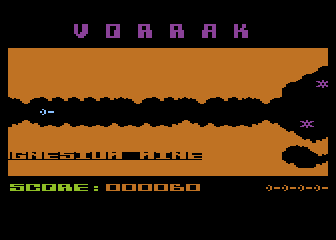
Altirra is a cycle-accurate Atari 8-bit computer emulator (and Atari 5200-compatible support) developed and maintained by Avery Lee. It runs on Windows and is widely used for debugging, development, and playing Atari 8-bit and 5200 software from disk/cartridge/tape images.
WHY IT MATTERS
Why use Altirra?
Altirra is known for highly accurate, cycle-level emulation of Atari 8-bit hardware, extensive debugging and tracing tools, and numerous user-facing features (disk/image management, cassette and cartridge support, hardware reference documentation and an included BASIC ROM image). It is the reference emulator for many developers and hobbyists working with Atari 400/800/XL/XE and 5200 software. (Official site and author documentation downloadable from the project page.)
BEST FOR
Best for
Atari 8-bit software development, debugging, preservation work, accurate gameplay of Atari 8-bit and many Atari 5200 titles, and users who need a Windows-native emulator with deep configuration and diagnostic tools.
The people behind Altirra
History and status
Altirra was created and is maintained by Avery Lee and published from the Altirra/VirtualDub site; the project includes a detailed hardware reference manual and an Altirra BASIC manual maintained alongside the emulator. The project has seen many releases and ongoing maintenance and also inspired unofficial ports and forks (for example an SDL-based portable fork). The official builds and documentation are hosted on the VirtualDub/Altirra pages, which are the authoritative source for releases and manuals. Community discussion and forks are visible on GitHub and Atari community forums. The official distribution remains the primary, recommended build; unofficial SDL forks exist for other platforms but are separate projects.
What Altirra supports
- Atari 400/800
- Atari 1200XL
- Atari 600/800XL
- Atari 130XE
- Atari XEGS
- Atari 5200 (through Atari 8-bit compatibility layer / selectable system mode)
Download and availability
OFFICIAL DOWNLOADS
Get Altirra
Official downloads, changelogs, and manuals are available from the Altirra project page hosted on the VirtualDub site. Unofficial builds or ports (for other platforms) appear on GitHub and community pages but are not the official distribution.
Get Altirra ↗DOCUMENTATION
Official documentation
Read the official configuration, compatibility, and troubleshooting material before changing advanced options.
Read official documentation ↗Altirra setup guide
Setup note: Practical Windows setup and usage notes — focused on the official Altirra builds and the emulator's typical workflow. This guide assumes you will obtain your own legally-owned game images, OS ROMs, or cartridge images where required, and that you will not expect any commercial ROMs or firmware to be bundled with Altirra.
- 1) Get the official Altirra build and documentation: Download the official Altirra ZIP or installer from the Altirra project page on the VirtualDub site and save the Altirra executable and accompanying files to a folder on your Windows PC. Also download the Altirra Hardware Reference Manual and the Altirra BASIC Reference Manual from the same site for configuration and reference.
- 2) Prepare disk/cartridge/tape images: Altirra supports common Atari 8-bit image formats (ATR, ATX, XFD, DCM), ROM and cartridge images, and cassette/tape images. Place your legally obtained images in folders and keep images you frequently use in a single directory. Do not expect Altirra to include commercial ROMs or BIOS images; provide any required ROMs yourself.
- 3) Configure the emulator for the target system: Start Altirra, then use the System menu to select the target machine model (e.g., Atari 800, 800XL, 130XE). To emulate a 5200, set the Atari System / Machine options (Altirra exposes an Atari System/Platform option) to the 5200 or the 5200-compatible mode; consult the emulator GUI options and the Altirra documentation for the exact switch. Configure memory size, video and sound devices, and any optional hardware (expansion cartridges, XVG/GTIA/VBXE if available) in the machine configuration dialogs.
- 4) Attach images to drives and cartridges: Use the Drive or Devices menus to mount ATR/ATX disk images to virtual disk drives, mount cartridge ROMs to cartridge slots, and attach cassette images to the tape device. Altirra's UI supports drag-and-drop of many image types directly onto its window or drive panes for quick mounting.
- 5) Input and controller setup: Open the Input/Controllers options to map keyboard, joystick, or gamepad devices. Altirra supports toggling between keyboard input and various joystick types; for 5200 joypad support, choose the appropriate controller mapping and configure deadzones/axes as needed. If using USB gamepads, use Windows device mapping in Altirra's input dialog.
- 6) Save states, snapshots, and disk image persistence: Use Altirra's save-state feature to capture emulator state; keep in mind save states are emulator-specific and not compatible with real hardware. For persistent changes to disk images (saving files within the emulated OS), ensure disk images are writable or use Altirra's image writing facilities.
- 7) Debugging, tracing, and developer tools: Altirra exposes an extensive debugger: CPU tracing, memory inspection, I/O logging, cycle-accurate timing tools, and breakpoints. Use the debugger windows for development and hardware behaviour analysis. Consult the Altirra Hardware Reference Manual for guidance on using the debugger and interpreting hardware-level timing data.
- 8) Performance and platform notes: Official Altirra builds are Windows-native and offer high performance on modern Windows PCs. Unofficial SDL ports attempt to provide portability; if you need Linux or Raspberry Pi support, look to community forks (they are not official). Running at full cycle-accurate emulation can be CPU-intensive; Altirra provides speed controls and profiling options.
Software reminder: Altirra does not bundle commercial games, firmware, or proprietary BIOS images. Obtain any copyrighted ROMs, BIOS, or cartridge images legally and follow local laws. For platform portability, unofficial forks exist but are separate from the official Windows builds.
Sources and further reading
- Altirra project page (official) – VirtualDub (downloads, changelog, manuals)
- Altirra extended changelog / releases – VirtualDub
- Altirra Hardware Reference Manual (author: Avery Lee) — PDF mirrored on project pages
- Altirra BASIC Reference Manual — VirtualDub downloads
- AltirraSDL (unofficial portable fork) — GitHub
- Featured-image source and credit
Detailed guides and tutorials
Explore step-by-step guides for Altirra as they are published.