 Retro Replay Retro Gaming History, Reviews & Emulation
3DO EMULATOR CORE
Opera
An actively maintained libretro core descended from 4DO and FreeDO, focused on practical 3DO emulation through RetroArch and other compatible frontends.
WHY IT MATTERS
The practical modern 3DO core
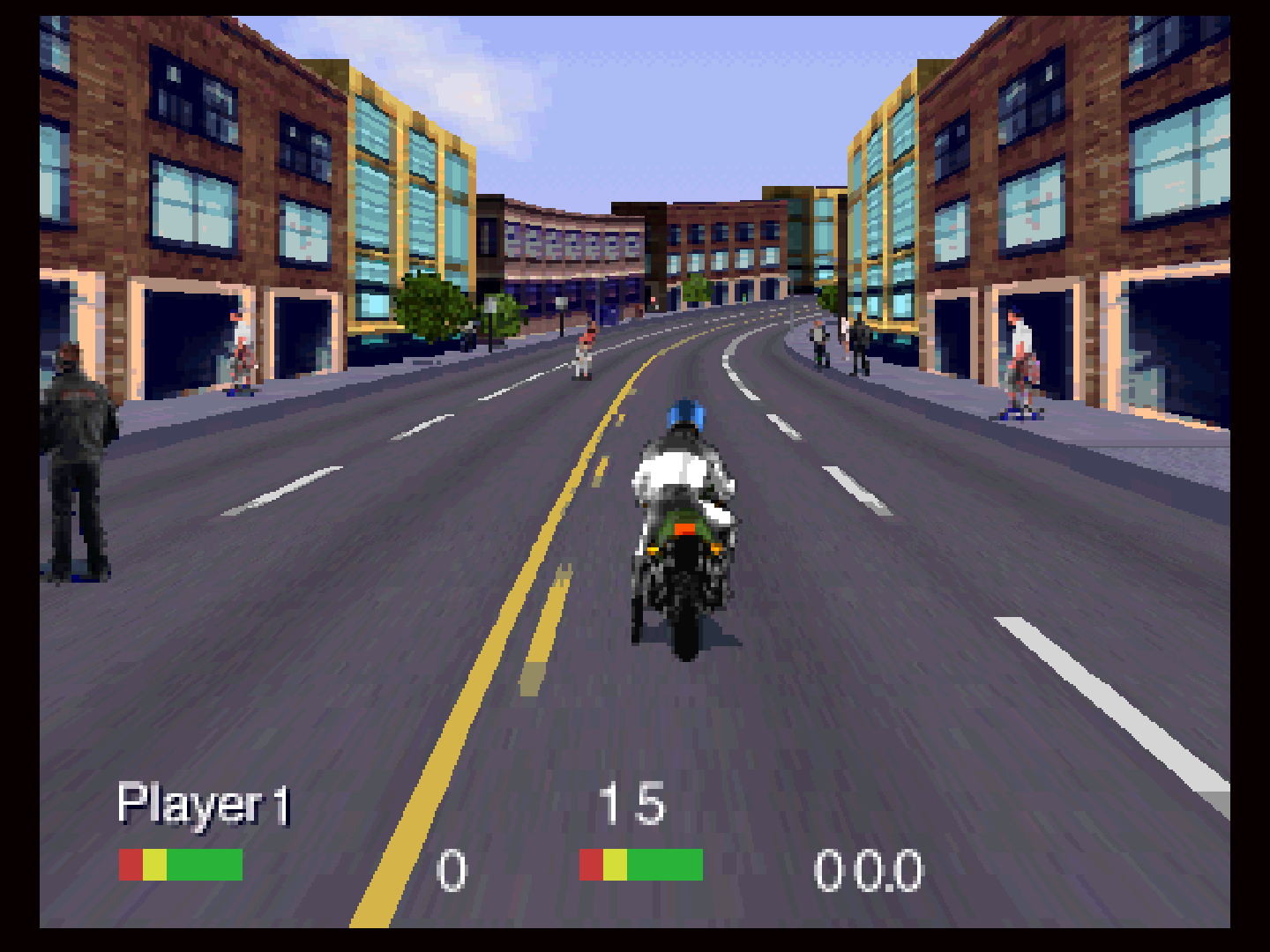
Opera carries the FreeDO and 4DO lineage into the libretro ecosystem, combining broad frontend availability with save states, rewind, controller remapping, per-game NVRAM, and targeted compatibility options.
BEST FOR
RetroArch users building a 3DO library
Choose Opera when you want 3DO games in the same interface as other systems and are comfortable supplying a legally dumped BIOS, checking disc-image structure, and changing core options for exceptional titles.

The people behind Opera
Built on several generations of 3DO research
The official documentation credits trapexit, JohnnyDude, and the FreeDO team. Opera began as a libretro port in the 4DO family and adopted a new name and development focus after the earlier project became dormant.
What Opera supports
- 3DO disc images in ISO, BIN, CHD, and CUE formats.
- Save states, rewind, netplay, controller remapping, and per-game or shared NVRAM.
- An optional high-resolution framebuffer mode and CPU overclock settings.
- Game-specific timing and graphics workarounds documented as core options.
Download and availability
OFFICIAL FRONTEND
Install through RetroArch
Install RetroArch for your platform, open the Online Updater, select Core Downloader, and choose the 3DO Opera core.
Open RetroArch downloads ↗DOCUMENTATION
Opera core reference
Review the required BIOS names, accepted image formats, controls, and compatibility options before building your library.
Read the official Opera guide ↗Opera setup guide
Before you begin: Opera does not include commercial games or copyrighted system firmware. Dump the BIOS and discs from hardware and software you own.
- Install a current RetroArch build, open Online Updater, then download the 3DO Opera core.
- Dump a supported 3DO BIOS from your own console and place it in RetroArch’s system directory. Match its filename and checksum against the official Opera documentation.
- Dump each disc as a complete BIN/CUE, ISO, or CHD set. Keep multi-file BIN/CUE images together and launch the CUE file.
- Load the Opera core, choose Load Content, and open the disc image. Confirm normal boot and controls before enabling enhancements.
- Leave CPU overclocking at 1.0x initially. Enable high resolution only after the game is stable, since enhancements can expose title-specific issues.
- If input stops responding, reduce the Active Devices core option to one controller. Use documented timing hacks only for the named games that require them.
- Choose per-game NVRAM if you want isolated saves, then back up the frontend’s save directory before major core upgrades.
Software reminder: Use BIOS and disc images created from your own 3DO hardware and games.
Sources and further reading
Detailed guides and tutorials
Explore step-by-step guides for Opera as they are published.