 Retro Replay Retro Gaming History, Reviews & Emulation
SEGA DREAMCAST EMULATOR
redream
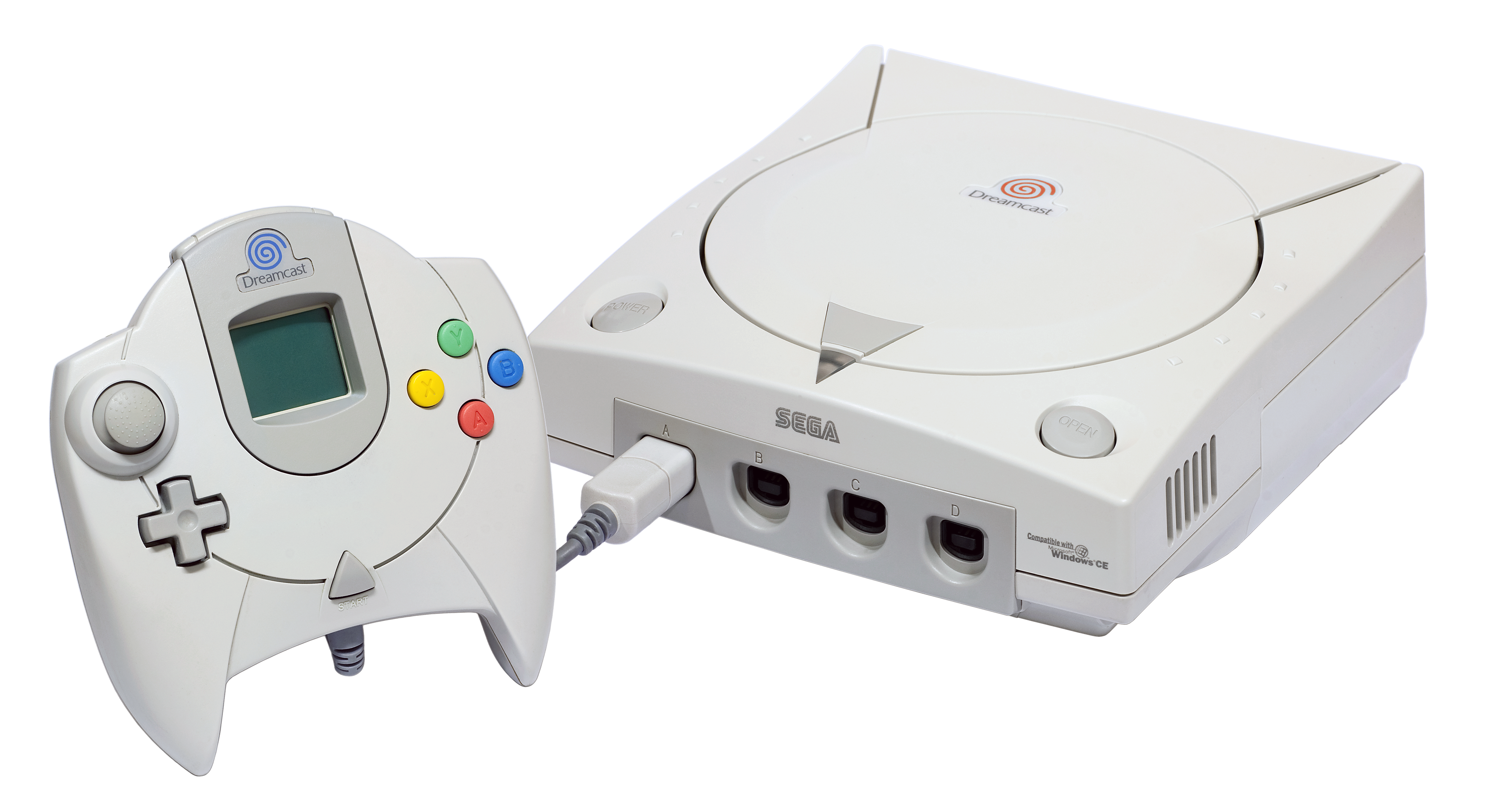
redream is a actively-maintained Dreamcast emulator distributed from redream.io. Official desktop and ARM builds are provided for Windows, macOS, Linux and Raspberry Pi; an Android app is available. The project is distributed from its website (redream.io) and provides a help/FAQ and compatibility pages. Redream is free to use on supported platforms; it expects users to supply any Dreamcast BIOS or commercial game images themselves and does not bundle copyrighted firmware or games.
WHY IT MATTERS
Why use redream?
redream focuses on providing an easy-to-use Dreamcast experience across desktop and ARM devices with high-definition rendering, a compatibility database on the official site, and ready-built downloads for mainstream platforms. It provides a graphical front end and per-platform binaries so you can run Dreamcast images without compiling.
BEST FOR
What redream does best
Cross-platform convenience: polished, official binaries for Windows, macOS, Linux, Raspberry Pi and Android; straightforward UI and configuration; an on-site compatibility list that shows per-game status and notes. Builds are provided from the official site which also hosts documentation and a compatibility database.
The people behind redream
Project history and status
redream began as a Dreamcast emulation project associated with the developer known as inolen (there is a historical GitHub presence). Today the official distribution, documentation and downloads are provided from redream.io. The emulator is actively distributed and the website shows downloads, help documentation and a compatibility page. Historically there have been discussions in the retro-emulation community about open-source vs closed-source distribution and a libretro core existed; the official site is the canonical distribution point for current builds and documentation.
What redream supports
- Sega Dreamcast (emulation target)
- Windows (official desktop builds)
- macOS (official desktop builds)
- Linux (official desktop builds)
- Raspberry Pi 4 / ARM (official Raspberry builds)
- Android (official app on Google Play)
Download and availability
OFFICIAL DOWNLOADS
Get redream
Official downloads and platform-specific packages are provided from the project's website. The website lists desktop builds for Windows/macOS/Linux, Raspberry Pi/ARM builds, and an Android package. Use the download page on redream.io to choose the correct build for your OS and architecture. The project states it is free to use on supported platforms; it does not include Dreamcast BIOS or commercial game images.
Get redream ↗DOCUMENTATION
Official documentation
Read the official configuration, compatibility, and troubleshooting material before changing advanced options.
Read official documentation ↗redream setup guide
Setup note: This setup guide shows how to get redream running from the official site, configure it for your platform, and what files redream expects. It is written from the official documentation and platform pages; follow the platform-specific download on redream.io and do not download BIOS or commercial game files from unauthorized sources.
- 1) Choose and download the correct build: Open the official download page on redream.io/download and select the package that matches your operating system and CPU architecture (Windows .exe/.zip, macOS app, Linux tarball/pack, Raspberry Pi/ARM tarball, or Android APK/Play Store). Do not use unofficial forks unless you understand the provenance.
- 2) Verify and extract/install: On desktop Linux/macOS extract the downloaded archive into a folder you control. On Windows run the installer or unzip to a folder. On Raspberry Pi extract the ARM build into a dedicated folder. On Android install the Play Store package or sideload the APK if necessary. Keep the program folder accessible for configuration and logs.
- 3) Provide Dreamcast BIOS and game images: redream can operate without a user-supplied BIOS for many homebrew cases, but for commercial games you must supply your own Dreamcast firmware if required by the game. The project's help pages and platform notes reference naming/location examples (for Android the file name boot.bin is used in the app data folder). Do not expect any copyrighted BIOS or commercial games to be bundled with the emulator; acquire them legally from your own hardware.
- 4) Android-specific BIOS path example: The official help documentation shows an Android example path and filename convention: name the original BIOS boot.bin and place it in the app's files directory on external storage (for a typical Android app data location the help page shows an example path under Android/data/io.recompiled.redream/files/boot.bin). Use the help page on redream.io/help for exact, current platform-specific instructions.
- 5) Configure rendering, controllers and storage: Launch redream and open the settings. Configure render resolution and fullscreen/windowed modes. Attach and map controllers using the emulator's input dialog; use a modern USB/XInput controller or map keyboard controls. Configure save file locations and ensure the emulator can write to those directories (on Linux/macOS use a per-user configuration directory).
- 6) Optional license/key behaviour on some distributions: Some distributions or frontends (for example third-party Linux/retrogaming images) check for a personal redream.key file to enable higher-resolution rendering or unlocked features; Batocera documentation and community packaging mention a redream.key check in config directories. The official download page states redream is free to use on supported platforms; consult the official site and any third-party frontend documentation for exact behavior if you encounter an unlock prompt.
- 7) Running games: From the emulator UI open an image (gdi/cue/bin or supported Dreamcast disk image) or point the emulator to a directory of game images. Use the compatibility page on the official site to check notes for the specific game if a game fails to boot or shows warnings (the site maintains per-game playability notes).
- 8) Troubleshooting and platform-specific notes: If a game reports Windows CE support issues or other per-game subsystem messages, consult the compatibility/FAQ entries on the official help pages. On some Linux distributions and Steam Deck/SteamOS, community reports advise running the Linux build under Steam Linux Runtime or a similar compatibility/runtime environment to avoid missing dependencies. Raspberry Pi performance may vary by model (Raspberry Pi 4 is listed as supported on the official download page).
Software reminder: redream does not include commercial Dreamcast games or copyrighted BIOS/firmware. Acquire any BIOS and game images from your own legally-owned Dreamcast hardware. Follow platform rules for installing apps (Play Store, macOS Gatekeeper, Linux package handling).
Sources and further reading
- Official redream website (home)
- Official redream download page
- Official redream help / documentation
- redream compatibility list (official site)
- Batocera documentation referencing redream and redream.key behavior
- Libretro documentation page for a redream core (historical/libretro context)
- Featured-image source and license
Detailed guides and tutorials
Explore step-by-step guides for redream as they are published.
Use redream on Android
redream has an official Android app. Use the project’s own download page for the current build and setup instructions.
Emulates: Dreamcast.
Official Android project page ↗ · Browse all Android emulators →