 Retro Replay Retro Gaming History, Reviews & Emulation
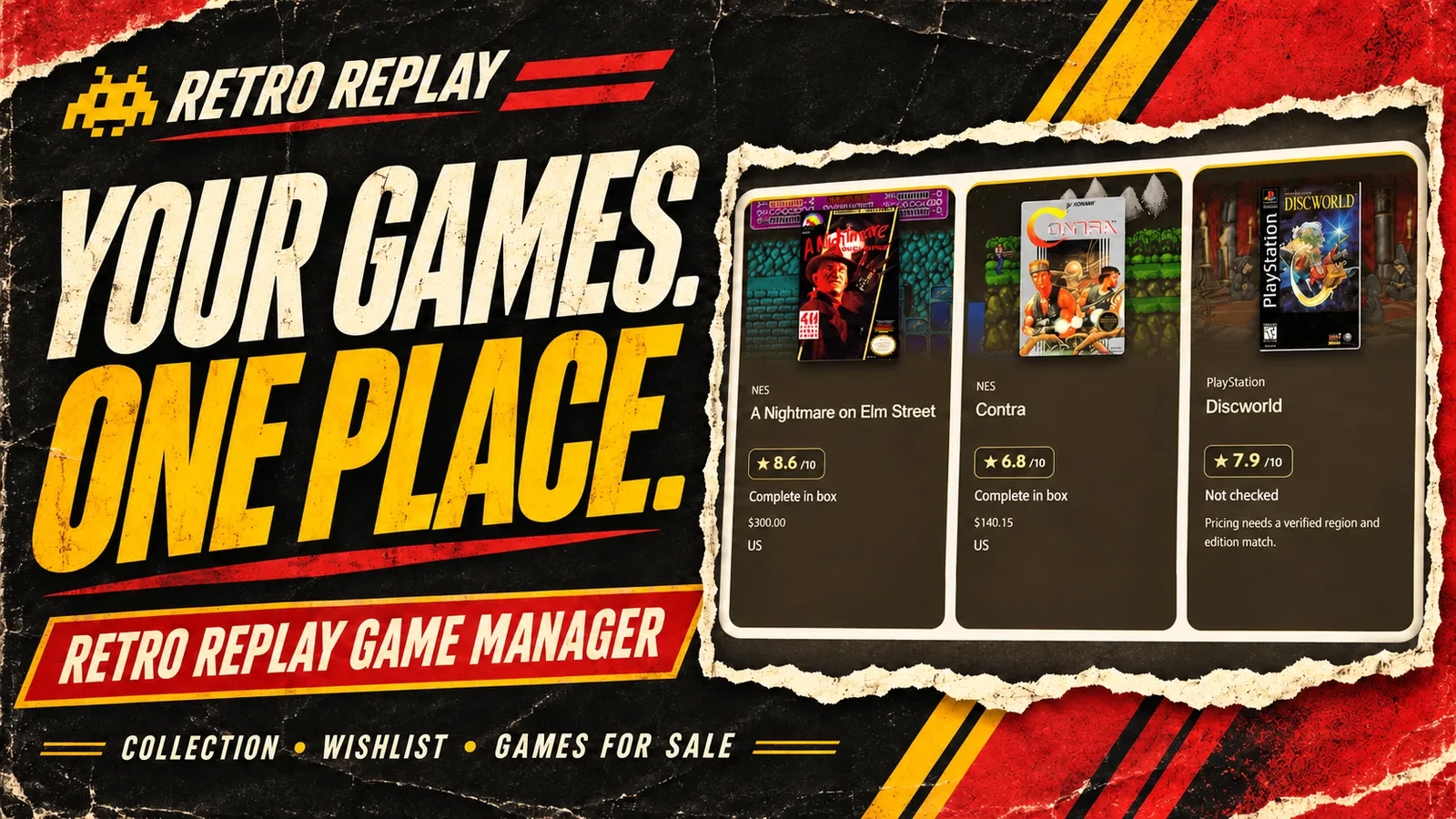
You spot a cartridge at a game store and stop for a second. Do you already own it? Was it the NES copy you wanted, or the SNES version? And which game did you promise yourself you would look for next? The Retro Replay Game Manager gives those questions a home, with your collection, wishlist, and games for sale together in one place.
This is our new collection helper, built around the Retro Replay game database. Choose a system, find a title, and save your copy. You can enjoy the cover art in card view, switch to a compact table when the shelves start filling up, and decide which lists other members can see. Adding and removing games takes only a few quick steps.
1. Choose a system and start typing
Open Game Manager and sign in to your Retro Replay account. Under Add a game, choose the system first. We are adding a loose NES copy of Mario Is Missing!, so select NES.
Click Game title and type at least two letters. You do not need the whole title. Matching games appear for the system you selected, which helps you pick the right version when a game was released on several platforms.

2. Pick your game and save your copy
The search example below uses mega man, bringing up the six numbered NES games. For our walkthrough, type mario and select Mario Is Missing! instead. The search shows up to 20 matches, so add more of the title if you need to narrow it down.

In the game details, choose My Collection and set the condition to Loose for this cartridge. Choose the matching region and enter any other details you want to keep. Then click Save game.
Scroll down to your saved list and you will find Mario Is Missing! there. If your collection already fills several pages, use Find in this list to bring it up quickly. That is the basic routine for the next game, too: system, title, copy details, save.
3. Keep three useful lists
My Collection is for the games you own. Wishlist keeps track of games you want to find. Games for Sale is for copies you want to sell. Use the tabs to move between them, whether you are checking your shelves or keeping an eye out for your next purchase.
Each list has its own privacy setting. Select a list, choose whether it is private or public under Visibility for this list, and click Save privacy. You can keep your collection private while sharing your wishlist, for example.

Public lists also appear on your personal forum profile and have a shareable page. They show the games, systems, conditions, regions, and editions. Asking prices are visible on a public Games for Sale list. Notes, target prices, purchase prices, and purchase dates stay private.
4. Browse the artwork or get straight to the table
Scroll down and your saved games are waiting below the list controls. Cards is the fun view: big cover art over gameplay backgrounds, with the details of each copy underneath. It is a pleasant way to browse a small collection or admire a few favorites.

When you have a lot of games, click Table. The tighter layout makes a longer list easier to scan. You can switch back to Cards whenever you like, using the same saved entries.


Use Show games by system to focus on one platform, Sort by to change the order, and Find in this list to search the games you have already saved. These controls are especially handy when the collection has grown well beyond one screen.
5. Check your collection estimate
Table view includes a total estimated value for your collection. In the example below, all 11 saved copies have estimates, giving a displayed total of $2,152.72. That is this example collection, rather than a value every member should expect to see.

Pricing uses eBay sold-listing data where available, alongside saved reference estimates. Values depend on the matched game, platform, region, edition, and condition, so a loose cartridge can have a very different estimate from a complete or sealed copy. These are guide prices, not guaranteed sale prices. Games without an estimate are excluded from the total.
6. Keep it up to date in a few clicks
Found the box for a cartridge? Use Edit to update its details. Sold a copy or added the wrong game? Choose Remove and confirm. Adding a game is quick, and keeping the list current should be quick, too. The controls sit with each entry so you can make a change while you are browsing.
Mobile tutorial: your collection on your phone
The phone companion is taking shape. These screenshots show a development preview, with the collection connected to a Retro Replay account. The screens and steps below show the current preview; public access details will follow when it is ready.
1. Open My Games and choose your list
Tap My Games in the bottom navigation. Choose Owned, Wishlist, or Games for Sale. Owned is the mobile name for My Collection on the website. The count beside each tab helps you see what is already saved.
Use Find a game to search and the platform selector to narrow the view. With Saved only checked, you are browsing your saved games. Your entire Owned list estimate appears below the controls. Searching or filtering does not change that entire-list total.

2. Find a game to add
To browse games you have not saved, turn off Saved only. Type Mega man and choose NES. In this example, six games appear. Switching between Cards and Table keeps the same search and platform selection.

In Table view, swipe sideways until you reach Actions. Tap + Add beside the game you want to save. View opens its game details.

3. Choose your copy details and save
For this example, choose Owned, set Copy condition to Loose, and select US only if that matches your copy. You can also record the edition and whether the game media, box or case, and manual are present. Scroll within the form for the remaining fields and the Add game to list button.

After saving, the confirmation offers View Owned, View Wishlist, View Games for Sale, or Keep browsing. Choose View Owned to return to the collection, or keep browsing to add the next game.

4. Enjoy the cards or swipe through the table
Tap Cards for cover art and a closer look at each game. Loose, CIB (complete in box), and sealed estimates appear separately, with your saved condition underneath. Your collection total uses the condition of your saved copy, rather than adding all three estimates together.

Tap Table for compact rows. Swipe sideways inside the table to reach the platform, year, condition estimates, and action columns. The game name stays visible as you move across, so you can compare prices without losing your place. Tap a sortable heading to change the order.

5. Open a game and update your copy
Open the game details with View or View game. An owned game offers Edit Owned, while the other list buttons let you add it to your wishlist or games for sale. Make any copy-detail changes and choose Save copy details. Use Close to return to browsing.

The example collection here is the same $2,152.72 list shown in the website walkthrough. The companion keeps the quiz nearby too, in the bottom navigation. I am continuing to work on the phone experience, and these preview screens give you a look at how it fits together.
For now, open Game Manager, choose a system, and add your first game. Start with the cartridge sitting next to you. A couple of letters, a few details, and it has a place on your list.