 Retro Replay Retro Gaming History, Reviews & Emulation
DOS EMULATOR CORE
DOSBox-Pure
DOSBox-Pure is a libretro core that ports a fork of DOSBox to the Libretro/RetroArch ecosystem, providing a RetroArch-native DOS environment with simplified UI, ZIP/DRIVE content loading, save states and rewind support.
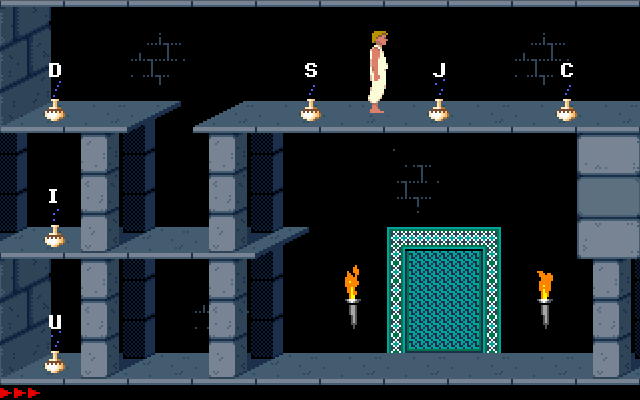
WHY IT MATTERS
Why use DOSBox-Pure?
Designed specifically as a Libretro/RetroArch core, DOSBox-Pure aims to simplify running MS-DOS games inside RetroArch: it exposes a streamlined UI for loading ZIPs and folders, integrates save states and rewind, and is distributed and maintained as a libretro core and related GitHub projects.
BEST FOR
Best for
Users who run RetroArch and want an integrated DOS experience (single-core management, save states, unified input and shaders). Also useful for people who prefer a modern UI for launching DOS content inside RetroArch or using the standalone “Unleashed” builds for desktop platforms.
The people behind DOSBox-Pure
History & status
DOSBox-Pure began as a fork of DOSBox made for Libretro/RetroArch with the explicit goal of simplicity and ease of use. It is hosted on libretro infrastructure and several GitHub repositories; development and pre-release builds have been published through those repositories and libretro channels. In addition to the libretro core, a standalone variant named “DOSBox Pure Unleashed” has been published for traditional desktop platforms. The core and related repositories have recent activity and release entries, indicating it remains maintained as of the latest repository releases and libretro documentation.
What DOSBox-Pure supports
- MS-DOS software (DOS games and applications) when run through the libretro core in RetroArch
- RetroArch-supported platforms where libretro cores run (Windows, Linux, macOS, Android and many RetroArch console ports) — core availability depends on platform builds
- Standalone DOSBox Pure Unleashed builds for desktop platforms where provided (Windows/macOS/Linux) as separate downloads when available from the project releases or maintainers (not bundled with commercial games or BIOS)
- RetroArch features: save states, rewind, libretro input mapping, core options
Download and availability
OFFICIAL DOWNLOADS
Get DOSBox-Pure
Official libretro core references and builds are distributed via the Libretro core list and the project’s source/release pages. For RetroArch users the core can be installed via RetroArch’s Core Downloader when a build is available for the platform. Standalone builds (DOSBox Pure Unleashed) and prebuilt core binaries are published in GitHub Releases and project pages; availability depends on the repository and platform build artifacts. The core itself does not include commercial games, BIOS or other copyrighted content.
Get DOSBox-Pure ↗DOCUMENTATION
Official documentation
Read the official configuration, compatibility, and troubleshooting material before changing advanced options.
Read official documentation ↗DOSBox-Pure setup guide
Setup note: Practical setup notes below assume you are using RetroArch. Where applicable, steps show how to obtain prebuilt cores, how to load DOS content, and special configuration for DOS workflows inside RetroArch. If you prefer a native desktop experience, see the notes about standalone DOSBox Pure Unleashed builds in the final step.
- 1 — Obtain DOSBox-Pure core: Open RetroArch and use Online Updater → Core Updater to find and download the DOSBox-Pure (DOS) core if a build for your platform is listed. If RetroArch does not list a build for your platform, check the project’s official repository Releases page for prebuilt core binaries or the standalone Unleashed builds for desktop platforms. Do not download cores from untrusted third-party sites.
- 2 — Place content where RetroArch can access it: RetroArch will load content (ZIPs, folders, executables) from your configured content directories. Organize DOS games into a folder or ZIP archives. Recommended structure: place each game in its own folder, or use ZIPs containing the game files. For RetroArch on Linux, the default content path is often under ~/.config/retroarch or ~/RetroArch; on other platforms check RetroArch’s Directory settings.
- 3 — Loading content in RetroArch: Launch RetroArch, choose Load Content and navigate to the DOS game folder or ZIP. If multiple executable files exist, RetroArch/DOSBox-Pure will typically present a launcher UI allowing selection. Alternatively, run RetroArch with the core and a specific content path from the command line: retroarch -L /path/to/dosbox_pure_libretro.so /path/to/game_folder. Do not expect commercial game installers, CD images, or BIOS files to be provided by the core itself — supply legally obtained game files yourself.
- 4 — Recommended core options and drives: Use the core options available in RetroArch’s Quick Menu → Options to select common DOS settings exposed by the core (video mode, CPU model, etc.). To mount folders as DOS drives inside the core, use the core’s UI or configure a core-specific config file as documented by the core (many users prefer mounting the game folder as a drive to run the game’s executable). If you need custom DOS configuration, create and edit a libretro/DOSBox-Pure config file in RetroArch’s system/config directories per project documentation.
- 5 — Save states, rewinding and input mapping: Save states and rewind are managed by RetroArch — use Quick Menu → Save State / Load State and the core’s rewind support if available. Map keyboard and joystick input via Settings → Input or use per-core input remaps saved alongside content. For games that require complex keyboard commands, enable a virtual keyboard or map keys to controller buttons in RetroArch.
- 6 — Using the standalone “Unleashed” builds (desktop): If you want a native desktop application instead of a RetroArch core, look for DOSBox Pure Unleashed builds in the project’s GitHub Releases or the Unleashed repository. The standalone release packages are built and distributed separately from the libretro core and provide a desktop UI and ZIP loading; follow that repository’s README and release notes for platform-specific installers or archives.
- 7 — Troubleshooting and platform compatibility: If the core won’t load on a platform, verify the core binary matches your architecture (x86_64, aarch64, etc.) and the required libc/GLIBC versions for your OS. When RetroArch’s Core Updater does not offer a core, check the project’s Releases for prebuilt binaries. For issues specific to DOSBox-Pure behavior, consult the core’s issue tracker on its official repository and confirm you’re using a release build compatible with your RetroArch version.
Software reminder: DOSBox-Pure and its standalone variants do not include commercial games, BIOS files, or other copyrighted firmware. You must provide legally obtained game files and any necessary DOS utilities yourself.
Sources and further reading
- Libretro Docs — MS – DOS (DOSBox Pure) core page
- Libretro Guides — Downloading and installing cores
- Libretro core list (DOSBox-Pure entry)
- dosbox-pure GitHub (schellingb) — repository and releases
- dosbox_pure GitLab (libretro)
- News coverage: DOSBox Pure Unleashed standalone builds (Tom's Hardware)
- Featured-image source and credit
Detailed guides and tutorials
Explore step-by-step guides for DOSBox-Pure as they are published.
Use DOSBox-Pure on Android
An Android ARM64 Libretro build exists for DOSBox-Pure. Run the core through RetroArch for Android; the standalone desktop download and Android core may have different menus and features.
Emulates: DOS.
Verified Android core build ↗ · Browse all Android emulators →