 Retro Replay Retro Replay gaming reviews, news, emulation, geek stuff and more!
ARCADE/CONSOLE/VARIOUS EMULATOR CORE
FB Neo
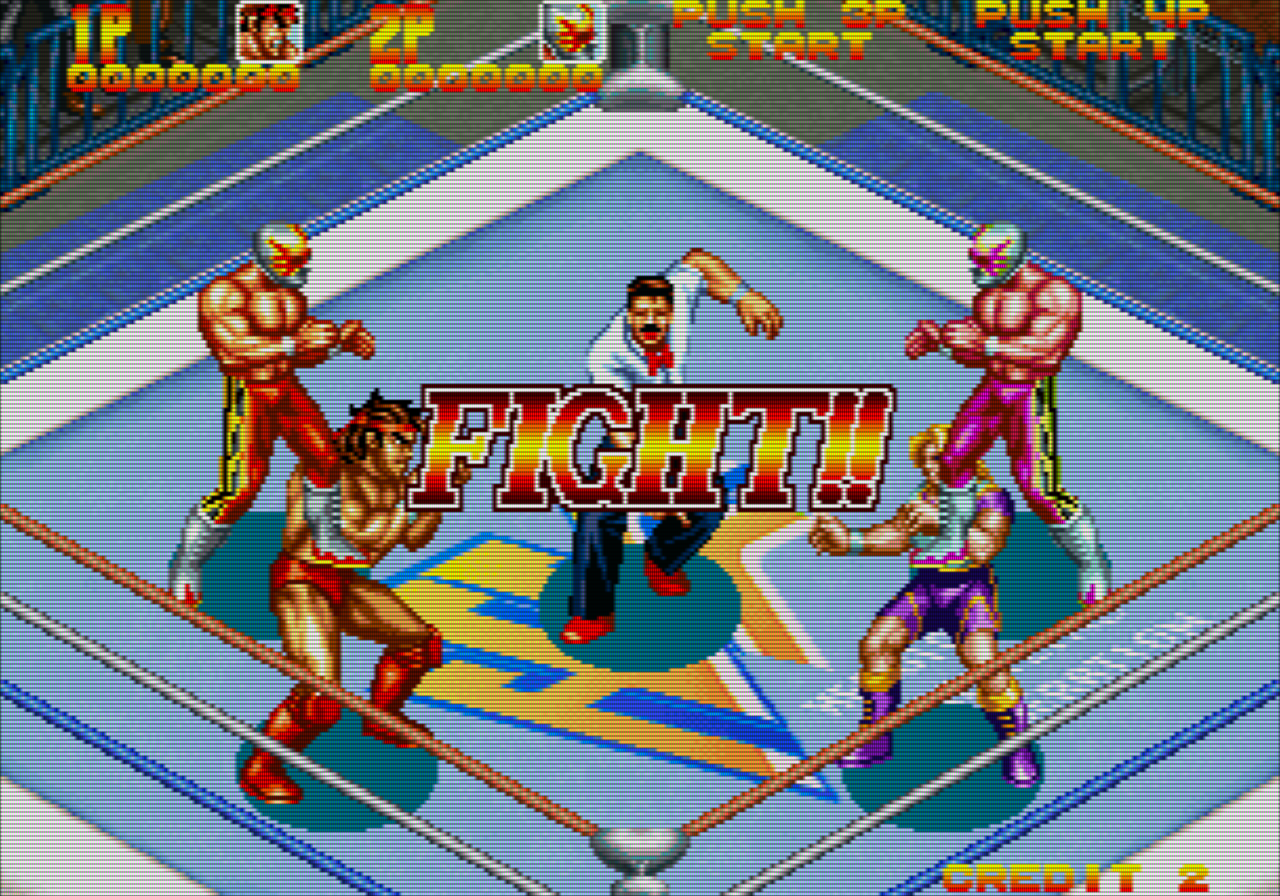
FB Neo (FinalBurn Neo, often shortened FBNeo) is the modern, actively maintained Final Burn family emulator provided as both a standalone project and a libretro core. It focuses on arcade hardware (many classic CPS, Neo·Geo, Toaplan, Cave, Taito, and other boards) and includes drivers for numerous classic consoles and computers. The libretro FBNeo core is a常
WHY IT MATTERS
Why use FB Neo (libretro core)?
FBNeo offers a compact, performance-oriented arcade-focused codebase with an extensive game database, active development, and a libretro core that integrates into RetroArch and other libretro frontends. It can be preferable to larger, more general MAME builds when you want a focused arcade core with libretro features (runahead, rewind, RetroArch input/overlay plumbing) and frequent upstream updates.
BEST FOR
Strengths
Broad arcade support (many CPS/MVS/System boards and other manufacturers), active upstream development and GitHub repository, libretro core available for direct use in RetroArch/other frontends, and community-maintained dats/ROM matching resources.
The people behind FB Neo
History & project status
FBNeo is the modern continuation of the Final Burn family and is actively maintained on GitHub and the libretro organization. It grew from the Final Burn lineage (FinalBurn/FinalBurn Alpha) into FinalBurn Neo with a focus on expanding arcade driver coverage and modern code hygiene. The project maintains a public repository, wiki and dat files used for ROMset matching; libretro distributes a FBNeo core in its core list and documentation. Development, issue tracking and core packaging are active on GitHub and libretro/GitLab mirrored locations.
What FB Neo supports
- Arcade (CPS1/CPS2/CPS3, Neo·Geo/MVS, Toaplan, Cave, Taito, many custom boards)
- Multiple classic consoles/computers (WIP and completed console drivers: Mega Drive/Genesis, Master System, Game Gear, PC Engine/TurboGrafx, ColecoVision, NES, MSX, ZX Spectrum — availability varies by build)
- Libretro frontends (RetroArch and any frontend which can load libretro cores)
- Linux, Windows, macOS, and platforms supported by RetroArch builds (platform support depends on frontend and core build)
Download and availability
OFFICIAL DOWNLOADS
Get FB Neo
Obtain the FBNeo libretro core through your libretro frontend (RetroArch Online Updater / Core Downloader) or by building/downloading the core from the official FBNeo sources (official GitHub repository and libretro core mirrors). The libretro documentation lists FBNeo in its core list and provides guidance for installing cores via RetroArch.
Get FB Neo ↗DOCUMENTATION
Official documentation
Read the official configuration, compatibility, and troubleshooting material before changing advanced options.
Read official documentation ↗FB Neo setup guide
Setup note: This guide explains practical steps to get the FBNeo libretro core running under RetroArch (the most common libretro frontend). It focuses on core install, ROM/Bios placement and core options that most commonly affect whether a game will start. Do not share or expect included ROMs, BIOS or other copyrighted files with the core.
- 1) Acquire the core: Preferred method: In RetroArch go to Online Updater → Core Updater and select 'FB Neo' or 'FinalBurn Neo' to download the core for your platform. Alternative: obtain pre-built libretro core binaries from your platform's RetroArch distribution or build libretro/FBNeo from the official repository (finalburnneo/FBNeo on GitHub).
- 2) Core placement and frontend configuration: Ensure RetroArch 'Cores' directory is writable and that RetroArch is pointed to that directory in Settings → Directory. The Online Updater will place the downloaded FBNeo core in that directory; if you built a core yourself, copy the core file (.so/.dll/.dylib) into that directory and restart RetroArch.
- 3) ROMs and naming/zip formats: FBNeo expects archive-based ROMs (ZIP/7z) whose internal filenames and checksums match FBNeo's expected set. Use FBNeo's dat files (clrMamePro/CHD/dats) to validate and match ROMsets. Many compatibility problems come from mismatched ROMsets: check the FBNeo dats in the project's repository and use a ROM manager to verify a given game's set before loading.
- 4) BIOS and auxiliary files: Some systems and games (for example Neo·Geo) require a BIOS archive placed where the core will search for it. Common examples (names vary by set and build) include neo-geo.zip and other system-specific archives (the FBNeo/libretro documentation and community resources list required ZIP names). Place BIOS zips in the system/bios directory that RetroArch or the FBNeo core is configured to search (RetroArch's 'System/BIOS' directory, or a folder named 'fbneo' under your system directory). The FBNeo libretro core search order and filename conventions are documented in the core sources and community guides—consult those resources to match the exact filenames needed for a given game.
- 5) Load the core and game: Load the FBNeo core via Load Core in RetroArch, then choose Load Content and pick the game's archive (zip/7z). If the core reports 'known but missing files' or 'missing BIOS', use the dat to identify missing files/archives and place them in the correct folders. If a game fails to start, check the core-specific Quick Menu → Core Options and enable/disable features such as 'Hiscores' or special hardware handling as recommended in the FBNeo docs.
- 6) Core options and runtime tips: FBNeo supports many core options exposed through libretro. Typical options that affect behavior include ROM search paths, patched ROM handling, and hiscore file usage. For best input latency on RetroArch, use runahead/run-internal options supported by RetroArch as appropriate; FBNeo is frequently used with RetroArch runahead. If you see graphical corruption or missing sound, check whether you are using the correct ROM version from the dat and try a different core build (nightly vs release) — the community often notes that some games are supported only in recent nightly builds.
- 7) Troubleshooting resources: If a title fails to start, consult FBNeo's GitHub issues/wiki and the libretro FBNeo documentation which include dat files, BIOS lists and core notes. Community forums (Neo Source / FBNeo wiki, libretro docs, and distribution-specific wikis such as Batocera/EmuDeck) contain platform-specific instructions and common fixes. Report reproducible bugs with precise core version and ROMset information on the FBNeo GitHub issue tracker.
Software reminder: FBNeo (libretro core) does not include commercial game ROMs, BIOS, or firmware. You must provide legally obtained ROMs and any required BIOS/firmware files yourself. Follow laws applicable in your jurisdiction.
Sources and further reading
- Libretro FBNeo documentation (core page)
- Libretro Core download/install guide (RetroArch Online Updater instructions)
- FBNeo GitHub repository (finalburnneo/FBNeo)
- FBNeo Wiki (neo-source)
- Libretro GitLab mirror for FBNeo
- Community notes on BIOS/zip search order for FBNeo libretro core
- Featured-image source and credit
Detailed guides and tutorials
Explore step-by-step guides for FB Neo as they are published.
Use FB Neo on Android
An Android ARM64 Libretro build exists for FB Neo. Run the core through RetroArch for Android; the standalone desktop download and Android core may have different menus and features.
Emulates: Neo Geo, Arcade.
Verified Android core build ↗ · Browse all Android emulators →