 Retro Replay Retro Replay gaming reviews, news, emulation, geek stuff and more!
MULTI SYSTEM EMULATOR
BizHawk
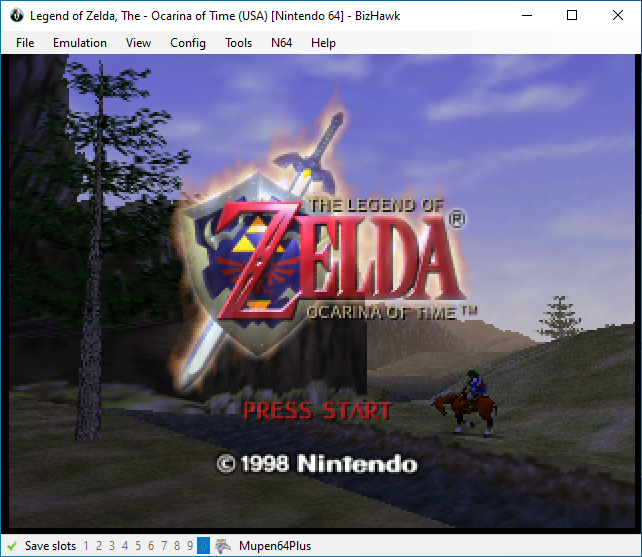
BizHawk is a multi-system emulator focused on Tool-Assisted Speedrun (TAS) and precision play. It is a Windows-first, C#/.NET-based emulator that integrates many system 'cores' and high-precision tooling (movie recording, frame-advance, savestates, input recording, debugging) for a very large set of consoles and classic computer systems.
WHY IT MATTERS
Why people use BizHawk
Powerful TAS-oriented toolset (frame advance, rerecording, deterministic input movies, memory and RAM tools), broad multi-system coverage, and deep debugging features make BizHawk a go-to choice for speedrunners, researchers, and anyone needing precise, reproducible emulation across many older platforms.
BEST FOR
Best for
Tool-assisted speedruns and any workflows that need deterministic emulation, precise input recording/playback, and integrated debugging across many retro systems. Also used for casual play when advanced features are desired.

The people behind BizHawk
Project and status
BizHawk is maintained as an open-source project on GitHub (TASEmulators/BizHawk). Development and releases are active; release artifacts and changelogs are published on the project's GitHub Releases and on community-maintained pages such as TASVideos. BizHawk began as a TAS-focused emulator and over time acquired many built-in cores and integrations (including experimental cores added later). The project is primarily developed for Windows but has community guides and partial support or ports for Linux/macOS (Mono/.NET Core-based EmuHawk scripts exist).
What BizHawk supports
- NES/Famicom (through native cores)
- SNES / Super Famicom
- Nintendo 64
- Game Boy / Game Boy Color / Game Boy Advance
- Nintendo DS / DSi (limited support dependent on cores)
- Virtual Boy / Virtual Console-era systems where available cores exist (varies by release/capabilities))
Download and availability
OFFICIAL DOWNLOADS
Get BizHawk
Official builds and release archives are published on the project's GitHub Releases page. Source, documentation, and official issue/tracking are on the GitHub repository.
Get BizHawk ↗DOCUMENTATION
Official documentation
Read the official configuration, compatibility, and troubleshooting material before changing advanced options.
Read official documentation ↗BizHawk setup guide
Setup note: This guide covers practical setup and usage details verified from the project's official repository and release notes. It explains prerequisites, obtaining a release, basic configuration, BIOS usage policy, core selection, and running games deterministically (TAS workflows).
- 1) Verify platform and prerequisites: BizHawk is primarily built for Windows. Confirm the release notes or GitHub README for the exact runtime prerequisites for the version you download (usually a supported .NET runtime). Some builds list additional redistributables or platform-specific instructions. If you plan to run BizHawk on Linux or macOS, consult the project documentation for the EmuHawk Mono/Linux instructions — these are community/partial ports and may require Mono, .NET Core, or provided startup scripts.
- 2) Download an official release: Get an official release package from the project's GitHub Releases page. Choose a release matching your needs (stable vs. development). Do not use third-party repacks. Download the ZIP or installer assets attached to the release and extract them to a folder where BizHawk can write configuration files (avoid protected Program Files folders unless you run with appropriate permissions).
- 3) Install prerequisites: Follow the release notes and README in the release bundle. Common prerequisites include a specific Microsoft .NET runtime or the Visual C++ redistributable; the exact requirements are listed with each release. For Linux/macOS experimental usage, follow the EmuHawkMono.sh or project wiki instructions.
- 4) BIOS and firmware files: Some systems that BizHawk supports require vendor BIOS/firmware files to boot certain games or cores. The project documentation and included 'Supported System' references list required BIOS filenames and where they should be placed. Do not expect the release to include any commercial BIOS or firmware files; you must obtain those yourself and place them in the folders specified by BizHawk (consult the project's official documentation for the exact filenames and exact placement).
- 5) Configure controllers and inputs: On first run, open Config > Controllers (or input mapping) and map your gamepad/keyboard. For TAS or deterministic recording, ensure input devices are configured the same across runs and that any asynchronous devices are avoided. Save controller profiles for reuse.
- 6) Choosing cores and loading a ROM: BizHawk exposes different 'cores' (internal emulation modules) for different systems. Use File > Open ROM and select a supported ROM file. If multiple cores are available for the same system, the UI or the project documentation will indicate how to switch. Some cores may be experimental and noted in release notes or the GitHub wiki; check those documents if you rely on a specific core.
- 7) TAS and recording workflows: Use the built-in movie input recording system (Movie > New/Record) to create deterministic input movies. Use frame advance, save states, rerecording, and the memory inspector for TAS work. Consult the project's GitHub README and TASVideos pages for recommended workflows and community best practices for movie and rerecording compatibility.
- 8) Updating BizHawk: Update by downloading a newer release from GitHub Releases and replacing the installation folder per the project's upgrade notes. EmuHawk does not automatically overwrite itself. Keep backups of important movies and configs; some releases change internal formats or feature behavior.
Software reminder: BizHawk does not include or distribute commercial game ROMs, console BIOS, or other vendor firmware. Obtain those files legally and place them according to the project's documented filenames and directories.
Sources and further reading
Detailed guides and tutorials
Explore step-by-step guides for BizHawk as they are published.