 Retro Replay Retro Gaming History, Reviews & Emulation
MSX JAPANESE COMPUTERS EMULATOR
CocoaMSX
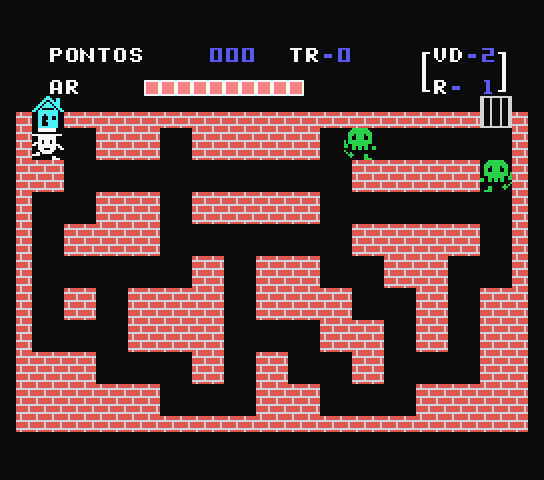
CocoaMSX is an open-source MSX family emulator for macOS that ports core emulation from blueMSX into a native macOS application with features such as cartridge, disk and cassette support, multi-sound system mixing (PSG, SCC, MSX-Music, MSX-Audio, Moonsound), snapshot/preview support, and peripherial/input mapping.
WHY IT MATTERS
Why use CocoaMSX
CocoaMSX provides a macOS-native front end to a blueMSX-derived MSX core. It bundles an easy-to-use UI, automatic download/installation of many virtual MSX machine configurations, integrated media handling (ROM/DSK/CAS), and macOS conveniences such as Finder previews and full-screen support, making it a practical choice for macOS users who want to run MSX, MSX2, MSX2+ and TurboR software.
BEST FOR
Best for
Mac users (macOS 10.7 and later) who want a native, GUI-driven MSX emulator with built-in system configuration management and support for the common MSX audio/video expansions.
The people behind CocoaMSX
History & upstream
CocoaMSX is a macOS port that uses blueMSX as its emulation backend. The project repository documents its focus as an MSX emulator for OS X and the README lists Version 1.61 as the latest stable release. Older discussion and release notes on MSX community sites reference CocoaMSX and historical versions. The project repository on GitHub contains the source, an Xcode project and documentation files; releases and version history are available through the repository's releases page. (See sources.)
What CocoaMSX supports
- MSX
- MSX2
- MSX2+
- MSX TurboR
Download and availability
OFFICIAL DOWNLOADS
Get CocoaMSX
Official downloads and release binaries are published on the project's GitHub releases page. Use the releases list to get the version build that matches your macOS version (the README notes Mac OS 10.7 or higher for recent builds).
Get CocoaMSX ↗DOCUMENTATION
Official documentation
Read the official configuration, compatibility, and troubleshooting material before changing advanced options.
Read official documentation ↗CocoaMSX setup guide
Setup note: Practical setup notes for running CocoaMSX on modern macOS. This guide assumes you will download an official release build from the project releases page or build from the provided Xcode project if you need a custom build.
- Download the release or source: Open the project's GitHub page and go to Releases. Download the DMG or ZIP for the latest stable release (Version 1.61 referenced in the repository README) or clone the repository if you prefer to build from source. Verify the downloaded archive corresponds to the release shown on the GitHub releases page.
- Install the app (binary release): If you downloaded a DMG or zipped app, expand it and drag the CocoaMSX.app to /Applications (or a folder you prefer). If macOS blocks opening the app due to Gatekeeper, Control-click the app and choose Open; then confirm you want to run it. Do not expect any commercial ROMs, firmware, or BIOS files to be bundled — you must provide legally owned game files and any proprietary BIOS files yourself.
- Build from source (optional): If you need to build from source, clone the GitHub repository and open the included Xcode project. Build requirements will depend on the macOS/Xcode versions you are targeting; the repository includes an Xcode project and source tree. When building, ensure third-party frameworks referenced by the project (if any) are available or removed/updated to match your Xcode toolchain.
- Configure virtual systems: CocoaMSX provides built-in support for multiple virtual MSX system configurations and (according to the README) can automatically download and install a large collection of system setups. Use the application's UI to select or download a virtual system profile matching the machine you want to emulate (MSX, MSX2, MSX2+, TurboR).
- Load cartridges, disk images and tapes: Cartridge (ROM) files are supported out of the box. For disk (DSK) or cassette (CAS) images, use the app’s disk/tape menus to mount images. Keep your image files in an organized folder and point CocoaMSX to them via the UI. The emulator does not include commercial media; you must supply images you legally own.
- Keyboard, joystick, and input setup: Map macOS keyboard keys to MSX keys and configure gamepads/joysticks in the input preferences. CocoaMSX supports MSX mouse and joystick devices; set auto-fire and other joystick features from the input configuration panel. For best results with gamepads, use a controller recognized by macOS and map buttons inside CocoaMSX.
- Sound and video settings: Adjust sound mixing and enable or disable specific expansions (SCC, MSX-Music, MSX-Audio, Moonsound) in the sound preferences. Use video filters for scanlines or signal-noise effects as desired. Full-screen mode and enhanced full-screen support are provided for modern macOS versions.
- Saving, snapshots and captures: Use the emulator’s snapshot/save-state features to save progress; CocoaMSX supports Finder preview thumbnails for snapshots. The app also provides screen capture, audio capture and gameplay capture options — configure capture folders and formats through the UI preferences.
Software reminder: CocoaMSX does not include commercial game ROMs, proprietary BIOS files, or other copyrighted firmware. You must provide any such files yourself and ensure you are following applicable laws and licensing when using them.
Sources and further reading
Detailed guides and tutorials
Explore step-by-step guides for CocoaMSX as they are published.