 Retro Replay Retro Gaming History, Reviews & Emulation
The PS5 asks to update, and for once you leave the button alone. If you’ve been following the homebrew scene, you know why that little prompt can turn into a surprisingly difficult decision. Install the latest software for the usual games and services, or leave the console where it is and see what the developers come up with?
There’s a new reason that question is coming up for owners on 14.00 and 14.10. PlayStation researcher Jose Coixao, better known as zecoxao, has posted that Prolapse is coming to those firmware versions. Yes, that is the name. The scene has apparently decided that Lapse and Relapse were only the beginning. She is gonna prolapse.😂
This follows our report on Gezine’s private 14.10 Debug Settings demonstration. The new announcement gives us another development to follow, but it does not identify Gezine’s private method or supply a complete public jailbreak. Checked October 25, 2026: the linked announcement contains no release date or usable Prolapse download.
If your PS5 is already on one of the named versions and you want to wait, you can turn off automatic updates using the console’s normal settings. You don’t need an exploit to do that. Below, we’ll go through the switches, the extra precaution of taking the machine offline, and the awkward business of an update that has already downloaded.
What zecoxao actually announced
prolapse coming to 14.00/14.10
Jose Coixao (@notnotzecoxao), original announcement
The original post is short: prolapse coming to 14.00/14.10
. Attached is a screenshot discussing a change in Sony’s 14.20 software. It describes a race involving aio_multi_delete, a use-after-free or double-free problem, and a new generation-ID check intended to stop an old slot being mistaken for its replacement.
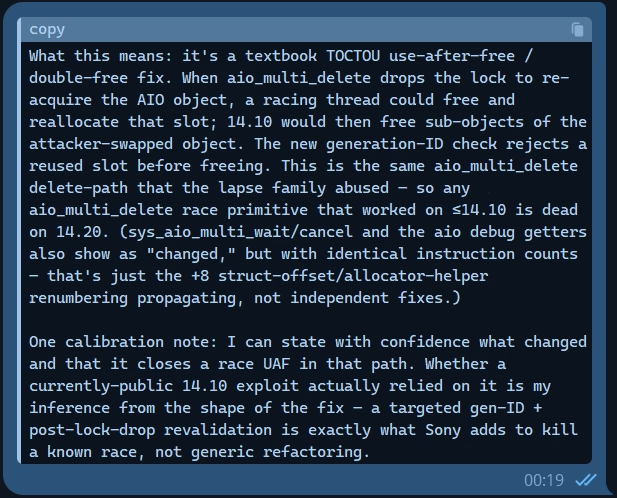
That sounds like a fairly specific account of a patch, but read the bottom of the image as well. The unnamed writer explicitly calls the connection to a currently public exploit an inference. We have zecoxao’s announcement and the analysis they shared, not an independently reproduced Prolapse release or an identified author’s complete technical write-up. The screenshot should be read with that limitation attached.
Sony’s official firmware page now lists 26.07-14.20.00. Its public note mentions changes to messages and usability on some screens. It does not name Prolapse or confirm the technical explanation in the shared screenshot. The claim that this particular route is closed in 14.20 comes from the scene material.
Why 14.00 and 14.10 owners are paying attention
Pirat_Nation’s post helped spread the announcement, describing a kernel-level exploit for the two versions and a release expected soon. The Reddit thread you may have seen goes further in its headline, calling the release confirmed. The original post gives no timetable, so there is no day to mark on the calendar yet.
A new PS5 jailbreak called Prolapse is reportedly coming to firmware 14.00 and 14.10.
Pirat_Nation, report on the announcement

There is a practical reason to keep the firmware numbers straight. The public Relapse project lists 7.00 through 13.60. Prolapse is being announced for versions beyond that range. It isn’t a reason to update an older, working homebrew console to 14.00 or 14.10.
And the two newly mentioned versions should not be treated as identical. Byepervisor-Reborn’s documentation discusses possible 14.00 support with modifications, but says those modifications are not provided.
For someone holding a console on 14.00, moving to 14.10 just because both numbers appear in a post would be an unnecessary bet. Leave it on the version it already has if your aim is to wait for research. There is no verified all-model Prolapse compatibility chart in these announcements, either, so a mention of PS5 Pro is not a promise that every hardware configuration is ready.
How to turn off automatic PS5 updates
Pick up the controller and do this before accepting any update prompt. These are ordinary console preferences, not a jailbreak installation. Sony recommends keeping system software current; choosing to hold an older version means postponing security fixes and potentially losing access to services or newer content.
1. Check what is installed
Open Settings → System → System Software → Console Information and read the system-software number. Sony documents this on its version-checking support page. This screen reports the installed software. A separate notice offering 14.20 does not by itself mean 14.20 is installed.
If you photograph this screen for help, hide your IP address, MAC address, serial number, and anything else identifying your console. You only need to share the firmware number.
2. Switch off both system-update options
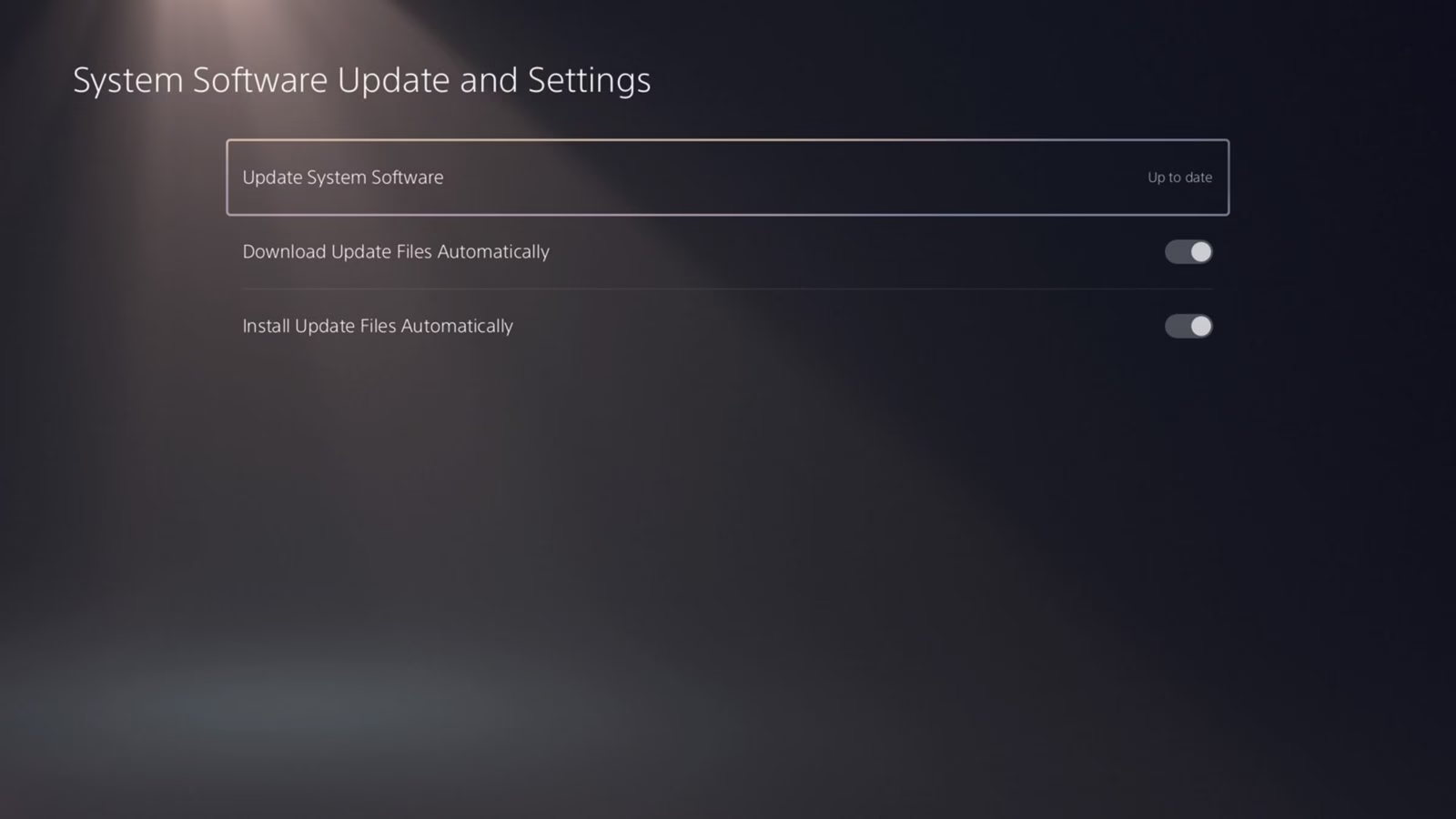
Go to Settings → System → System Software → System Software Update and Settings. Turn Download Update Files Automatically off, then turn Install Update Files Automatically off. Check both before leaving. The menu and switch names are shown in Sony’s automatic-update guide; we are reversing its enable instructions.
3. Turn off the rest-mode internet connection
Open Settings → System → Power Saving → Features Available in Rest Mode. Turn Stay Connected to the Internet off. Sony explains this option in the rest-mode section of its guide.
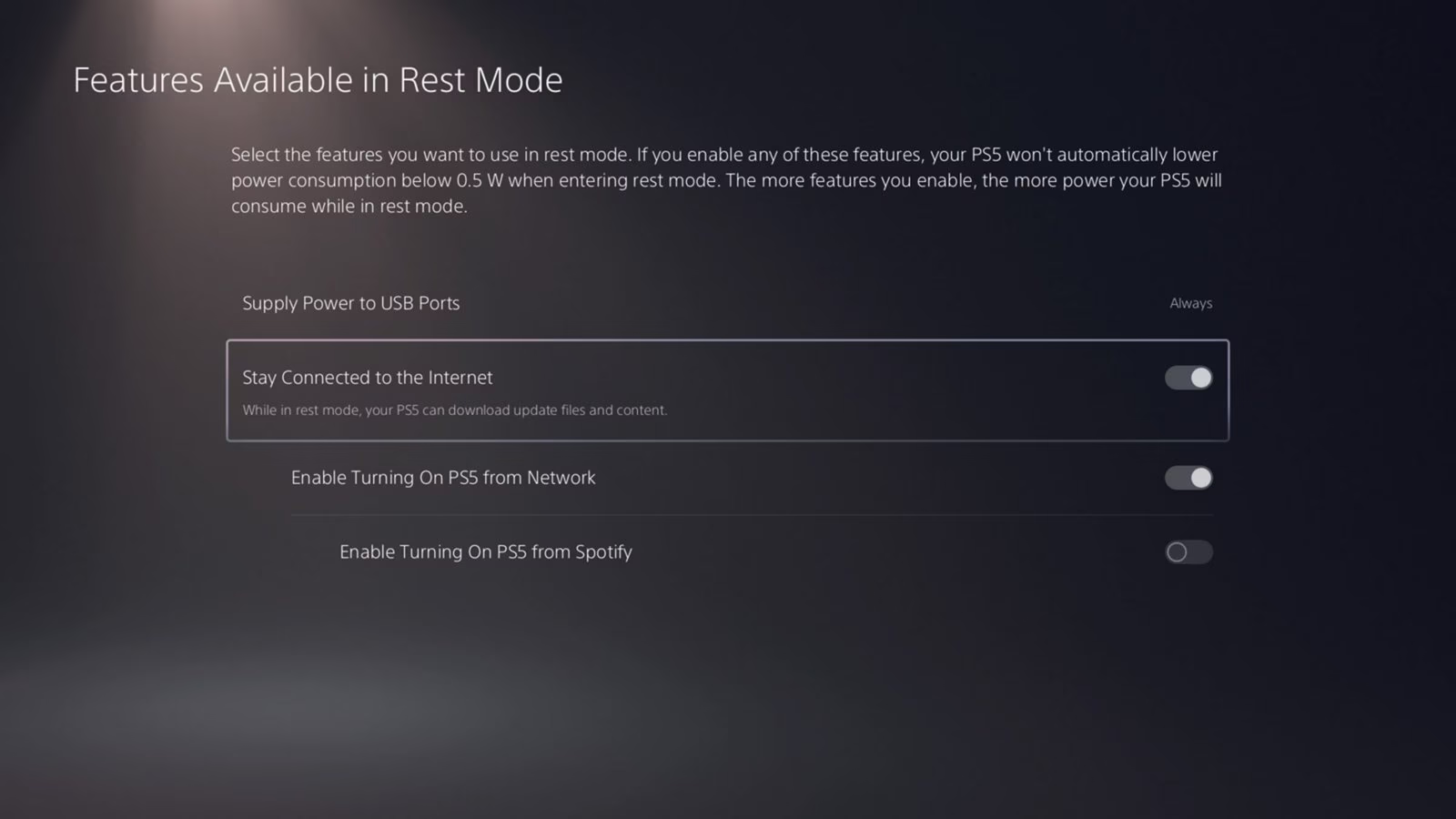
Neither of those changes makes a console offline while you are actively using it. You can still reconnect during a gaming session, receive prompts, and approve an update yourself. Treat the switches as controls over automatic behavior, not as a permanent firmware lock.
4. Keep it offline if holding the firmware matters most
For a waiting console, the simplest way to prevent a fresh internet download is to remove its internet connection. Under Settings → Network → Settings, turn Connect to the Internet off. If using Ethernet, disconnect the cable as an additional physical precaution. Unplugging Ethernet alone is not enough if Wi-Fi can still connect.
Sony’s network setup guide covers the connection menus. Keeping the machine offline is our practical recommendation for this waiting period, not a Sony-endorsed jailbreak procedure. It also means giving up online play, downloads, and other connected features on that machine until you reconnect.
A custom DNS address is not necessary for these steps. Nor would we promise that a DNS blocklist catches every update connection forever. If you later use one for a particular homebrew project, check that project’s current documentation and the operator’s information. Don’t copy an old address from a random comment and assume the job is done.
What if 14.20 has already downloaded?
First, check Console Information again. A downloaded file and an installed update are different things. Turning off automatic downloads does not erase a file already sitting on the console, and taking the machine offline cannot stop you from approving a cached update.
Press the PS button and inspect Downloads/Uploads. Sony uses that area in its system-update troubleshooting instructions. If a system update is still queued or downloading and its menu offers Cancel and Delete, use that option before installation starts. If it does not, back out rather than choosing an option you do not understand. Do not select an install or retry command just to clear the notification.
If installation has already begun, do not interrupt the power. Sony explicitly warns against switching the console off during installation. Saving an older firmware is not worth damaging the machine.
If Console Information already says 14.20, these settings cannot return it to 14.10. A factory reset is not a firmware downgrade, and reinstalling the current official software is not a way back, either. Sony says a system-software reinstall deletes the console’s data. Nothing in the linked Prolapse announcement supplies an ordinary downgrade procedure.
What you give up while waiting
This is easy advice to give someone with a spare console. It is a less comfortable choice when this is the PS5 you use every evening. Sony warns that some applications and content need updated system software. Online services can also become unavailable on an older version. Don’t plan around a particular firmware remaining welcome on PSN indefinitely.
For offline digital games, Sony’s Console Sharing and Offline Play documentation explains the relevant licensing feature. Already owning or downloading a game does not guarantee it will launch without the right offline permissions, its required data, or its minimum firmware. Disc games can have their own installation and update requirements, too.
The new announcement also makes no promise about Grand Theft Auto VI. Our earlier story covered the reported 14.10 requirement, with the original claim attributed. A future game’s final requirements, access to its executable, and a usable homebrew setup are still separate problems. Nobody has supplied a GTA VI demonstration in these two posts.
Before you put the controller down
- Confirm the installed version in Console Information.
- Check that both system-update switches are off.
- Disable internet access in rest mode.
- If you are keeping this console aside, leave its internet connection off.
- Check for an existing update, and do not approve installation by habit.
Then follow zecoxao’s original announcement for actual release information. An available implementation with documented requirements will be much more useful than another repost saying “soon.” Until then, you can leave that update prompt unanswered and get back to whatever already works on your machine.