 Retro Replay Retro Gaming History, Reviews & Emulation
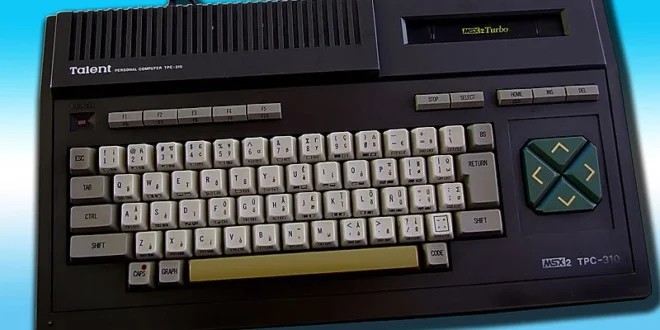
The MSX is easy to underestimate if you grew up with consoles. It was a family of compatible 8-bit home computers rather than one box, and its strongest footholds were Japan, parts of Europe, and South America. That history produced a library with a distinctive personality: ambitious arcade conversions, text-heavy adventures, computer-style RPGs, and formative Konami work including Metal Gear, Vampire Killer, Gradius, and Penguin Adventure.
Android is a particularly comfortable place to revisit it. MSX emulation is light enough that performance is rarely the deciding factor; the meaningful choices are convenience, machine configuration, controls, and how much time you want to spend learning a computer platform. For most people, a straightforward fMSX setup is the quickest route. RetroArch with an MSX core is the better long-term home for players who already use it and want unified controller settings, save management, and display options. A browser-based alternative can also be useful for a quick test.
What makes MSX emulation different?
MSX software was made for computers with several generations of hardware. The baseline is MSX1, followed by MSX2, MSX2+, and, for a smaller slice of software, MSX turbo R. A game that loads perfectly on one machine profile may show a blank screen, miss sound, or refuse to boot on another. This is not necessarily an emulator failure: it may simply be expecting different video, memory, disk, or cartridge hardware.
That is the main reason an MSX emulator needs more than a file picker. A useful setup lets you choose a suitable machine, load common media types, and bring up a keyboard when a game asks for a key press. The core formats are usually cartridge images (.rom), floppy disks (.dsk), and cassette images (.cas). Treat those extensions as clues, not guarantees. A disk title generally needs a disk-capable machine configuration, while a cartridge title may require a particular MSX generation or extra mapper support.
The upside is that Android hardware has no trouble with ordinary MSX emulation. A modest current phone or tablet should run most games at full speed. If a title stutters, starts with garbled graphics, or hangs at boot, investigate the selected machine, media format, and required firmware before chasing performance settings.
The short recommendation
- Choose fMSX if you want the most direct standalone approach. The original guide identifies it as an Android MSX emulator supporting MSX1, MSX2, and MSX2+ software, with save states, fast-forward, configurable controls, cheats, and external-controller support. It is the sensible starting point when your goal is to load your own cartridge or disk image and play.
- Choose RetroArch with an MSX core if you already use RetroArch or value customization. It can use fMSX or blueMSX-based emulation, and puts MSX alongside your other systems with shared input mapping, save-state handling, shaders, rewind, and its broader frontend tools. It takes more initial setup.
- Use WebMSX for a browser-first option. Its project profile describes MSX through turbo R emulation in a browser, drag-and-drop media loading, savestates, NetPlay, and mobile-oriented touch controls. It is excellent for trying a file or sharing a session, though a full emulator setup is usually nicer for a permanent Android library.
1. Best standalone choice: fMSX
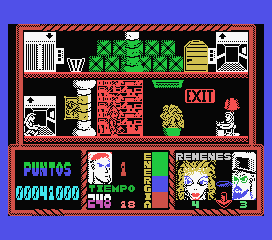
fMSX is the uncomplicated recommendation for someone whose priority is playing MSX software rather than configuring a frontend. The supplied documentation describes support for MSX1, MSX2, and MSX2+, which covers the great majority of games most newcomers come looking for. Its focus is narrow, and that is a virtue on a phone: load your own game image, configure the controls once, and start playing.
It also has the quality-of-life features that matter on mobile. Save states are valuable for difficult action games and long computer RPGs. Fast-forward is useful for slow introductions, repeated attempts, and games with long waits. Customizable virtual controls make a difference because MSX software does not always map neatly to a modern gamepad layout. If you have a Bluetooth or USB controller, fMSX is a much better fit for games designed around quick directional input than a screen overlay.
There are limitations to keep in mind. A dedicated emulator may present fewer polished library-management tools and visual options than a full frontend. More importantly, no one MSX machine setting is correct for every file. Start with the lowest appropriate machine generation, then move upward if the game specifically requires it. For games that use a menu key, function keys, or typed commands, learn where fMSX places its virtual keyboard before assuming the image is broken.
The fMSX project site is a useful companion when you need to understand its controls or supported configuration. For a newcomer, though, the practical answer is simple: begin here if you want a standalone emulator and do not need an all-in-one retro interface.
Who should use fMSX?
Use it if you primarily want cartridge-style games such as Metal Gear, Gradius, and Vampire Killer, want minimal setup, or prefer not to navigate RetroArch’s menus. It is also a good choice for a dedicated MSX folder on a phone where you do not plan to manage several systems.
2. Best feature set: RetroArch with fMSX or blueMSX
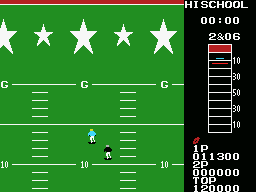
RetroArch is not an MSX emulator by itself. It is a frontend that runs emulator cores. In this case, the relevant choices described in the original guide are fMSX and blueMSX cores. That distinction matters: you load a core first, then load your game through that core. Once configured, the payoff is a consistent interface across MSX and other classic platforms.
The blueMSX core is the more interesting choice when compatibility and machine variety are your priority. The blueMSX profile describes its MSX, MSX2, MSX2+, and MSX turbo R coverage, while noting that it can also implement related systems such as SpectraVideo SVI, ColecoVision, and SG-1000 depending on the core build and resource files. For this guide, focus on its MSX role: it gives RetroArch users a flexible machine-oriented route through the library.
RetroArch adds strong convenience features, but it is not automatically easier. Its menus expose core options, input ports, overlays, video controls, and save locations. A beginner can get through the setup, but should change one thing at a time. First confirm that a game boots with default settings. Next map a controller. Only then experiment with shaders, aspect ratio, rewind, or latency options. Adjusting everything at once makes basic troubleshooting unnecessarily difficult.
Where C-BIOS fits
Many MSX configurations expect BIOS firmware. C-BIOS is an open-source MSX BIOS replacement that can allow many programs to run without proprietary firmware files. It is a useful legal-minded starting point in a RetroArch configuration, especially for basic exploration.
“Many” is important. C-BIOS is not a promise that every commercial title, disk routine, or hardware-specific program will behave exactly as it would on original firmware. If an application requires original system ROM behavior, a replacement BIOS can be insufficient. The appropriate path is to dump the firmware from hardware you own where that is lawful, not to fetch BIOS files from download sites. C-BIOS also does not change the copyright status of games; you still need to use copies you are entitled to use.
Who should use RetroArch?
Choose RetroArch if you already have a controller, run several classic systems, or enjoy tuning display and input options. It is especially good on a tablet, Android TV-style setup, or phone docked to a larger display. If all you want is a few MSX games on a handset, fMSX gets you playing with less ceremony. For another computer platform with similar keyboard and media considerations, see our ZX Spectrum emulators for Android guide.
A useful third path: WebMSX in the browser
WebMSX is a different proposition from a native Android app. The project profile describes an open-source HTML5 and JavaScript emulator that runs in a modern browser and supports MSX, MSX2, MSX2+, and turbo R models. It offers media drag-and-drop, savestates, NetPlay, touch controls, and a range of machine and sound/video extensions.
That makes it valuable when you want to check a file without building a library, demonstrate an MSX game to someone, or use a device where installing and configuring a frontend is not appealing. It is not necessarily the best answer for every long campaign. Browser sessions, file access, and controller behavior can be less predictable than a dedicated app, and a phone browser still has the same screen-space constraints as any other touch setup. Think of WebMSX as a capable, low-friction option rather than a replacement for every native workflow.
Getting your first MSX game running
- Start with one game you legally own or have legitimately obtained. Avoid loading a huge, mixed folder before you know your emulator works.
- Identify the media type. A
.romis usually a cartridge image;.dskis a disk image;.casrepresents tape media. Keep filenames intact and do not casually rename extensions. - Choose the simplest suitable machine. For older software, try an MSX1 configuration. If a game is known to be MSX2-only, select MSX2. Move to MSX2+ or turbo R only when the software requires it.
- Load the image through the matching slot or drive. In RetroArch, choose the core before loading content. For disk software, make sure the disk is mounted in the expected drive and look for a disk-control option if the game asks you to swap media.
- Test input before starting a serious session. Confirm directions, primary action buttons, Start/Select equivalents, and access to the keyboard. Save a state only after the title has demonstrably booted correctly.
- Keep per-game notes. A small text note with the required machine, controls, and any disk swapping instruction saves a surprising amount of time when you return months later.
Do not be discouraged by a prompt that asks for a key. MSX games often assume a physical keyboard. A controller can cover most action games, but it cannot replace every key command. On a tablet, this is manageable with an on-screen keyboard; on a phone, pairing a compact Bluetooth keyboard is worthwhile for adventures, utilities, and games with frequent menu input.
Controls, screens, and performance
Controller advice
A conventional Bluetooth controller is the best all-round upgrade for MSX games. Map the directional pad first; many 8-bit games feel more precise on a D-pad than an analog stick. Assign the two primary MSX buttons to comfortable face buttons, then reserve extra buttons for emulator functions such as opening the menu, fast-forward, or bringing up the keyboard. Avoid mapping a critical in-game control to an emulator shortcut without testing it.
Touch controls remain practical for slower games, turn-based RPGs, and quick sessions. Make the directional overlay large enough to use accurately and reduce unnecessary buttons. For fast Konami action games, physical controls are not a luxury; they materially improve play.
Display choices
MSX games were designed around 4:3-era displays, and preserving that shape is usually the cleanest presentation. Stretching to a modern phone’s tall screen makes sprites and text look wrong. Integer scaling can make pixels look crisp when it fits, while a slight smoothing filter may be preferable if you dislike hard pixel edges. There is no single “authentic” mobile look, so prioritize readable text and stable scrolling over elaborate shaders.
On a television or monitor, use a 4:3 output area and consider a controller or keyboard rather than a touch overlay. RetroArch is particularly attractive in this kind of living-room setup because its input and video controls can be shared with other systems. If you are building a broader 8-bit collection, our Commodore 64 emulators for Android guide covers another computer library where keyboard access is part of the experience.
What performance should you expect?
Expect smooth gameplay from ordinary MSX titles on current Android hardware. Audio crackle, inconsistent speed, or input delay is more likely to come from an aggressive power-saving mode, wireless-controller latency, a demanding shader, or an unsuitable emulator setting than raw emulation load. Disable visual extras first, test with touch or a wired controller if possible, and verify the machine configuration. In practice, correct setup solves more MSX problems than a faster phone.
Use your own games and firmware responsibly
Emulators are tools; the legal status of software and firmware depends on what you use with them and on local law. The cautious route is to dump cartridges, disks, tapes, and firmware from hardware you own, using appropriate hardware and software tools, and retain your originals. Some games have been released as freeware, public-domain software, or by their rights holders under terms that permit downloading; follow the stated license for those releases.
Do not use ROM sites, BIOS-download pages, or tools intended to defeat copy protection. Owning an original does not automatically make every downloaded copy lawful in every jurisdiction. For the same reason, C-BIOS is helpful as an open replacement component but should not be treated as permission to acquire commercial game images. If you are unsure, check the rules that apply where you live or stick to software expressly distributed for legal download.
FAQ
Do I need a powerful Android phone for MSX?
No. MSX emulation is generally lightweight. Correct machine selection, controls, and firmware arrangements matter much more than flagship hardware.
Which emulator should a first-time player install?
Start with fMSX for a focused standalone experience. Use RetroArch if you already know its interface or want its cross-system features and the blueMSX core’s broader machine options.
Why does a game show a black screen or fail to start?
Check that you selected the right MSX generation, loaded the file as the correct media type, and mounted a disk image in the proper drive. Some software also depends on firmware behavior or specific hardware extensions.
Can I play entirely with a gamepad?
Often, yes, especially for action games. But MSX is a computer platform, and some games and programs need keyboard input. Keep the virtual keyboard accessible or pair a physical one.
Is blueMSX a separate Android app?
The practical Android route described here is the blueMSX libretro core inside RetroArch. Its availability and supporting resource requirements can depend on the core build, so check the options presented by your RetroArch installation.
Conclusion: start simple, then configure for the games you love
For most Android players in 2026, fMSX is the decisive first pick: it is focused, supports the major MSX generations identified here, and includes the mobile essentials. RetroArch is the better second step for enthusiasts who want blueMSX-based flexibility, shared controller profiles, and a larger retro setup. WebMSX earns a place as the convenient browser option for quick loading and experimentation.
Whichever route you take, approach the MSX as a computer family rather than a single plug-and-play console. Use your own legally obtained media, select the intended machine, keep a keyboard within reach, and do not stretch 4:3 games across the screen. With those basics handled, Android offers an excellent way to explore an unusually rich 8-bit library—from famous Konami landmarks to the stranger corners that made the MSX special.
More Android Emulator Guides
Choose the system you want to play. These guides compare Android options and link to the matching emulator profiles.


13 comments
Pingback: Best PS1 Emulators for Android in 2025 | Retro Replay
Pingback: Best Dreamcast Emulators for Android in 2025 | Retro Replay
Pingback: Best SNES Emulators for Android in 2025 | Retro Replay
Pingback: Best Android Emulators in 2026: The Complete System-by-System Guide - Retro Replay
Pingback: Best N64 Emulators for Android in 2025 | Retro Replay
Pingback: Best PS2 Emulators for Android in 2025 | Retro Replay
Pingback: Best Wii Emulators for Android in 2025 | Retro Replay
Pingback: Best GameCube Emulators for Android in 2025 | Retro Replay
Pingback: Best TurboGrafx-16 Emulators for Android in 2025 | Retro Replay
Pingback: Best Atari Emulators for Android in 2025 | Retro Replay
Pingback: Best WonderSwan Emulators for Android in 2025 | Retro Replay
Pingback: Best GBA Emulators for Android in 2025 | Retro Replay
Pingback: Best ZX Spectrum Emulators for Android in 2026 | Retro Replay