 Retro Replay Retro Gaming History, Reviews & Emulation

The Commodore 64 is not quite like emulating a cartridge console. It was a home computer with a full keyboard, joystick ports, disk drives, tape loading, BASIC, and software that often expected you to type commands before the game began. That extra character is exactly why the C64 remains rewarding on Android—but it also makes the choice of emulator, controls, and game format matter more than they do for most 8-bit consoles.
For quick games of Boulder Dash, Summer Games, or Impossible Mission, a touchscreen and a straightforward emulator can be enough. For text adventures, keyboard-heavy releases, disk swapping, or exploring the machine’s programming side, a Bluetooth keyboard and a more configurable setup make a dramatic difference. This guide explains the practical strengths of Frodo C64, C64.emu, and RetroArch with the VICE x64 core, along with the habits that make C64 emulation feel less like a compromise.
What makes Commodore 64 emulation different?
A C64 game may arrive as a disk image, tape image, or a directly loadable program rather than a simple ROM file. Common formats include .d64 disk images, .t64 tape images, and .prg program files. An emulator needs to represent the computer as well as the game: its keyboard, joystick inputs, and sometimes the loading process or virtual drive.
That means the best Android setup depends on what you want from the system. Many action games use one joystick and only occasionally ask for a key press; these are comfortable with a Bluetooth controller. Adventures, strategy games, educational programs, and BASIC work are more keyboard-centric. A phone can run them, but a physical keyboard turns an awkward novelty into a usable miniature C64.
The system is light enough that raw processing power is rarely the deciding factor. Nearly any reasonable modern Android device should be able to handle ordinary C64 software comfortably. The more meaningful differences are input configuration, file handling, save-state convenience, display options, and whether you want one dedicated app or a shared frontend for several machines.
The short recommendation
- Choose Frodo C64 if you want a lightweight, direct route to playing familiar C64 games with minimal adjustment.
- Choose C64.emu if you want a polished standalone C64 app with strong controller and keyboard support, customizable touch controls, save states, cheats, and disk/tape loading.
- Choose RetroArch with VICE x64 if RetroArch is already your emulation home and you value its unified controller mappings, shaders, rewind options, and broader multi-system workflow.
None is automatically the best fit for every player. The dedicated apps are generally the easier recommendation for someone who only wants C64. RetroArch is compelling when you are willing to spend more time configuring a frontend that also covers other systems.
1. Frodo C64: the simple starting point

Frodo C64 is the uncomplicated choice in this group. Its appeal is not an enormous menu of specialist options; it is the idea of getting a C64 game running without making every setting a project. The original recommendation highlights its lightweight approach, save states, on-screen controls, and support for external keyboards and controllers.
That makes Frodo C64 well suited to players returning to joystick-led classics. Load a compatible image from your own collection, set up the virtual joystick or pair a controller, and spend time with the game rather than with a frontend. Save states are particularly useful for older games designed around limited lives, long loading routines, or sparse passwords.
The tradeoff is depth. C64 software has a large number of unusual loading arrangements, keyboard overlays, hardware quirks, and enthusiast expectations. A lightweight emulator is not necessarily the place to begin if your priority is detailed configuration or if you want a single interface shared across a large retro library. But for casual play and a clean dedicated experience, simplicity is a genuine feature.
Who should use Frodo C64?
Start here if your goal is straightforward game play, especially with a controller. It is also a sensible first experiment for someone discovering whether C64 gaming clicks for them. If you later find yourself wanting more control over the experience, moving to C64.emu or a VICE-based RetroArch configuration is an easy next step.
2. C64.emu: the standalone option for regular play
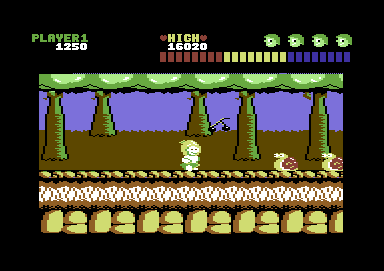
C64.emu is the dedicated-app recommendation for players who expect to spend real time with the platform. It is described as being based on the VICE core and combines a focused interface with the features that matter for a computer library: save states, cheat support, customizable touch controls, Bluetooth controller and keyboard support, plus disk and tape loading.
That balance is important. A C64 emulator should not bury ordinary play beneath desktop-style complexity, but it must give you enough control to handle software that was never designed for a glass screen. Customizable touch controls let you make a workable temporary layout for a game that needs a virtual joystick and a few keys. With physical input connected, the same app can feel far closer to using the original machine.
For players with a gamepad, map the primary C64 joystick direction and fire button first, then test the game before assigning every optional control. C64 titles are inconsistent: one game may use the joystick in port two, another expects port one, and some require keyboard commands at the title screen. When a game appears unresponsive, check its joystick-port selection and whether it is waiting for a key press before assuming it is broken.
C64.emu’s paid status is a tradeoff rather than a flaw. If the dedicated feature set matches how you play, paying for a focused tool can be more pleasant than building a more elaborate all-in-one setup. If you only intend to launch a few games or prefer free multi-system tooling, RetroArch may make more sense.
Who should use C64.emu?
This is the strongest fit for the C64 enthusiast who wants a dedicated Android app rather than a general frontend. It is especially appealing if you alternate between joystick games and keyboard-dependent software, use physical peripherals, or keep a curated collection of disk and tape images.
RetroArch and VICE x64: flexibility at the cost of setup time
RetroArch can run C64 content through its VICE x64 core. The VICE x64 profile identifies it as the Libretro/RetroArch build of the long-standing VICE family and notes support for C64 formats such as .d64, .t64, and .prg. This is the route for players who want VICE-based C64 emulation inside the same ecosystem they use for other classic hardware.
The advantages are familiar to experienced RetroArch users: comprehensive controller mapping, optional shaders, rewind, achievements where applicable, per-game settings, and one library interface across systems. If your Android device already serves as a retro handheld or living-room box, maintaining one controller profile and one visual style is convenient. Its C64 setup can sit alongside systems such as the ZX Spectrum or Amiga, both of which share some of the same computer-era input considerations.
The downside is that RetroArch exposes a great deal of configuration because it is designed to serve many systems. A newcomer may have to think about choosing the correct core, associating file types, setting the virtual keyboard, selecting the intended joystick port, and distinguishing global controls from core-specific controls. This is manageable, but it is not as immediate as opening a dedicated C64 app.
Use RetroArch when its ecosystem is already a benefit, not merely because it has the longest feature list. A carefully configured standalone app is better than a powerful frontend left half-configured.
A sensible RetroArch setup order
- Install RetroArch from the source you prefer and add the VICE x64 core through its normal core-management workflow.
- Place your personally preserved C64 files in a clearly named folder, separated by format if that helps you stay organized.
- Load one known working title, then confirm video output and basic input before changing advanced options.
- Set the joystick port required by that game and create a practical controller mapping.
- Configure the on-screen keyboard before trying an adventure or a title with typed commands.
- Save core or game-specific settings only after confirming they improve that title; a global tweak can create confusion elsewhere.
Getting your files and first boot right
Before launching anything, identify the format you have. A .d64 is usually a disk image, while a .t64 represents tape data and a .prg is a program file. The emulator’s loading flow may vary by format. Do not be surprised if a disk-based game presents a C64 prompt or needs a normal in-emulator load action rather than starting instantly.
Keep your files in one folder you control, with descriptive names and, where useful, notes about joystick port or keyboard requirements. Avoid repeatedly moving files through random download directories: Android file permissions and app pickers become much less frustrating when your library has a permanent home.
Save states are best treated as convenience saves, not the only record of a long campaign. Keep several rotating slots for games you value, particularly before a difficult sequence or before experimenting with emulator settings. If a title has its own save disk or password system, preserving that in-game progress as well provides a useful fallback.
Controllers, keyboards, and touch controls
A Bluetooth controller is the single biggest upgrade for most C64 action games. A compact gamepad gives The Last Ninja, Summer Games, shooters, racers, and platformers the directional precision they were designed around. Make sure the fire button is comfortable and that diagonals register cleanly; many C64 games ask more of an eight-way stick than players remember.
Touch controls remain handy when traveling light, but a flat virtual joystick can obscure the image and makes quick directional changes less reliable. Keep the overlay modest, make the fire button large, and move it away from the area where a game places vital status information. For games with occasional keyboard input, use the virtual keyboard only when needed instead of leaving it permanently over the screen.
A physical keyboard is essential rather than optional for BASIC, text adventures, productivity software, and games built around typed commands. It also improves classic loading and menu workflows. Pair one before you begin a keyboard-heavy game, then test common keys at the title screen; layout differences and virtual-keyboard modes can otherwise be mistaken for a problem with the game file.
Display advice: preserve the C64 look without making it harder to play
The C64’s image was designed for CRT televisions and monitors, not tall phone displays. Resist stretching it to fill the screen. Preserve the original aspect ratio, accept side borders, and prioritize readable text and stable pixels. On a phone, portrait orientation can be useful when you need room for a keyboard overlay; landscape is usually better for joystick games.
Shaders and scanline effects are optional seasoning. A subtle CRT-style effect can soften the harshness of upscaled pixels and evoke an older display, but it can also dim small text and add visual clutter. Start with a clean image. Add a mild filter only if you prefer the look and can still read menus comfortably. On a television, a controller and a restrained scanline effect can make C64 games especially pleasant, but do not let nostalgia settings obscure the software itself.
Legal and practical game preservation
Emulators are tools; the content you load into them is your responsibility. The safest approach is to use software you own and are permitted to preserve, creating personal archival copies where local law allows. Original disks, tapes, and hardware may require specialized equipment to transfer correctly, and some releases contain copy protection or unusual disk layouts. Do not bypass copy protection, and do not seek BIOS files, commercial game images, or copyrighted software from unauthorized download sites.
There is also plenty to explore legally through public-domain software, homebrew, demos, and titles distributed by their rights holders. Keep provenance notes for your collection, preserve original media carefully, and favor sources that clearly state their distribution rights. That approach supports preservation without treating the C64’s history as a free-for-all.
Frequently asked questions
Do I need a powerful Android phone for C64 emulation?
Usually no. C64 emulation is far less demanding than newer console emulation. Input comfort, display preferences, and the emulator’s file workflow are more likely to shape your experience than device speed.
Why does a game not respond to my controller?
Check whether the game expects joystick port one or port two, verify the fire-button mapping, and look for a title-screen prompt requiring a keyboard key. C64 software does not use one universal control convention.
Which file format should I use?
Use the format of your legally obtained or personally preserved software. Disk images, tape images, and program files can each be appropriate; RetroArch’s VICE x64 profile specifically identifies .d64, .t64, and .prg among the formats it can run.
Should I use a standalone emulator or RetroArch?
Choose a standalone app for a faster C64-focused experience. Choose RetroArch if you already enjoy configuring it for multiple systems and want its shared controls, shaders, and frontend features.
Final verdict
For most newcomers, Frodo C64 is the low-friction way to see whether the C64 library suits them. For committed C64 players, C64.emu offers the more focused standalone package, with the controller, keyboard, touch, disk, tape, and save features that a home-computer library deserves. RetroArch with VICE x64 is the best strategic choice for an established RetroArch user who values one customizable setup across several systems.
Whichever route you choose, start with one game you know, pair a controller if it is joystick-led, add a keyboard when software demands it, and keep the display clean. The C64 is at its best when its quirks are accommodated rather than hidden: a compact Android setup can make its extraordinary catalog of games, experiments, and creative software feel immediate again.
More Android Emulator Guides
Choose the system you want to play. These guides compare Android options and link to the matching emulator profiles.



13 comments
Pingback: Best Neo Geo Pocket Emulators for Android in 2025 | Retro Replay
Pingback: Best Amiga Emulators for Android in 2025 | Retro Replay
Pingback: Best PSP Emulators for Android in 2025 | Retro Replay
Pingback: Best Sega Genesis Emulators for Android in 2025 | Retro Replay
Pingback: Best N64 Emulators for Android in 2025 | Retro Replay
Pingback: Best WonderSwan Emulators for Android in 2025 | Retro Replay
Pingback: Best PS1 Emulators for Android in 2025 | Retro Replay
Pingback: Best MSX Emulators for Android in 2025 | Retro Replay
Pingback: Best ZX Spectrum Emulators for Android in 2025 | Retro Replay
Pingback: Best Game Boy Emulators for Android in 2025 | Retro Replay
Pingback: Best Dreamcast Emulators for Android in 2026 | Retro Replay
Pingback: Best GameCube Emulators for Android in 2026 | Retro Replay
Pingback: Best SNES Emulators for Android in 2026 | Retro Replay