 Retro Replay Retro Gaming History, Reviews & Emulation

The NES remains one of the easiest systems to enjoy on Android, but “easy” should not mean settling for a clumsy touchscreen layout, muddy video filters, or an emulator that cannot handle the cartridge you actually want to play. The hardware demands are tiny by modern standards; choosing the right app and setting it up well are what make the difference.
For most people, the decision is pleasantly simple. Nostalgia.NES is the approachable single-system choice, John NESS is convenient for anyone who also wants SNES in the same app, and RetroArch is the flexible route for players who value accurate cores, controller profiles, shaders, and a library that extends beyond one console. Here is how those options compare, how to configure them sensibly, and how to get an NES-like experience from a phone or tablet.
What matters in an Android NES emulator
NES emulation itself is light work. A modest Android phone can generally run ordinary NES games at full speed, so processor power is rarely the deciding factor. Instead, judge an emulator by the parts you will notice every session: input feel, video presentation, save handling, mapper compatibility, and whether the interface gets out of your way.
Accuracy and cartridge compatibility
The NES library is more varied than its simple-looking cartridges suggest. Different games use different mapper chips, and some use unusual accessories or regional formats. A basic emulator may run the famous early releases perfectly yet stumble on a less common cartridge. If a game fails to boot, has incorrect graphics, or behaves strangely, do not assume the game file is bad. Trying another emulator core is often the most useful troubleshooting step.
For RetroArch users, the choice of core is meaningful. The Mesen core is the accuracy-focused option, with broad mapper support and extensive video and debugging possibilities. Nestopia is another accuracy-minded choice that fits naturally into RetroArch’s controller, shader, rewind, and save-state workflow. Neither requires a powerful phone for normal NES play; the question is more about the behaviour and options you prefer.
Features worth having
Save states are the one modern convenience nearly everyone will appreciate. They let you save at any point rather than only where a game’s original password or battery-save system allows. Use them as a supplement, not a replacement, for in-game saves when a game supports them. In-game saves tend to travel more reliably between emulators, while save states are usually tied to a particular emulator and sometimes a particular core.
Rewind is excellent for difficult platformers and shooters, although it uses extra storage and can be distracting if left on constantly. Fast-forward makes repeated dialogue, long RPG battles, and test runs less tedious. Turbo buttons can reduce wear on both thumbs in games that expect rapid tapping. Cheats, screenshots, input remapping, and multiple save slots are useful, but they should not outweigh good controls and a clear interface.
Touch controls versus a real controller
Touch controls are serviceable for turn-based games, slow puzzle games, and short sessions. They are much less convincing for Contra, Mega Man, Castlevania, or any game that demands quick directional changes. The absence of physical edges makes it easy to slide off a virtual D-pad at exactly the wrong moment.
A Bluetooth or USB controller changes the experience immediately. Map the D-pad rather than an analog stick when possible, assign B and A in the physical order that feels natural to you, and reserve shoulder buttons for fast-forward or rewind. Check button mapping in one game before building a large library around it. If the controller has noticeable wireless lag, a wired USB connection is often the cleanest fix.
The three sensible choices
1. Nostalgia.NES: the uncomplicated NES option
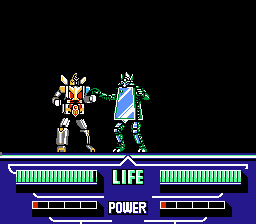
Nostalgia.NES is aimed at the player who wants to open a NES game without first learning a multi-system frontend. It keeps the useful tools close: save states, turbo buttons, rewind, external-controller support, and configurable virtual controls. Those are the features that turn a basic phone session into something genuinely practical.
Its appeal is focus. A dedicated NES interface is easier to understand than a frontend designed to cover dozens of machines. That makes it a sensible starting point for newcomers, for a child’s tablet, or for someone who wants a small, straightforward setup rather than a hobby in configuration.
The tradeoff is that a focused app gives you less room to standardize settings across multiple platforms. If your collection will eventually include Game Boy Advance, SNES, Genesis, arcade systems, and more, managing separate apps can become less appealing. For NES alone, however, simplicity is a feature rather than a limitation.
2. John NESS: useful if NES and SNES belong together
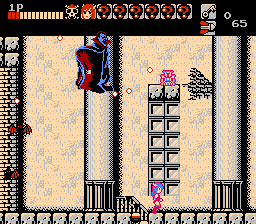
John NESS combines NES and SNES emulation in one package. That is a practical middle ground for players whose retro library naturally jumps from Super Mario Bros. 3 to Super Mario World, or from the first Zelda to A Link to the Past. It avoids having two single-purpose apps while remaining less imposing than a fully modular frontend.
The supplied feature list includes save states, cheats, fast-forward, and controller support. Its lightweight approach is particularly attractive for an older spare phone or a compact handheld-style Android device. Start with the defaults, connect and map your controller, then adjust the virtual controls only if you expect to play without one.
The compromise is breadth versus specialization. John NESS is convenient precisely because it covers two Nintendo generations, but it does not provide RetroArch’s core-by-core choice or its deeper system-wide customization. Choose it when you value a shared NES/SNES library and a direct route into play, not when you need to compare emulation implementations or tune every visual detail. For a broader look at the 16-bit half of that pairing, see our SNES emulator guide for Android.
3. RetroArch: best for a long-term, configurable setup
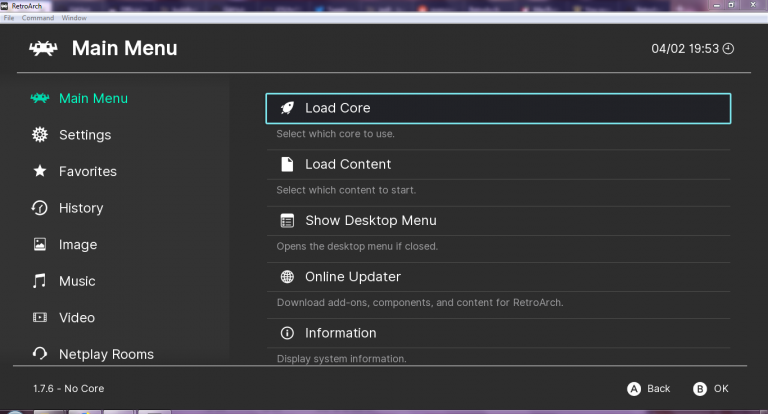
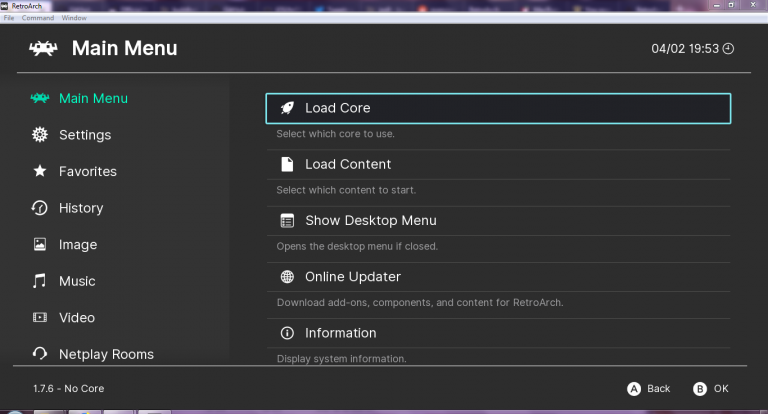
RetroArch is not one emulator in the usual sense. It is a frontend that loads emulation “cores,” including NES/Famicom options such as Mesen, Nestopia, FCEUmm, and QuickNES. The upside is consistency: controller remaps, shaders, save states, rewind, and other tools can live in one multi-system environment. The downside is that the first setup takes more patience than with a dedicated app.
For an everyday NES setup, start with one core and resist the urge to change every option. Mesen or Nestopia are sensible first trials when accuracy and broad compatibility matter. FCEUmm is especially worth trying for its wide mapper coverage and support for Famicom Disk System, Dendy, VS. System content, custom palettes, and multitap handling. If you are repurposing an older device or simply prefer a compact, fast option, QuickNES prioritizes low resource use.
RetroArch rewards methodical setup. Import only your own game dumps, scan them if you want a library view, load the game with a chosen core, and confirm the D-pad, A, B, Start, and Select mappings. Then save a core override for NES-wide settings or a game override only when one title needs special treatment. This prevents a one-off experiment from unexpectedly changing every game.
Use RetroArch if you enjoy tweaking, use several classic systems, or want to keep one controller layout across a larger collection. It is also the best answer when a troublesome game calls for a different NES core. If all you want is a single evening with DuckTales, the simpler apps get you there faster.
A practical setup checklist
- Make a tidy library folder. Create a clearly named folder such as “NES” in storage you can find again. Avoid scattering files across downloads, chat attachments, and SD-card roots.
- Use personal, lawful game dumps. Dump cartridges you own using appropriate hardware and retain the original media. Homebrew releases and games distributed by their copyright holders are also good options.
- Keep filenames readable. Clear names make it easier to identify revisions, regions, and hacks you are entitled to use. Do not rename a file after making a save state unless you are prepared to reorganize its associated saves too.
- Connect the controller before launching a game. Android and the emulator need a chance to recognize it. Test all core buttons in a calm title before attempting a demanding action game.
- Set display scaling deliberately. Choose integer scaling where it fits if you want crisp square pixels. Choose aspect-ratio correction if you prefer the image closer to how many games looked on a television. Stretching to fill an ultrawide phone screen is rarely flattering.
- Back up saves. Copy battery saves and important save-state folders to another device or your own storage periodically. A new phone, a storage cleanup, or an app reset should not erase a long RPG campaign.
Display advice: clean pixels or CRT character?
The NES originally targeted CRT televisions, not high-resolution phone screens. A raw, sharp image is often ideal for pixel art and text, especially on a small display. Use a simple integer scale when possible, keep the correct aspect ratio, and disable aggressive smoothing if it makes edges look smeared.
Shaders can add scanlines, a subtle screen curve, or composite-video softness for a more period-like look. They are optional, not mandatory. On a small phone, heavy shader effects can obscure detail and consume battery without adding much. A restrained scanline effect may look wonderful on a tablet or TV; on a phone, plain pixels often win.
For television play, a controller and sensible overscan/cropping settings matter more than elaborate effects. Look for a mode that does not stretch the image. If you sit far from the screen, modest smoothing or a light CRT-style shader can be more comfortable than razor-sharp pixels, but keep game text legible.
Performance expectations and common fixes
Standard NES games should not tax a current Android device. If a game runs poorly, investigate setup before assuming that your phone is too weak. Disable demanding shaders, close background apps, make sure the device is not overheating, and test the same game in a different core if you use RetroArch. Audio crackle often points to timing, power-saving behaviour, or a configuration issue rather than a need for more raw hardware.
Input lag is usually more noticeable than frame-rate problems. Turn off Bluetooth devices you are not using, avoid TV picture modes that add processing, and try a wired controller if precise games still feel late. In RetroArch, avoid blindly changing latency settings until you have established a working baseline; aggressive tweaks can create other problems.
For multiplayer games, verify which input port each controller occupies and whether the title needs a multitap arrangement. FCEUmm’s multitap support can be useful here, but the game itself must support the accessory. Two-player NES sessions are otherwise uncomplicated, provided both controllers are recognized before launch.
Legal, responsible game preservation
An emulator is software that imitates hardware; it does not include a license to download commercial games. The responsible route is to create your own digital backups from cartridges you own, using dumping equipment compatible with those cartridges, and to use homebrew or officially authorized releases. Keep your original cartridges and avoid sharing your dumps.
Do not rely on copyrighted ROM sites, random “game packs,” or BIOS-download pages. Aside from the legal and ethical issues, those sources are a common route to mislabeled files and unwanted software. NES emulation generally does not require a separately downloaded console BIOS for ordinary cartridge games, so claims that one is necessary should be treated cautiously.
FAQ
Which choice is best for a first-time Android user?
Nostalgia.NES is the clearest fit when you only want NES and prefer a focused interface. John NESS is equally approachable if SNES is part of the plan. RetroArch is best saved for players who want multi-system flexibility or core choice.
Do I need a powerful phone?
No special high-end hardware is normally necessary for NES. A controller, a good screen, and sensible settings have a bigger effect on the experience than flagship-level processing power.
Why does one NES game work in one emulator but not another?
Mapper behaviour, regional variants, unusual hardware features, and emulator implementation can differ. In RetroArch, try another suitable core such as Mesen, Nestopia, FCEUmm, or QuickNES before changing a long list of settings.
Are save states safe to rely on?
They are very useful, but keep normal in-game saves when available and back up both. Save states are often specific to an emulator or core, so they are less portable than a game’s own battery save.
Final recommendation
There is no need to overcomplicate NES emulation in 2026. Pick Nostalgia.NES when you want a dedicated, featureful NES experience with minimal fuss. Pick John NESS when a combined NES and SNES library is the goal. Pick RetroArch when you want an adaptable long-term setup, accurate core options, and the ability to solve compatibility problems by changing cores rather than abandoning a game.
Whichever route you take, spend five minutes on a controller, correct display scaling, and a backup plan for saves. Those small decisions do more for the experience than chasing exotic settings—and they let the games, rather than the setup, take center stage.
More Android Emulator Guides
Choose the system you want to play. These guides compare Android options and link to the matching emulator profiles.




20 comments
Pingback: Best Neo Geo Pocket Emulators for Android in 2025 | Retro Replay
Pingback: Best ZX Spectrum Emulators for Android in 2025 | Retro Replay
Pingback: Best MSX Emulators for Android in 2025 | Retro Replay
Pingback: Best PS1 Emulators for Android in 2025 | Retro Replay
Pingback: Best N64 Emulators for Android in 2025 | Retro Replay
Pingback: Best Android Emulators in 2026: The Complete System-by-System Guide - Retro Replay
Pingback: Best WonderSwan Emulators for Android in 2025 | Retro Replay
Pingback: Best Commodore 64 Emulators for Android in 2025 | Retro Replay
Pingback: Best Atari Emulators for Android in 2025 | Retro Replay
Pingback: Best PS3 Emulators for Android in 2025 | Retro Replay
Pingback: Best PSP Emulators for Android in 2025 | Retro Replay
Pingback: Best TurboGrafx-16 Emulators for Android in 2025 | Retro Replay
Pingback: Best Sega Saturn Emulators for Android in 2026 - Retro Replay
Pingback: Best Amiga Emulators for Android in 2025 | Retro Replay
Pingback: Best Dreamcast Emulators for Android in 2025 | Retro Replay
Pingback: Best GameCube Emulators for Android in 2025 | Retro Replay
Pingback: Best NDS Emulators for Android in 2025 | Retro Replay
Pingback: Best SNES Emulators for Android in 2026 | Retro Replay
Pingback: Best GBA Emulators for Android in 2026 | Retro Replay
Pingback: Best Game Boy Emulators for Android in 2026 | Retro Replay