 Retro Replay Retro Gaming History, Reviews & Emulation
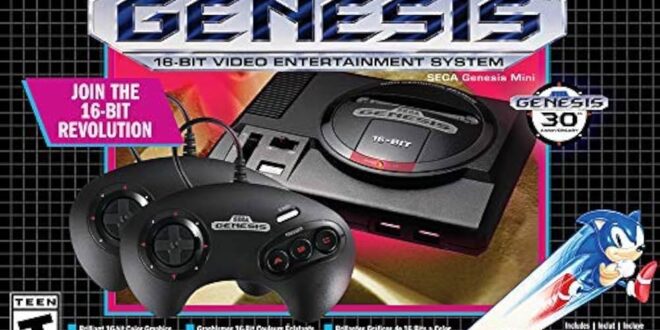
The Sega Genesis—known as the Mega Drive in many regions—remains one of the easiest retro systems to enjoy well on Android. Its library still feels immediate: fast platformers, sharp arcade conversions, inventive shooters, great role-playing games, and local multiplayer brawlers all suit short handheld sessions surprisingly well. A modest phone can generally handle standard Genesis games without turning the experience into a troubleshooting project.
That does not mean every emulator delivers the same experience. The important differences are less about raw speed than input feel, video options, save management, support for Sega’s adjacent hardware, and how much setup you are willing to do. For most people, MD.emu is the direct, focused pick. RetroArch is the better long-term home if you want one configurable library for several systems. GENPlusDroid remains a simple, lightweight alternative for players who prefer minimal menus.
What good Genesis emulation looks like on Android
Genesis emulation is mature enough that ordinary cartridge games should feel responsive and stable rather than demanding. The baseline expectation is full-speed play, clean sound, sensible screen scaling, touch controls, and the ability to use a Bluetooth or USB controller. A stronger app earns its place through the details: dependable save states, easy button remapping, accurate timing in demanding games, and settings that improve the picture without obscuring the original art.
It also helps to separate the original Genesis from the wider Sega ecosystem. Master System, Game Gear, Sega CD, and 32X support is useful, but it adds choices and, in the case of CD software, may require firmware dumped from hardware you own. If you only intend to play Genesis cartridges, do not choose a more complicated setup solely because it has a longer feature list.
The features worth prioritizing
- Save states: Ideal for practicing difficult stages or pausing anywhere. Keep normal in-game saves too when a game supports them; save states are convenient, but a single overwritten state is a poor only backup.
- Controller mapping: Genesis games use a simple face-button layout, but six-button fighters and games designed around the Mode button benefit from deliberate mapping.
- Low-latency input: The best visual filter in the world cannot compensate for delayed jumps in Sonic or late blocks in Streets of Rage.
- Video controls: Integer scaling, aspect-ratio options, and a restrained CRT-style shader are more valuable than indiscriminate sharpening.
- Hardware scope: Choose broader Sega support only if you will use it. Sega CD and 32X are worthwhile additions, not requirements for an excellent Genesis setup.
1. MD.emu: the straightforward dedicated choice
MD.emu is the clearest recommendation for someone who wants to load their own Genesis games, configure a controller, and start playing. The app is built around the Genesis Plus GX emulation core, with support described for Genesis/Mega Drive alongside Master System and Sega CD software. That makes it notably broader than a Genesis-only app while retaining the focused feel of a standalone emulator.
The practical appeal is simple: its feature set covers what most players actually need. Save states, cheat support, and external-controller support are all part of the package described for MD.emu. There is no need to think in terms of cores, playlists, or global versus per-game settings before you play. For a phone used primarily for Sega’s 8- and 16-bit catalogue, that simplicity has real value.
Its tradeoff is that it is a dedicated solution. If you also want NES, Game Boy Advance, arcade, and PlayStation libraries under one interface, maintaining a separate application and set of settings for Genesis may feel less elegant. But dedicated apps are often the right answer: fewer layers mean fewer opportunities to map a button incorrectly or change a setting that affects every system.
Players who want to check the listed Android storefront entry can use the MD.emu Google Play link. Once installed, begin with the default video settings and one known-good dump. Confirm that a controller’s D-pad, A/B/C buttons, Start, and any desired six-button inputs work before adding filters or cheats.
2. RetroArch: best for a larger retro library
RetroArch is a frontend rather than one single emulator. You choose an emulation core, then configure that core inside a larger framework that can also organize many other consoles. For Genesis, the supplied recommendations point to Genesis Plus GX and PicoDrive. Both are sensible places to begin, but they suit slightly different priorities.
The Genesis Plus GX profile describes an accuracy-focused core with coverage for Mega Drive/Genesis, Master System, Game Gear, SG-1000, and Sega CD through compatible frontends. For standard Genesis software, it is the sensible default when you value broad Sega coverage and careful emulation over endless tweaking.
PicoDrive is especially relevant when 32X is part of the plan, while also covering Genesis, Sega CD, and selected Sega 8-bit hardware through compatible frontends. It is worth keeping as an alternative rather than treating one core as universally “best.” If a game presents a specific issue, testing the same legal dump in another appropriate core is a reasonable diagnostic step. Do not compare different cores using a heavily modified shader and latency configuration; test defaults first.
RetroArch’s advantages are substantial for enthusiasts: reusable controller profiles, shaders, rewind, achievements, cloud-save features, and a consistent interface across systems. It can become a polished living-room setup with a phone or tablet, a controller, and a TV. The cost is complexity. Core options, video settings, directory permissions, playlists, and overrides can overwhelm a newcomer who only wants to play Golden Axe after work.
A sensible RetroArch starting configuration
- Import only a small folder of your own Genesis dumps at first. A compact test library makes it much easier to see whether scanning and artwork matching are behaving as expected.
- Load Genesis Plus GX for ordinary Genesis titles. Add PicoDrive when you specifically want to explore its wider Sega CD or 32X relevance.
- Map the controller before launching a serious session. Use the D-pad for movement in games that were designed around digital controls; an analog stick can work, but it is usually less precise.
- Keep the original 4:3 display shape. Widescreen stretching makes sprites and circles look wrong. If black side borders bother you, use a tasteful background rather than stretching the playfield.
- Create one manual save state, then verify that you can load it. After that, decide whether rewind belongs in your routine. It is excellent for learning, but can remove the tension of games built around limited continues.
- Apply shaders last. A light CRT effect can soften harsh modern pixels, but a heavy shader may make a small phone screen dim or difficult to read.
RetroArch is particularly compelling if Sega is only one part of your collection. For example, players building a handheld 16-bit library may also find our Game Boy Advance emulator guide useful. For Genesis alone, MD.emu gets to the fun faster.
3. GENPlusDroid: a lightweight alternative
GENPlusDroid is the uncomplicated free option in this group. It is aimed at players who want Genesis coverage without committing to a full frontend. It offers save states, controller support, and smooth performance for most games, which is enough for a casual collection or an older spare device.
Its limitation is not that it lacks the essentials; it is that it offers less of the deep configuration and broader platform coverage that make RetroArch attractive. It also does not present the same dedicated all-around Sega scope described for MD.emu. That is fine if your priority is a lightweight Genesis session, but less appealing if you are assembling a carefully unified library with per-game video tuning and cross-system controller conventions.
The listed storefront page is GENPlusDroid on Google Play. Treat it as the practical choice when simplicity and low overhead matter more than advanced presentation options.
Controllers, touch controls, and display setup
Touch controls are usable for turn-based role-playing games, slower strategy titles, and brief platforming sessions. They are less satisfying for games that demand rapid directional changes, diagonal inputs, or closely timed attacks. A compact Bluetooth controller changes the experience more than almost any graphics option. Look for a reliable D-pad first; the Genesis library was made for it.
For a three-button game, map A, B, and C in a comfortable row and place Start somewhere easy to reach without accidental presses. For six-button games, map X, Y, and Z as a second row or shoulder functions, then test them in-game. If a controller has a dedicated menu or home button, avoid assigning it to an emulator command that could interrupt play.
On a phone, a portrait-friendly grip can be comfortable for menu work, but landscape is the natural orientation for games. A tablet provides a larger image and more room around on-screen controls; a television is best with a controller and a low-latency display mode. If your TV offers a Game Mode, enable it. Input delay introduced by a television can be mistaken for emulator lag.
Use the original 4:3 ratio as your baseline. Integer scaling is worthwhile when it fits cleanly, but do not sacrifice an appropriately sized picture just to chase perfect pixel math on every screen. A mild scanline or CRT shader can add texture on a large display. On a small OLED or LCD phone, a plain image is often clearer and more faithful to the way you actually play.
Performance expectations and common fixes
Standard Genesis games are not a serious performance test for modern Android hardware. If play feels slow, begin with the basics rather than assuming the emulation is too demanding. Disable intensive shaders, close background applications, try default core settings, and check whether Bluetooth latency—not frame-rate loss—is the real problem.
Audio crackling can come from a stressed device, an aggressive visual effect, or a misbehaving configuration. Return video and audio settings to their defaults, test a second legally dumped game, and then add changes one at a time. This method is far more useful than changing five settings at once and not knowing which solved or caused the issue.
For Sega CD and 32X, expectations should be more cautious. These formats add hardware layers and more variables than a Genesis cartridge. Use the appropriate core, start with default settings, and ensure any required firmware is your own lawful dump. If the goal is simply to enjoy the Genesis catalogue, there is no reason to begin with the most complicated branch of Sega emulation.
Use your own games and firmware
Emulators are software that recreates hardware behavior; they do not grant a license to obtain games you do not own. The responsible route is to dump cartridges and discs from copies you own, then keep those files for personal use in accordance with the law where you live. Do not download commercial ROM collections, and do not use copyrighted game sites or “BIOS packs.”
Cartridge-based Genesis games generally do not need a console BIOS to start. Sega CD software is different: compatible emulation may require firmware. If you choose to use that hardware, create a personal dump from your own console rather than seeking firmware online. Preserve clean backups of your dumps, label them clearly, and keep your save files in a separate folder or cloud backup you control. Good organization protects your progress and makes moving to a new device much less painful.
FAQ
Which choice is best for a first-time Android user?
MD.emu is the easiest focused recommendation. It offers the core conveniences—save states and controller support—without requiring you to learn a multi-system frontend.
Should I use Genesis Plus GX or PicoDrive in RetroArch?
Start with Genesis Plus GX for ordinary Genesis/Mega Drive play and broad Sega-system coverage. Consider PicoDrive when 32X is an important part of what you want to play, or when you are testing a title across suitable cores.
Do I need a controller?
No. Touch controls can work, especially for slower games. A controller is strongly recommended for action games, fighting games, and local multiplayer sessions because the D-pad and physical buttons are more precise.
Are shaders necessary to make Genesis games look right?
No. Use the original aspect ratio first. Add a subtle shader only if you enjoy the effect and your display remains bright and readable.
Can I play Sega CD games with the same setup?
MD.emu and the relevant RetroArch cores are described with Sega CD support, but CD emulation can involve required firmware and more setup. Use only firmware you have dumped from hardware you own.
Final recommendation
For Genesis games on Android in 2026, choose MD.emu if you want a dependable, dedicated Sega app with little friction. Choose RetroArch if you want a configurable multi-system library and are prepared to spend time learning cores, overrides, shaders, and controller profiles. Choose GENPlusDroid when a lightweight free approach is the priority.
The key is not chasing the most elaborate setup. Start with a legal dump of a favorite game, a 4:3 image, and a properly mapped controller. Once the basics feel right, save states, restrained display effects, and broader Sega hardware support can enhance the experience without getting in the way of why these games endure.
More Android Emulator Guides
Choose the system you want to play. These guides compare Android options and link to the matching emulator profiles.



8 comments
Pingback: Best Neo Geo Emulators for Android in 2026 - Retro Replay
Pingback: Best Atari Emulators for Android in 2025 | Retro Replay
Pingback: Best PSP Emulators for Android in 2025 | Retro Replay
Pingback: Best Sega Saturn Emulators for Android in 2026 - Retro Replay
Pingback: Best ZX Spectrum Emulators for Android in 2025 | Retro Replay
Pingback: Best Dreamcast Emulators for Android in 2025 | Retro Replay
Pingback: Best WonderSwan Emulators for Android in 2025 | Retro Replay
Pingback: Best GBA Emulators for Android in 2025 | Retro Replay