 Retro Replay Retro Gaming History, Reviews & Emulation

The Dreamcast remains unusually rewarding to play on a phone or tablet. Its games were built around quick arcade action, expressive 3D visuals, and a controller layout that translates well to a modern gamepad. A good Android setup can make Crazy Taxi, Soulcalibur, Jet Set Radio, Sonic Adventure, and Shenmue feel far more immediate than digging out ageing hardware, cables, and optical discs.
There is no universally perfect Dreamcast emulator, however. The best choice depends on whether you value a straightforward library screen, granular video controls, or one unified app for several systems. This guide focuses on the practical choices: Redream for a direct, approachable Dreamcast experience; Flycast for people who already use it or want to explore its wider arcade lineage; and RetroArch with a Flycast core for tinkerers who want a shared retro setup.
What makes Dreamcast emulation different?
The Dreamcast sits in an interesting middle ground. It is considerably more demanding than 8- and 16-bit systems, but it is not an impossible target for a reasonably capable modern Android device. Results still vary by phone, tablet, game, resolution setting, and background heat. Do not treat “runs on Android” as a promise that every title will be flawless at every enhancement setting.
The console also has a few traits worth planning around. Its analogue stick and four face buttons are central to much of the library; VMUs were memory cards with their own small screens; and many games were designed for a 4:3 television. Those details matter more to the experience than simply making the image fill a tall phone display.
For most players, these are the features that matter:
- Reliable game loading and saves: ordinary in-game saves are the foundation. Save states are useful convenience backups, but they should not be your only record of a long campaign.
- Proper controller mapping: Bluetooth or USB controllers dramatically improve racing games, fighters, sports games, and anything using the analogue stick.
- Sensible image options: internal-resolution scaling can sharpen a game, while aspect-ratio controls prevent unwanted stretching.
- Per-game adjustments: a demanding game may need lower rendering resolution or fewer visual extras than a lighter arcade-style title.
- VMU and memory-card handling: check where the emulator stores saves before investing hours in a game.
The short recommendation
Start with Redream if you want the least intimidating route to playing your own Dreamcast games on Android. Its documented Android app, clear focus on Dreamcast, and simple presentation make it the natural first stop for someone who does not want to build a frontend.
Consider Flycast if you are an existing user, enjoy experimenting with Dreamcast-adjacent arcade hardware, or prefer a project with a long history in the emulation scene. Treat it as a more hands-on choice: verify the build and its behaviour with the games you actually own rather than assuming an old recommendation remains the best fit for every device.
Use RetroArch with the Flycast core if your Android device is already a multi-system machine. It can keep Dreamcast alongside older consoles under one interface, but its menus and options add work. It is powerful precisely because it exposes choices that a standalone emulator keeps out of the way.
1. Redream: the best starting point for most players
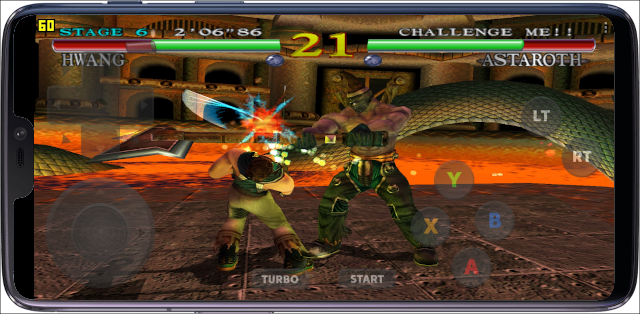
Redream is a Dreamcast-focused emulator with an Android app, as well as builds for desktop and ARM platforms. Its appeal is not an endless settings list; it is the ability to point the app at a well-organised collection of personal game images, map a controller, and start playing without turning the first evening into a configuration project.
That focus is valuable on a small touchscreen. A clean game browser and a limited number of decisions make it easier to notice the settings that actually count: controller inputs, orientation, rendering resolution, and save location. Redream supports controller use and image enhancement options, and its official information makes clear that users provide their own Dreamcast BIOS where required and their own game images. It does not bundle copyrighted firmware or games.
Who should choose it?
Choose Redream when you primarily want Dreamcast, value a quick setup, and would rather play than tune. It is particularly suited to a phone paired with a compact controller, a tablet with a stand, or a living-room Android device where a simple interface is welcome.
Tradeoffs
Simplicity also means less interest in building an all-in-one retro ecosystem. If you want CRT shaders shared across many consoles, elaborate per-core overrides, achievement services, or the same hotkey scheme everywhere, a frontend approach may make more sense. And while upscaling is appealing, it cannot repair every limitation of late-1990s assets: texture seams, original frame-rate limits, and geometry quirks are still part of the games.
2. Flycast: a flexible route for experienced users
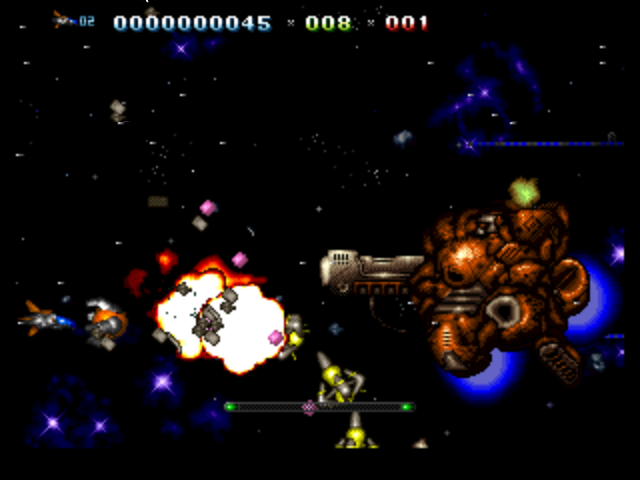
Flycast has an important place in Dreamcast emulation history and is closely associated with support for Dreamcast, Naomi, and Atomiswave software. That wider scope is its attraction. For an enthusiast who owns compatible arcade material and understands their preferred platform’s setup, one emulator family can cover more of Sega’s early-2000s ecosystem than a Dreamcast-only app.
On Android, Flycast has been used for Dreamcast play with controller support, save-state convenience, resolution scaling, and display options. It is a reasonable choice for people who already have a working installation and know what its settings do. The project’s history also makes it useful for understanding the lineage from older Android Dreamcast efforts such as Reicast.
There is an important practical caveat: do not choose an emulator purely because a years-old guide calls it the default. Builds, distribution methods, and device behaviour can change. The Flycast profile is best approached as a reference for existing installations and the project’s place in the ecosystem; test your own legally created files, confirm that saves work, and keep a copy of important memory-card data before making major changes.
Why the Naomi and Atomiswave angle matters
Naomi hardware shares technical DNA with the Dreamcast, so the overlap is more than a marketing bullet point. It can be appealing if you enjoy the arcade counterparts and related releases of the era. But arcade emulation introduces its own complications: controls may assume specialised cabinets, and file organisation is not necessarily as friendly as a self-contained Dreamcast disc image. Newcomers should get one Dreamcast game working first, then decide whether the extra scope is worth the added housekeeping.
When not to use Flycast
If all you want is a handful of Dreamcast favourites and you do not enjoy troubleshooting, Redream is the more direct recommendation. Likewise, Reicast is worth remembering as an early Android option, not as the sensible starting point for a new setup. Old builds may be useful for preservation or comparison, but they are not a substitute for choosing a solution that behaves well on your own hardware today.
3. RetroArch with a Flycast core: best for a single retro library
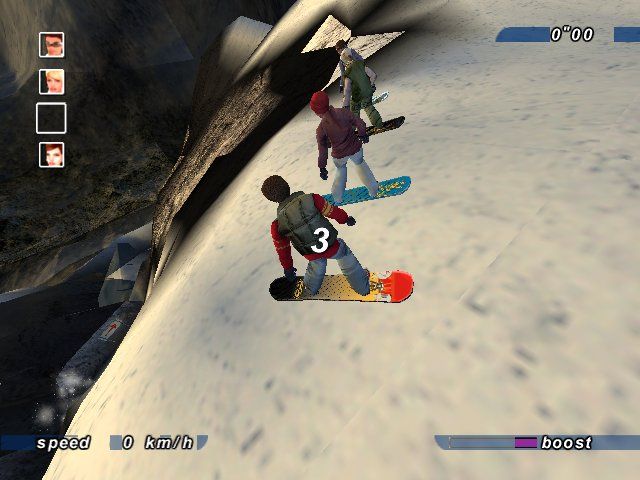
RetroArch is a frontend that runs emulator “cores,” including a Flycast core. Its main benefit is consistency. Once you understand its menus, you can use one controller profile, one shader vocabulary, and a similar library workflow across systems. That makes it a compelling companion for players also working through the best Sega Saturn emulators for Android or maintaining a broad Sega collection.
It also offers deep control over video presentation, overlays, input remapping, and other system-wide behaviour. CRT-style shaders can be attractive on a tablet or television because they soften the hard, scaled look of older 3D output. They are an aesthetic preference, though, not an accuracy upgrade, and they can add load on slower hardware.
The cost of flexibility
RetroArch asks more of the user. You need to understand the difference between global settings, core settings, content-directory overrides, and per-game overrides. A setting that fixes one title can accidentally affect another if it is saved in the wrong place. The interface also makes basic tasks feel less obvious than in a standalone emulator.
For that reason, it is ideal for someone willing to learn the workflow, not necessarily for the first Dreamcast game on a new phone. Start with default core settings, test one game, map the controller, then change only one video option at a time. Keep notes on any game-specific fixes. RetroArch’s official site is available at retroarch.com.
Setting up your Android Dreamcast library responsibly
Emulators do not include a legal right to acquire commercial games or firmware from the internet. The responsible route is to use discs and hardware you own, create your own game images where local law permits, and keep those files for personal use. Do not download copyrighted ROMs, disc images, or BIOS files from sharing sites, and do not bypass copy protection to obtain them.
Some Dreamcast setups can require a BIOS, while others may work with an emulator-provided replacement or a different configuration. If your chosen emulator asks for firmware, source it by dumping it from your own console in a lawful manner and follow that emulator’s documentation for naming and placement. Never assume a random “BIOS pack” is safe, complete, or lawful.
A clean initial setup
- Create a clearly named folder for your personal Dreamcast game images and a separate folder for saves and backups if the app permits it.
- Add one game first. Confirm that it launches and creates a normal in-game save before importing a large collection.
- Connect your controller before mapping inputs. Check the analogue stick, triggers, D-pad, face buttons, Start, and any menu shortcut.
- Leave rendering at a conservative default for the first test. Raise internal resolution only after a game is stable.
- Back up memory-card/VMU data periodically, especially before changing emulator builds, reinstalling an app, or moving to a new phone.
Use descriptive filenames and avoid keeping duplicate copies scattered through Downloads, cloud-sync folders, and SD storage. A tidy library makes rescanning faster and prevents the frustrating situation where an emulator sees several versions of the same game but the save belongs to only one.
Performance and video settings: improve gradually
Begin at the emulator’s normal rendering resolution. If a game plays smoothly, increase resolution one step at a time and retest a demanding scene, not just an opening menu. Races with several cars, busy city areas, transparency effects, and full-screen visual effects are more meaningful tests. If audio crackles, control response becomes uneven, or animation stutters, return to the previous setting.
A newer flagship phone is not the only factor. Sustained heat can reduce performance during a long session, particularly when charging, using a thick case, or driving a high-resolution tablet display. Avoid chasing maximum settings on battery power if a lower setting gives steadier play. Consistent frame pacing is more important than a screenshot-friendly resolution number.
Aspect ratio, widescreen, and filters
Most Dreamcast games were authored for 4:3. Preserving that ratio gives the intended proportions and avoids round objects becoming oval. On a widescreen display, use side borders, a neutral background, or a bezel rather than stretching the image edge to edge.
Widescreen modes and hacks can look impressive, but treat them as optional experiments. A game may reveal scenery outside its intended camera view, place interface elements oddly, or show rendering errors. If a title has a native widescreen option, use that; otherwise, compare the hack with the original presentation and keep whichever is less distracting. Shaders and smoothing filters are equally personal: try them after performance is settled, not before.
Controllers and displays: the upgrade that matters most
Touch controls are workable for slow menu-driven games and short sessions, but they are a poor match for the Dreamcast at its best. The virtual controls occupy screen space, offer no physical reference point, and make analogue movement less precise. A controller with a proper analogue stick and analogue triggers changes the experience immediately for driving games, 3D platformers, and fighters.
Map the face buttons deliberately instead of assuming their labels match every controller. Spend five minutes in a game’s training mode or opening area checking that A, B, X, Y, triggers, and Start feel natural. For arcade titles, consider a per-game layout rather than forcing one arrangement on every genre.
For television play, a wired controller is often the simplest way to minimise variables. Bluetooth is more convenient for phone play, but test for input delay and reconnect behaviour before a serious session. A tablet stand or phone clip can prevent hand strain, while a power source is useful for longer play. If you also enjoy earlier Sega hardware, the controller advice carries directly into our Sega Genesis emulator guide.
Common problems and sensible fixes
The game will not appear in the library
First check the folder permission and whether the emulator is looking at the correct directory. Then confirm that your personal dump uses a format accepted by that emulator. Do not “fix” a scanning problem by downloading a different copy of the game. Keep the original dump untouched while you consult the app’s documentation.
Gameplay is slow or sound breaks up
Lower the internal resolution, disable optional filters and widescreen experiments, close background apps, and let the device cool. Test the same game at defaults before changing anything else. If only one title has trouble, save a per-game adjustment rather than lowering every game globally.
My saves disappeared after moving devices
Game files and saves are often stored separately. Copy the emulator’s documented VMU or memory-card save data from the old device before migration, then verify the copy by loading it on the new device. Save states can be build-specific, so retain ordinary in-game saves as the dependable backup.
FAQ
Which Android Dreamcast emulator should a beginner try first?
Redream is the clearest first choice because it focuses on a straightforward Dreamcast experience. Use your own legally created game images and take time to verify saves and controller mapping.
Do I need a controller?
No, but it is strongly recommended. The Dreamcast library relies heavily on analogue movement and fast button input, and a controller leaves more of the display visible.
Can I make every game widescreen?
Not cleanly. Keep 4:3 as the dependable default. Native widescreen options are preferable; unofficial widescreen methods can introduce visual or interface problems.
Should I use save states instead of normal saves?
Use both, but trust normal in-game saves for long-term progress. Save states are excellent for a quick pause, a difficult section, or testing settings, yet they are less portable across app changes.
Final verdict
For a fresh Android Dreamcast setup in 2026, start with Redream, a controller, one carefully made personal game dump, and conservative video settings. That combination gets you to the part that matters: playing. Choose Flycast when its Dreamcast, Naomi, and Atomiswave scope suits an existing, more experimental setup, and choose RetroArch when a unified multi-console library is worth the extra learning curve.
Do not let resolution sliders and widescreen tweaks become the hobby unless you enjoy them. Preserve 4:3 when it looks right, favour steady performance over maximum scaling, back up VMU saves, and keep your library sourced from games and hardware you own. The Dreamcast’s personality comes through even at sensible settings—and that is why it remains one of Android emulation’s most satisfying consoles.
More Android Emulator Guides
Choose the system you want to play. These guides compare Android options and link to the matching emulator profiles.

14 comments
Pingback: Best GBA Emulators for Android in 2025 | Retro Replay
Pingback: Best PS3 Emulators for Android in 2025 | Retro Replay
Pingback: Best GameCube Emulators for Android in 2025 | Retro Replay
Pingback: Best NES Emulators for Android in 2025 | Retro Replay
Pingback: Best MSX Emulators for Android in 2025 | Retro Replay
Pingback: Best Amiga Emulators for Android in 2025 | Retro Replay
Pingback: Best PSP Emulators for Android in 2025 | Retro Replay
Pingback: Best Sega Saturn Emulators for Android in 2026 - Retro Replay
Pingback: Best PS1 Emulators for Android in 2025 | Retro Replay
Pingback: Best Neo Geo Pocket Emulators for Android in 2025 | Retro Replay
Pingback: Best Wii Emulators for Android in 2025 | Retro Replay
Pingback: Best ZX Spectrum Emulators for Android in 2026 | Retro Replay
Pingback: Best WonderSwan Emulators for Android in 2026 | Retro Replay
Pingback: Best SNES Emulators for Android in 2026 | Retro Replay