 Retro Replay Retro Gaming History, Reviews & Emulation
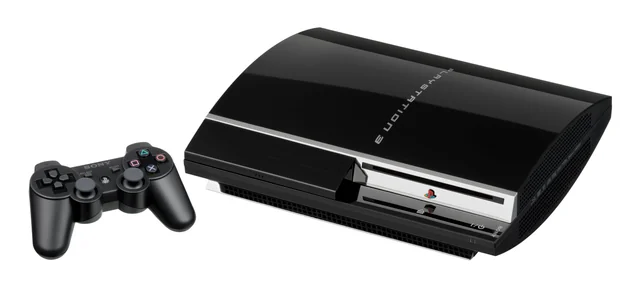
PlayStation 3 emulation remains one of the most demanding corners of the hobby. The console’s unusual Cell processor was built around several kinds of tightly coordinated processing cores, and games often relied on that design in ways an emulator must carefully reproduce. That is challenging on a desktop computer; on a phone or tablet, it is tougher still.
The honest 2026 answer is that Android is not a dependable native PS3 platform for mainstream games. A few experimental projects can be interesting for homebrew, technical testing, and the occasional light workload on powerful hardware, but they are not a substitute for a PS3 or a capable computer running desktop software. For most people who want to play their own PS3 library on an Android handheld, streaming from a PC is the practical route. This guide separates those options clearly, so you can spend your time playing rather than chasing misleading APKs.

Start with realistic expectations
PS3 emulation is not comparable to running an 8- or 16-bit console on a budget phone. Even Android emulation for later systems such as PSP and PS2 is generally a more mature proposition; see our PSP emulator guide and PS2 emulator guide for a useful sense of the gap.
On Android, native PS3 efforts should be treated as experiments. A game reaching an intro screen is not the same thing as a playable game. Reliable play means surviving long sessions without major graphical faults, broken audio, crashes, or corrupted saves, while maintaining tolerable input response. Many high-profile PS3 releases place a heavy load on both CPU emulation and graphics translation, and should not be bought or configured around the expectation of native phone play.
Why the PS3 is unusually difficult
The PS3 combines a PowerPC-based main processor with multiple Synergistic Processing Units, commonly called SPUs. Its graphics hardware and system software introduce further work for an emulator. Rather than simply translating a familiar console CPU instruction set, the emulator has to coordinate several processors accurately, handle timing-sensitive behavior, and translate graphics commands efficiently enough to avoid stutter.
Fast phone hardware helps, but raw specifications are not a compatibility guarantee. Sustained performance matters as much as peak speed: phones can reduce clock speeds when they get hot, and a title that looks promising for five minutes may slow down or become unstable later. Driver behavior, an emulator’s renderer, game-specific quirks, storage speed, and battery settings can all change the result.
The Android options, ranked honestly
1. Stream from a PC running RPCS3: the sensible way to play
If your goal is to play dumped PS3 games rather than test Android development, use Android as a display and controller client for a PC that runs RPCS3. RPCS3 is a desktop-focused, open-source PS3 emulator with a compatibility database, patches, per-game settings, controller profiles, Vulkan support, and shader-cache behavior designed around modern computer hardware. Those tools are exactly what demanding PS3 software needs.
This is not native Android emulation. The PC does the emulation; the Android device receives a video stream and sends controller input back over your network. That distinction matters because performance depends primarily on the computer and the quality of the network, not on whether your phone has the fastest processor.
The benefits are substantial. You gain access to a more established PS3 emulation environment, larger display options, configurable rendering, and a much better chance of making a supported game behave consistently. You also avoid turning your phone into a hot, rapidly draining test bench.
The tradeoff is latency. On a strong local network, slower-paced games can feel very good. Fast action games, fighters, rhythm games, and precision platformers are more demanding; even small delays can be noticeable. Keep the PC on wired Ethernet where possible, use a strong local Wi-Fi connection for the Android device, and avoid network congestion. Streaming over the internet is possible in principle with remote-play software, but it adds unpredictability and is best treated as a convenience feature rather than the preferred setup.
A practical streaming setup
- Set up the game on the PC first. Confirm it boots, plays correctly, and recognizes a controller before introducing streaming.
- Use your chosen PC-to-Android remote-play or game-streaming solution on the same local network.
- Pair a Bluetooth or USB controller to the Android device, then map and test every button in the PC setup.
- Begin at the host PC’s native, stable settings. Chasing higher internal resolution or demanding enhancements before verifying smooth streaming makes diagnosis harder.
- Test close to the router, then test where you actually intend to play. If input feels delayed, improve the network before changing emulator settings.
This route is also the better fit for a television. Connect the Android device to a display only if its output is stable, but remember that the PC is doing the real work. In many homes, connecting the PC directly to the television remains simpler and avoids an extra streaming and display hop.
2. RPCSX Android UI builds: for enthusiasts testing native PS3 work
RPCSX Android UI builds represent a more serious experimental direction than generic apps simply labelled “PS3 Emulator.” The project is desktop-first, particularly around Linux, with a native Android user-interface effort intended for people comfortable with development-stage software. Its public project pages include the Android UI repository and published test-build releases.
That pedigree does not turn it into a general recommendation for a phone-based PS3 library. Expect limited compatibility, incomplete features, awkward setup, and failures that may not have a useful workaround. Treat every title as an individual experiment. Use non-essential copies of your own files, keep notes about the settings you changed, and do not assume that a report from a different device will translate to yours.
This is best for experienced users who understand the difference between testing an emulator and having a finished gaming setup. It can be rewarding to follow, especially if you enjoy comparing behavior and contributing clean bug reports. It is a poor starting point for someone whose only goal is to replay a long, cinematic PS3 exclusive from start to finish on a phone.
3. aPS3e: visible, but keep the claims in perspective
aPS3e is a visible Android app that presents itself as a PS3 emulator and offers basic conveniences such as configurable controls and save-state features. Its value is primarily as an accessible point of curiosity for homebrew and experimentation, not as proof that Android PS3 emulation has reached a mature state.
Do not take a store listing, screenshots, or a short boot video as a compatibility promise. Large commercial PS3 releases are the wrong first test. If you choose to explore it, begin with a legal homebrew program or a small test case, use an external controller, and expect results to vary. Save states can be useful during testing, but they should not be your only save method: on difficult systems, savestate reliability may differ from title to title.
The key tradeoff is convenience versus confidence. An app-store installation is easier than configuring an experimental build, but it does not solve the underlying emulation workload. Players looking for a predictable, complete game experience should still favor a real PS3 or a desktop RPCS3 setup streamed to Android.
What about RetroArch?
RetroArch is an excellent front end for many older platforms, but it is not a practical PS3 answer on Android. The original promise of a unified interface, shared controller configuration, shaders, and library management is appealing, yet there is no stable Android PS3 core presented here as a ready-to-play solution.
Use RetroArch where its mature cores make sense. For PS3, do not install it expecting it to unlock a hidden, dependable emulator. A single all-in-one application is convenient only when the underlying emulation core is ready.
Be wary of “PS3 Emulator” APKs
Search results for PS3 emulation are crowded with unnamed APKs, reposted builds, and apps whose marketing promises vastly exceed what native Android PS3 emulation can reasonably deliver. Some may be prototypes; others may be unrelated software wrapped in attractive screenshots. The category itself should make you cautious.
Avoid treating random download sites, video descriptions, or paid “premium unlocks” as evidence of legitimacy. Do not grant unnecessary permissions, do not sign in with important accounts, and do not install a build merely because it claims to include games, firmware, or BIOS files. An emulator does not need to bundle copyrighted games, and such offers are a major warning sign.
When experimenting, prefer a project’s identifiable official project page or release channel, read its installation notes, and check whether the source and ownership are clear. If a listing makes broad claims but supplies no meaningful documentation, no discussion of limitations, and no reproducible compatibility information, move on.
Hardware, cooling, and display advice
For native tests, start with a recent, higher-end Android device, plenty of free storage, and low expectations. A flagship-class processor gives experimental software more headroom, but it cannot guarantee that a game works. Mid-range and older phones are better served by earlier consoles, where the experience is likely to be smoother and more enjoyable.
Use a controller. The DualShock-style PS3 layout has many inputs, including analog sticks, triggers, face buttons, shoulder buttons, a D-pad, and system functions. Touch overlays can help with a menu or a homebrew test, but they obscure the screen and compromise precise control. A Bluetooth controller is adequate for casual use; a wired connection can reduce one source of input delay where your device supports it.
For a handheld setup, a controller grip provides the most natural balance. For television play, choose a controller with a full layout and test it before starting a long game. Map the face buttons, sticks, triggers, Start, Select, and system button deliberately. Do not assume a generic Android mapping will correspond perfectly to the PS3 layout.
Cooling is not optional for serious experimentation. Long high-load sessions can create heat, battery drain, and performance reduction. Remove a thick case if it traps heat, do not play while the device is baking in direct sunlight, and consider active cooling if you are repeatedly testing demanding material. If performance deteriorates during a session, heat is a more likely explanation than a mysterious setting change.
Do not overvalue resolution scaling. A small phone screen already hides some imperfections, while higher internal resolution increases rendering work. First target a stable baseline. With PC streaming, raise visual settings only after the host can emulate the game consistently and the stream remains responsive.
Legal game and system-file handling
Emulators are software; games and console system files are separate copyrighted works. The responsible approach is to use games you own and create your own dumps from your discs or installed content, following the laws that apply where you live. Keep the original media and your dump together, and verify that the files copied correctly before troubleshooting an emulator.
Do not download commercial games from ROM sites, request links to copyrighted game files, or use a preconfigured package that includes them. Likewise, do not download PS3 firmware or other system software from unofficial sources. Use official distribution channels when system software is required, and follow the emulator’s documentation for how it should be installed. Do not bypass copy protection.
Homebrew is a good ethical testing path because its authors have chosen to make it available for community use. It also makes a better first native-Android experiment than a massive retail game: boot behavior, controller setup, and basic stability can be assessed without confusing an unsupported blockbuster with a broken installation.
Choosing the right path
- You want dependable PS3 play on Android: emulate on a suitable PC with RPCS3, then stream locally to your Android device.
- You own a PS3 and value simplicity: play on original hardware. It remains the most straightforward route for its library.
- You enjoy experimental emulation: investigate RPCSX Android UI builds or aPS3e, beginning with homebrew and accepting incomplete results.
- You mainly want handheld retro gaming: consider systems with mature Android emulation instead. Even a library of GBA classics is a far more relaxed fit; our GBA emulator guide is a good place to start.
FAQ
Can Android run PS3 games natively?
Experimental Android projects can attempt some PS3 software, particularly homebrew and limited test cases, but native PS3 emulation is not a dependable general-purpose Android experience.
What is the best way to play PS3 games on a phone?
For most owners, run the game on a capable PC through RPCS3 and stream it across a strong local network to the phone with a physical controller.
Will the newest phone run every PS3 game?
No. Hardware speed alone does not overcome game-specific emulation challenges, renderer limitations, driver differences, heat, and incomplete compatibility.
Do I need a controller?
It is strongly recommended. Touch controls are acceptable for basic testing but are a poor match for most PS3 games.
Can I download PS3 games or firmware for an emulator?
Use your own legally dumped games and official channels for any required system software. Do not download copyrighted game files or use packages that bundle them.
Conclusion
There is no honest “install this and play the whole PS3 library” recommendation for Android in 2026. Native options such as RPCSX Android UI builds and aPS3e are worth watching only if you enjoy experimental work and can accept incomplete results. RetroArch is not the missing shortcut.
For a real PS3 game session on an Android screen, desktop RPCS3 streamed from a capable PC is the decisive recommendation. It places the demanding emulation work where the tools and hardware are better suited, while the phone becomes what it does best: a convenient portable display and controller host. Keep your games legal, use a physical controller, prioritize network stability over flashy settings, and let experimental Android PS3 apps remain experiments until they prove otherwise.
More Android Emulator Guides
Choose the system you want to play. These guides compare Android options and link to the matching emulator profiles.




15 comments
Pingback: Best TurboGrafx-16 Emulators for Android in 2025 | Retro Replay
Pingback: Best Android Emulators in 2026: The Complete System-by-System Guide - Retro Replay
Pingback: Best Amiga Emulators for Android in 2025 | Retro Replay
Pingback: Best Commodore 64 Emulators for Android in 2025 | Retro Replay
Pingback: Best GameCube Emulators for Android in 2025 | Retro Replay
Pingback: Best NDS Emulators for Android in 2025 | Retro Replay
Pingback: Best N64 Emulators for Android in 2025 | Retro Replay
Pingback: Best PSP Emulators for Android in 2025 | Retro Replay
Pingback: Best GBA Emulators for Android in 2025 | Retro Replay
Pingback: Best PS2 Emulators for Android in 2025 | Retro Replay
Pingback: Best PS1 Emulators for Android in 2025 | Retro Replay
Pingback: Best SNES Emulators for Android in 2026 | Retro Replay
Pingback: Best Neo Geo Pocket Emulators for Android in 2026 | Retro Replay
Pingback: Best ZX Spectrum Emulators for Android in 2026 | Retro Replay
Pingback: Best Sega Saturn Emulators for Android in 2026 - Retro Replay