 Retro Replay Retro Gaming History, Reviews & Emulation
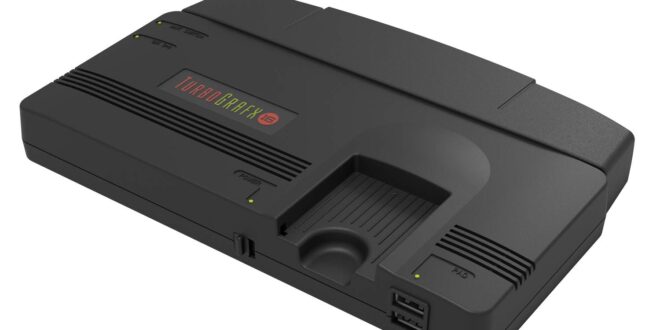
The TurboGrafx-16 and its Japanese counterpart, the PC Engine, remain wonderfully distinct machines to revisit on a phone or tablet. Their compact HuCards, vivid arcade-style shooters, inventive platformers, and ambitious CD releases gave NEC and Hudson a library that does not feel like a lesser copy of the 16-bit competition. A good Android setup makes Bonk’s Adventure, Blazing Lazers, R-Type, and Ys Book I & II easy to enjoy without putting original hardware through daily use.
This is also one of the more forgiving systems to emulate. HuCard games place modest demands on modern Android hardware, while PC Engine CD games add a little file management rather than a major performance hurdle. The real choice is not speed: it is whether you want a flexible all-in-one emulation frontend or a direct, dedicated app. For most people, RetroArch and PCE.emu are the two sensible places to start.
Why PC Engine and TurboGrafx-16 still deserve the effort
The names can be confusing at first. TurboGrafx-16 was the North American branding; PC Engine was the original Japanese platform. Their libraries overlap substantially, but regional releases, language, cover art, and a few hardware details differ. When browsing your own collection, it helps to file both under one PCE/TurboGrafx category rather than treating them as wholly separate systems.
The system’s reputation rests on much more than nostalgia. Its shooters are a natural fit for short sessions, from the escalating power-ups of Blazing Lazers to the deliberate pace of R-Type. Platform games such as Bonk’s Adventure are immediately readable on a small display. The CD format, meanwhile, allowed memorable music and voiced presentation in games such as Ys Book I & II. Castlevania: Rondo of Blood is often the headline attraction, but it is only one reason to explore the machine.
If your interests lean toward the same quick, arcade-forward design found in SNK’s catalog, our guide to Neo Geo emulators for Android makes a useful companion read. The PC Engine has its own personality, though: bright visuals, unusual Japanese exclusives, and a remarkable number of games built around crisp, responsive controls.
What makes an Android setup good
A worthwhile PCE/TurboGrafx setup should handle both HuCard cartridges and CD games, let you make save states, and work properly with a Bluetooth or USB controller. Those are practical basics, not luxury features. Save states are particularly welcome in difficult shooters, but conventional in-game saves should still be used for RPGs when available; they are easier to understand later and less likely to leave you wondering which state belongs to which point in a long game.
Expect HuCard titles to run smoothly on most reasonably current Android devices. This is an older, relatively light system to emulate, so upgrading a phone solely for it would be hard to justify. CD titles need sufficient storage for disc images and can involve additional configuration, but they are not comparable to the demands of later disc-based consoles. If a simple PCE game stutters, investigate power-saving mode, controller overlays, video settings, and the game image before assuming the hardware is inadequate.
Touch controls are serviceable for menu-heavy RPGs and slower games, but they are not the best way to experience fast shooters or action platformers. A compact Bluetooth pad or a USB controller immediately improves diagonals, rapid fire, and overall comfort. Map the primary action buttons so they feel natural before starting a serious session, then test them in a game rather than in a menu. Some titles use more buttons than the original two-button pad, so make sure every required input has a comfortable home.
Display choices: sharp pixels or a softer CRT feel
Do not assume that more smoothing always looks better. PC Engine artwork was designed around a low-resolution television image, and a simple integer-scaled picture can look excellent on a phone. On a tablet or TV, a light scanline or CRT-style shader can soften the hard digital edges and restore some of the intended blend between pixels. Use it sparingly: strong shaders can dim an already small image, obscure text, and add visual noise in games with detailed backgrounds.
Start with the emulator’s default aspect ratio rather than stretching every game to fill a widescreen screen. The black side borders are preferable to distorted circles, characters, and HUDs. If you play on a television, enable your display’s game mode where possible to reduce controller lag. The system responds quickly, and even mild latency is much more noticeable in shooters.
RetroArch: best for a configurable multi-system library
RetroArch is the strongest choice for players who want one interface for several older platforms and do not mind learning a few menus. Its PCE options based on the Mednafen/Beetle PCE Fast family are the attraction here. The original recommendation for this setup is well founded: it can cover HuCard and CD games while giving the user a broad set of frontend tools.
RetroArch’s strengths are save states, controller remapping, video filters and shaders, and library-wide conveniences such as achievements and cloud-save features. It is also useful if your Android device already carries libraries for systems such as Game Boy Advance; see our GBA emulators for Android guide for another system where a shared controller and display setup pays off.
The tradeoff is friction. RetroArch asks you to understand the difference between the frontend, a core, content, and core-specific settings. That is not difficult once learned, but it is more involved than opening a standalone emulator and selecting a game. Avoid changing every setting at once. Load one HuCard game, confirm that input and video are correct, save your configuration, and only then add shaders, per-game button remaps, or CD titles.
A practical RetroArch setup order
- Install RetroArch from its official distribution path and choose the PCE core you intend to use.
- Create a clear folder structure on local storage, with separate folders for HuCard games, CD game files, saves, and any firmware files the selected core documents as necessary.
- Connect your controller before launching a game. Check the directional pad, action buttons, Start, and any rapid-fire assignment in RetroArch’s input menu.
- Load a HuCard game first. Confirm the aspect ratio, touch-overlay preference, and save-state location before experimenting with visual filters.
- For CD games, follow the core’s own documentation for the disc format and any required system files. Keep disc files together and name them consistently.
This deliberate first pass prevents the most common RetroArch problem: a pile of global changes that make it unclear why one game behaves differently from another. For deeper background on the project behind these emulation roots, see the Mednafen emulator profile. Mednafen is notably command-line-focused on its own, which helps explain why a frontend can make these components more approachable on mobile.
1. PCE.emu: the direct standalone alternative
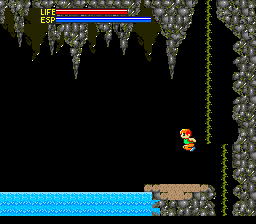
PCE.emu takes the opposite approach: it is a dedicated PC Engine/TurboGrafx emulator rather than a general-purpose frontend. The original recommendation identifies it as a lightweight standalone app built on Mednafen-derived emulation, with support for HuCard and CD games, save states, cheats, configurable on-screen controls, and Bluetooth or USB controllers.
That makes it the easier recommendation for someone who wants to play PCE games rather than build a multi-platform emulation environment. There are fewer layers to think about, and a dedicated app keeps the library and its settings focused on one machine. Its paid status is a tradeoff, but a polished standalone workflow can be worth more than a larger settings menu if you only plan to play this system.
Choose PCE.emu if you value a focused interface, want to be playing quickly, or prefer system-specific settings without the vocabulary of cores and playlists. Choose RetroArch if you already use it successfully, want its broader display and library tools, or enjoy refining a setup across several consoles. Neither decision is permanent: your legally created game files can be organized so that either approach can use them.
MagicEngine streaming: useful, but not Android emulation
MagicEngine occupies a separate category. It is a long-running PC emulator that can be viewed on an Android device by streaming a computer through a service such as Moonlight or Steam Link. That can be convenient if you already have a PC-based MagicEngine setup and want to continue a session elsewhere in your home.
It should not be presented as a native Android alternative. The computer is doing the emulation; Android is receiving video and sending controller input. Streaming also adds dependence on a stable local network and can introduce enough input delay to matter in shooters. For couch-based RPG play, it may be perfectly pleasant. For a portable, self-contained TurboGrafx setup, RetroArch or PCE.emu is the more straightforward route. MagicEngine information is available through its official site.
Using your own games responsibly
Emulators are software, but commercial game data and system files remain subject to copyright and local law. The responsible route is to use games you own and create your own dumps where the law permits. HuCards and optical discs require appropriate dumping hardware or a compatible drive and software; an Android phone alone is not generally a dumping tool. Preserve the resulting files privately, keep a note of the original item they came from, and verify that a dump loads before packing away the source media.
For CD games, retain the complete disc image and its accompanying cue information where applicable. Separating audio tracks or casually renaming files is a common cause of missing music and failed boots. Do not download BIOS files, game images, or “preconfigured packs” from copyright-infringing sources, and do not use tools intended to defeat copy protection. If a required system file cannot be lawfully sourced from hardware you own, stick to the part of your library that you can run legitimately.
Common problems and quick fixes
The game loads, but the controls feel wrong
Disable or reduce the touch overlay when using a physical pad, then remap buttons in the emulator. Test the directional pad for clean diagonals in a shooter. If input seems delayed on a TV, use game mode and avoid wireless display mirroring.
A CD game has no music or fails to start
Check that all disc-related files remain together, that the cue file still points to the correct names, and that the emulator’s documented system-file requirements are met. Rebuild your own dump if files were moved or edited. Do not substitute files of unknown origin.
The picture looks stretched or too blurry
Return to the default aspect ratio, disable smoothing, and try integer scaling first. Add a subtle shader only after the basic picture looks right. A clean image is generally better than an elaborate filter that makes text harder to read.
FAQ
Do I need a powerful Android device for TurboGrafx-16?
Usually not. HuCard games are relatively light to emulate, and CD titles are more about proper organization and configuration than exceptional processing power.
Which emulator should a newcomer choose?
PCE.emu is the more direct dedicated choice. RetroArch is worthwhile when you want one environment for multiple systems and are comfortable spending time on initial setup.
Can I play PC Engine CD games?
Both leading recommendations are described as supporting CD games. Expect additional file-management steps, and follow the selected emulator or core’s documentation for its requirements.
Is a controller necessary?
No, but it is strongly recommended for action games and shooters. Touch controls are best treated as a convenience rather than the ideal long-term control method.
Final recommendation
For a single, no-nonsense Android PCE library, PCE.emu is the clear starting point: dedicated, focused, and equipped with the essentials. For players who want shaders, deeper controller options, achievements, cloud-save features, and a shared home for several retro systems, RetroArch with a PCE core is the better long-term setup—provided you are willing to configure it carefully.
Either route can show why the TurboGrafx-16 and PC Engine endure. Use clean dumps of games you own, begin with a wired or Bluetooth controller and a sensible aspect ratio, then spend time with the library rather than endlessly tuning settings. This is a platform at its best when a five-minute shooter run turns into an evening of discovering games you missed the first time around.
More Android Emulator Guides
Choose the system you want to play. These guides compare Android options and link to the matching emulator profiles.



16 comments
Pingback: Best Neo Geo Emulators for Android in 2026 - Retro Replay
Pingback: Best NES Emulators for Android in 2025 | Retro Replay
Pingback: Best Android Emulators in 2026: The Complete System-by-System Guide - Retro Replay
Pingback: Best SNES Emulators for Android in 2025 | Retro Replay
Pingback: Best ZX Spectrum Emulators for Android in 2025 | Retro Replay
Pingback: Best MSX Emulators for Android in 2025 | Retro Replay
Pingback: Best Dreamcast Emulators for Android in 2025 | Retro Replay
Pingback: Best GameCube Emulators for Android in 2025 | Retro Replay
Pingback: Best GBA Emulators for Android in 2025 | Retro Replay
Pingback: Best Atari Emulators for Android in 2025 | Retro Replay
Pingback: Best PSP Emulators for Android in 2025 | Retro Replay
Pingback: Best PS3 Emulators for Android in 2025 | Retro Replay
Pingback: Best Game Boy Emulators for Android in 2025 | Retro Replay
Pingback: Best WonderSwan Emulators for Android in 2026 | Retro Replay
Pingback: Best Amiga Emulators for Android in 2026 | Retro Replay
Pingback: Best Commodore 64 Emulators for Android in 2026 | Retro Replay