 Retro Replay Retro Gaming History, Reviews & Emulation

Wii emulation on Android is no longer a novelty, but it is still one of the more demanding ways to play a sixth- and seventh-generation Nintendo library on a phone or tablet. The Wii shares much of its architecture with the GameCube, yet its unusual controller, pointer input, and motion-focused software create practical challenges beyond simply getting a game to boot.
For most players, the answer is straightforward: Dolphin is the Wii emulator to start with. It is the established GameCube and Wii project, with mature compatibility, flexible controller configuration, and high-resolution rendering. The important part is setting realistic expectations: a capable device, a physical controller, and a little per-game configuration will matter far more than chasing a long list of alternative apps.
The short recommendation
Use Dolphin as your primary Wii emulator on Android. Its combination of Wii and GameCube support, configurable controls, save states, rendering options, and broad project maturity makes it the sensible default for newcomers and the least frustrating long-term choice for returning players. It is also worth reading our Dolphin emulator profile for a wider view of its capabilities across both Nintendo systems.
There have been Android-oriented Dolphin forks, including MMJR and MMJR2, intended to pursue different performance choices. They can be useful as troubleshooting experiments for someone who understands exactly what problem they are trying to solve. They should not, however, be the first stop for a new setup. Different builds can behave differently, settings advice becomes harder to follow, and an apparent speed gain in one game can introduce a visual, audio, or input compromise elsewhere.
If your main interest is GameCube rather than Wii, the same recommendation applies; see our guide to GameCube emulators for Android. Wii software is where control planning becomes especially important.
Why Wii emulation asks more of Android hardware
The Wii is not a system where every game will run identically on every Android device. CPU performance, graphics driver behavior, thermal headroom, the game itself, and the rendering resolution all influence the result. A phone that handles simpler systems flawlessly may still struggle with a demanding Wii title, particularly after it has warmed up during a longer session.
Think in terms of tiers rather than a single yes-or-no compatibility claim:
- Recent, higher-performance phones and tablets: often the best fit for Wii emulation. Many games are comfortable at their native internal resolution, and some may leave room for higher rendering resolutions.
- Mid-range devices: can be very enjoyable, especially when kept close to native resolution and paired with conservative settings. Expect individual games to need attention.
- Older or entry-level hardware: may run lighter games, menus, or selected titles, but it is not the platform to buy specifically for a broad Wii library.
A game reaching its opening screen is not the same as a game being pleasant to play. Test a real stage, race, match, or busy area for several minutes. Listen for crackling or stutter, watch for recurring slowdowns, and notice whether heat causes performance to fall later. That is more useful than judging a single menu scene.
Native resolution is the sensible baseline
Start at native internal resolution. It gives the device the easiest workload and establishes whether the game itself is stable. Once it performs well, raise the internal resolution one step at a time if you want a cleaner image. Wii games can look remarkably sharp on a modern display when rendered above their original output, but extra pixels do not fix an unstable frame rate.
Prioritize consistent performance over maximum sharpness. A stable native-resolution image with good controls feels far closer to the original experience than a high-resolution image that stutters whenever the action becomes busy.
1. Dolphin: the practical choice for Wii on Android

Dolphin began as a GameCube and Wii emulator and has grown into a long-running preservation project. On Android, its strengths are not merely a feature checklist. The interface and settings let you build a usable arrangement around the game: choose a controller profile, adjust the on-screen overlay when needed, change graphics options, and save game-specific configurations instead of forcing one compromise across your whole library.
Its core features cover what most players need:
- Support for both Wii and GameCube software in one library.
- Configurable emulated Wii Remote, Nunchuk, Classic Controller, and GameCube inputs.
- Bluetooth controller support alongside touchscreen controls.
- Save states for convenient stops and restarts, in addition to normal in-game saves.
- Higher internal rendering resolutions for compatible hardware.
- Per-game adjustments, which are valuable because Wii titles do not all stress an emulator in the same way.
Dolphin is not a magic compatibility switch. Motion-heavy games can be awkward without the right controller plan, and a title built around the Wii Remote pointer will not feel identical when translated to an analog stick or touchscreen. But Dolphin provides the tools to make informed compromises rather than pretending those differences do not exist.
2. What about Dolphin MMJR and MMJR2?
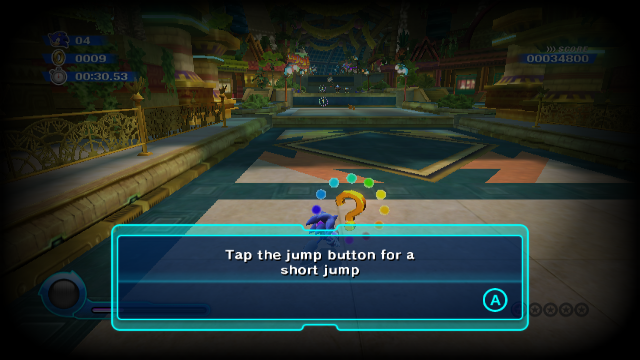
MMJR and MMJR2 are community Dolphin forks associated with Android performance experimentation. Their appeal is understandable: a particular game may seem smoother on a particular phone under a different build or configuration. For an experienced user willing to test carefully, they can be part of the toolkit.
The tradeoff is consistency. Guides written for standard Dolphin may not map cleanly to a fork, and changing emulator builds can change behavior, controller settings, graphics results, or save-state reliability. Treat a fork as a separate test install, keep your original game saves backed up, and change one variable at a time. Do not assume a fork is automatically better simply because it is described as optimized.
For a first Wii setup, standard Dolphin remains the clear recommendation. Try a fork only after confirming that a specific game has a repeatable problem under settings that otherwise work well.
Set up Dolphin without making it complicated
1. Begin with your own game dumps
Emulators do not include commercial Wii games. The responsible route is to create digital backups from Wii discs you own, using hardware and methods that are lawful where you live. Keep your original discs and avoid downloading copyrighted game images or system files from sharing sites. Local copyright and anti-circumvention rules differ, so ownership alone is not a universal legal answer; check the rules that apply to you.
Store your personal dumps somewhere with enough free space and organize them clearly. Use the emulator’s library-folder option to point Dolphin at that location. If a title does not appear, confirm the file was transferred completely and that the selected folder is the one containing the game image, not merely a parent directory.
2. Start with defaults and one known-good controller
Resist the temptation to apply every performance tip before launching a game. Configure the game directory, leave most settings alone, choose the appropriate emulated controller, and test. A Bluetooth gamepad with two analog sticks, a D-pad, shoulder buttons, triggers, and face buttons makes this much easier than a touchscreen.
For games designed around a sideways Wii Remote, map the directional and face-button functions in a layout that makes sense on your pad. For titles that need a Nunchuk, use one stick for the Nunchuk and assign the other controls deliberately. For Classic Controller or GameCube-compatible games, a conventional modern controller is generally the closest fit.
3. Create separate profiles for different kinds of games
There is no ideal universal Wii control scheme. A platformer using a sideways remote, a driving game that expects tilting, and a pointer-driven adventure ask for different things. Make separate controller profiles or use game-specific settings where available. Label them clearly; returning to a good setup months later is much easier when it has a meaningful name.
For motion, analog-stick emulation is usually the least surprising option. Map a stick or gyro-capable controller input to the needed tilt or swing action, then test it in a low-stakes area. Touch gestures can work in a pinch but are less precise and cover part of the screen. Games requiring elaborate or continuous motion input remain the least natural fit for phone play.
Controllers, motion, and pointer controls
A physical controller is not an accessory for Wii emulation; for much of the library, it is the difference between a novelty and a comfortable way to play. Touch controls are acceptable for turn-based games, menus, or brief testing, but they offer no tactile reference for buttons and can obscure important on-screen information.
Choose a pad that feels good in landscape orientation and has reliable Bluetooth behavior on your device. A clip-on controller is convenient for handheld play, while a separate pad is often more comfortable with a tablet or television. Before a long session, verify that Android sees every button correctly and that Dolphin has mapped them as intended.
Pointer-based games deserve special expectations. The original Wii Remote was designed to point at a television, so a right-stick cursor is an approximation, not a replacement. Raise or lower cursor sensitivity gradually, and assign a convenient recenter command if the configuration offers one. A title that uses pointing only for occasional menus may work well; one built around rapid, accurate pointing may be better enjoyed on original hardware.
Likewise, not every motion-control game translates gracefully. Simple shake, tilt, or flick actions can often be mapped acceptably. Activities built around fine physical movement, balance-style input, or multiple people sharing remotes are much harder to reproduce in a satisfying way. That is a limitation of the original design, not a failure of basic setup.
Display and audio advice
Wii games were designed around standard-definition displays, but higher internal rendering resolution can remove much of the softness on a phone, tablet, or TV. Use it thoughtfully. On a phone-sized screen, native resolution or a modest increase may already look excellent. On a larger tablet or television, higher resolution can be more noticeable, but it also makes demanding scenes harder to emulate.
Do not confuse widescreen with stretching. Some Wii games support a genuine 16:9 mode, which should be selected in the game’s own options where possible. For games designed around 4:3, forcing a wide image distorts circles, characters, and interface elements. Preserve the intended aspect ratio unless you knowingly prefer the tradeoff.
When connecting to a TV, test for input lag before committing to a controller setup. Wireless display mirroring can add noticeable delay, particularly in action games. A wired video path where your device supports it is often the better choice. Keep the phone ventilated during extended TV sessions; sustained heat can matter more than an impressive result in a short test.
Performance troubleshooting that actually helps
When a game runs poorly, simplify before you tweak. Return internal resolution to native, close other demanding apps, and test again after the device has cooled. If that improves the result, add visual enhancements back one at a time. This reveals what your hardware can genuinely sustain.
- Stutter at the start of a game: replay the same area before making drastic changes. Brief early stutter can have a different cause from constant slowdown.
- Slowdown in busy scenes: lower internal resolution first. It is the clearest, most reversible performance adjustment.
- Bad controls rather than bad performance: revisit the emulated controller type and mapping. A Wii Remote game configured as a standard pad will naturally feel wrong.
- One troublesome title: use per-game settings rather than weakening your entire library’s configuration.
- Problems after changing many options: return to a simple baseline. Keeping notes of changes prevents random trial and error.
Save states are useful, but do not let them replace ordinary in-game saves. Create regular in-game saves as well, especially before changing emulator builds or major settings. Save states can be sensitive to the exact configuration used when they were made.
Why the Wii library still rewards the effort
The Wii is remembered for motion controls, but its appeal is broader than a single launch-era gimmick. It includes inventive platformers, racing games, role-playing games, light-gun-style experiences, party titles, and substantial GameCube compatibility on the same emulator. Games such as Super Mario Galaxy, Xenoblade Chronicles, The Legend of Zelda: Skyward Sword, and Wii Sports also demonstrate why control requirements should shape your expectations: each asks something different from the player.
Android emulation is at its best for games that benefit from portability, improved rendering, convenient save states, and a familiar controller. It is less compelling when the original experience depends on a room full of people, multiple remotes, or unusually physical input. Being honest about that split helps you choose the right version of the experience instead of forcing every Wii game onto a small screen.
FAQ
Is Dolphin the best Wii emulator for Android?
For most users, yes. Dolphin is the established choice because it combines Wii and GameCube support with controller options, graphical adjustments, save states, and a mature project history. Forks may be worth controlled testing for a specific issue, but they are not the better default for most people.
Can I play Wii games with touchscreen controls?
You can configure them, and they can be adequate for menus or slower games. A Bluetooth controller is strongly recommended for regular play, while games centered on pointer accuracy or elaborate motion remain more difficult to translate.
Will every Wii game run perfectly on my phone?
No. Results depend on the game, your device, cooling, controls, and graphics settings. Start at native resolution, test actual gameplay, and use per-game adjustments rather than expecting one setup to fit everything.
Do I need to download a Wii BIOS?
Do not download system files from the internet. Use only files obtained from hardware you own and through methods permitted where you live. For many setups, the important first step is simply organizing your own game dumps and configuring the emulator correctly.
Conclusion
Dolphin is the decisive pick for Wii emulation on Android in 2026. Start with native-resolution rendering, a good Bluetooth controller, your own legally created game dumps, and simple settings. Then tailor controls and graphics to each game rather than expecting one profile to handle every kind of Wii software.
The payoff is substantial: a carefully configured Android device can be an excellent way to revisit large parts of the Wii and GameCube libraries with portable play, sharper rendering, and convenient saves. Just keep the central tradeoff in mind—traditional controller-driven games translate beautifully, while pointer- and motion-heavy titles demand patience and sometimes remain best on their original hardware.
More Android Emulator Guides
Choose the system you want to play. These guides compare Android options and link to the matching emulator profiles.




10 comments
Pingback: Best TurboGrafx-16 Emulators for Android in 2025 | Retro Replay
Pingback: Best Android Emulators in 2026: The Complete System-by-System Guide - Retro Replay
Pingback: Best Sega Genesis Emulators for Android in 2025 | Retro Replay
Pingback: Best MSX Emulators for Android in 2025 | Retro Replay
Pingback: Best Dreamcast Emulators for Android in 2025 | Retro Replay
Pingback: Best PS2 Emulators for Android in 2025 | Retro Replay
Pingback: Best GameCube Emulators for Android in 2025 | Retro Replay
Pingback: Best NDS Emulators for Android in 2025 | Retro Replay
Pingback: Best WonderSwan Emulators for Android in 2026 | Retro Replay
Pingback: Best Commodore 64 Emulators for Android in 2026 | Retro Replay