 Retro Replay Retro Gaming History, Reviews & Emulation
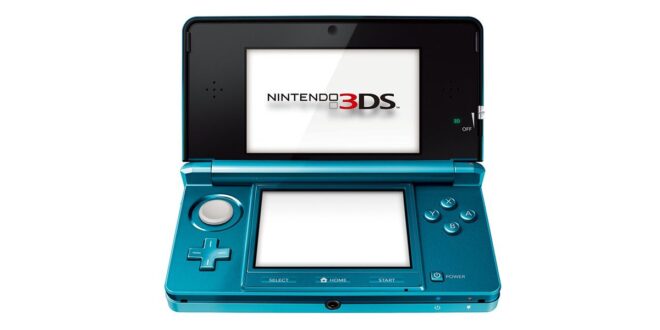
Nintendo DS emulation remains one of the easiest ways to revisit a remarkable handheld library on Android. The DS was not simply a Game Boy with a second display: its games were built around two screens, a stylus, a microphone, and occasionally a clamshell-like relationship between the player and the device. A good Android setup should make those ideas comfortable rather than merely make a game boot.
For most people, the right choice comes down to how much configuration they enjoy. A standalone emulator can get you into a cartridge dump quickly; a multi-system frontend can unify your collection, controllers, shaders, and saves. This guide focuses on the sensible options, the compromises of playing a dual-screen machine on one screen, and the small setup decisions that matter more than a long feature checklist.
What makes DS emulation different?
The DS presents two images at once, usually in a vertical stack. Android phones are also vertical, so the basic fit is better than it first appears. Yet a full-size pair of DS screens can make both displays small on a narrow phone. Games that keep their action on one screen and maps or menus on the other are easy to adapt; games that constantly ask for precise stylus input benefit from a larger screen, a stylus, or a tablet.
The best DS emulators let you choose between stacked, side-by-side, single-screen, and picture-in-picture layouts. They should also offer a quick way to swap the focused or enlarged screen. That one shortcut can transform games such as Mario Kart DS, where the lower display is useful but not continuously essential, while keeping both screens visible for menu-heavy RPGs.
Useful quality-of-life tools include save states, fast-forward, virtual-button placement, physical-controller mapping, and display scaling. These are not replacements for normal in-game saves. Think of a save state as a convenient snapshot and keep at least one ordinary game save as well, particularly before moving a save between devices or emulators.
Performance is rarely the central obstacle for standard DS games on a reasonably capable modern Android device. Layout, touch comfort, and emulator setup are usually the real questions. Raising internal resolution can improve the look of 3D scenes, but it also makes the hardware work harder and does not redraw the original 2D art. Start at the default rendering settings, confirm that a game is stable, then increase visual options only if you prefer the result.
The three practical routes
1. melonDS: the focused choice for a DS-first setup
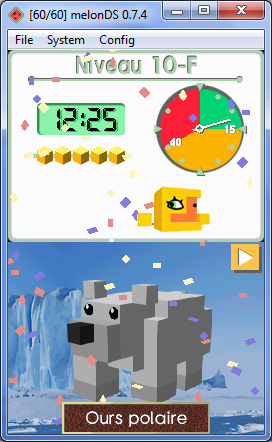
melonDS is a well-known open-source name in DS emulation, with a history rooted in studying the hardware closely. The supplied Android recommendation presents it as a standalone option with configurable screen layouts, touch input, save states, and controller mapping. Those are the essentials for playing the DS library properly rather than treating it as another single-screen console.
Choose a standalone melonDS build when DS is your main target and you want the shortest path from your own game file to play. A focused interface makes it easier to concentrate on the two things a DS player adjusts most: display layout and controls. It is also a natural fit for someone who wants a separate app and separate settings for the system instead of a unified frontend.
Accuracy-oriented emulation can sometimes expose edge cases that older, performance-first apps glossed over. In practice, test the particular games you care about, especially titles that use unusual peripherals, local wireless features, the microphone, or DSi-specific functions. No emulator should be chosen on reputation alone when your favourite game has a special requirement.
Use the melonDS Google Play listing as the original article’s direct Android reference, and read its current store information before installing. The wider melonDS project is also useful background for players maintaining an existing setup or comparing its approach with other DS emulators.
2. DraStic: convenient legacy software, with a clear caveat
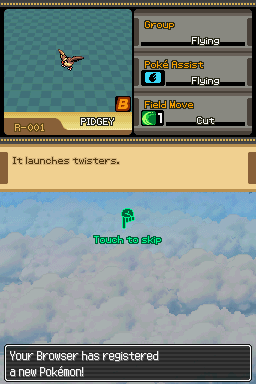
DraStic earned its following by making DS games feel quick and straightforward on Android hardware that was far less powerful than today’s phones. Its strengths in the supplied material are familiar ones: approachable controls, flexible screen arrangements, controller support, fast-forwarding, and higher-resolution rendering. If you already own and use it successfully, there is a good reason longtime DS players remember it fondly.
The important qualification is that it is no longer actively updated and was removed from Google Play. That changes the recommendation. It is not the first choice for a brand-new setup where support, fixes, and a current distribution path are priorities. It is best treated as legacy software for experienced users who understand where their copy came from and are prepared to troubleshoot on their own.
The original article points to the DraStic project page on SourceForge. If you decide to use any software obtained outside an app store, be especially careful about provenance: use the stated project source, inspect the publisher and file details, and avoid repackaged downloads, “premium unlocked” builds, and sites that bundle games. An emulator should never require you to disable basic device security or install unrelated files.
3. RetroArch with a DS core: best for an all-in-one library

RetroArch is a frontend rather than a single DS emulator. It runs emulation “cores,” including melonDS-based and DeSmuME-based DS options in the supplied material. This gives it a different appeal: one interface can handle DS alongside older handhelds and consoles, with common controller profiles and a consistent menu structure.
The payoff is flexibility. RetroArch can provide shaders, rewinding, save states, controller configuration, and optional achievement integration. A player who already uses it for Game Boy Advance will appreciate that continuity; our Game Boy Advance emulator guide covers the neighbouring handheld platform if you are building a broader portable collection.
The tradeoff is complexity. Core selection, content directories, input remaps, overlays, and per-game overrides can feel excessive when all you want is to start one DS RPG. RetroArch is excellent once its vocabulary clicks, but it is not automatically the friendliest first emulator. Start with a single core and a single game, verify controls and saves, then add overlays, shaders, and overrides one at a time.
For DS play, RetroArch’s biggest advantage is its per-game customization. One title may need a large lower screen for constant stylus work; another may play best with the top screen enlarged and the bottom screen tucked into a corner. Save those choices as game-specific overrides instead of compromising every title around one layout.
Choosing the right option
| Player priority | Best starting point | Why |
|---|---|---|
| Simple, DS-only play | Standalone melonDS | A focused setup for layouts, touch controls, saves, and controllers. |
| Existing DraStic owner | DraStic | Still familiar and fast in established setups, but it is legacy software without ongoing updates. |
| One app for several systems | RetroArch with a DS core | Deep configuration and shared tools, with a steeper learning curve. |
| Touch-heavy games | Any option on a larger phone or tablet | Screen space and a good layout matter more than the emulator brand. |
There is no universal winner. A compact phone and a racing game may make DraStic’s familiar shortcuts appealing. A tablet owner planning to play puzzle games may value a clean standalone layout. A player who wants one library for DS, GBA, and home consoles may reasonably accept RetroArch’s setup time. Pick the workflow you will actually maintain.
Set up your DS library thoughtfully
Use your own cartridges and keep clean backups
Emulators do not include commercial Nintendo DS games. The responsible route is to create personal backups from cartridges you own, using hardware and methods permitted where you live. Keep your original cartridges, follow local law, and do not download copyrighted game images, BIOS files, or “complete ROM sets” from unlicensed sources. Do not circumvent copy protection.
Store your personal dumps in a clearly named folder and leave the filenames readable. A structure such as Games/Nintendo DS, with a separate Saves folder where the emulator allows it, makes future migrations much less painful. Back up both game saves and save states; they are different files and either can be valuable.
Avoid treating a huge library as a setup goal. Add a few games, launch each once, make an in-game save, make a test save state, and verify that the controller and touchscreen behave as expected. That small test catches most problems before you have invested dozens of hours in an adventure.
Start with a sensible layout
On a phone, begin with vertically stacked screens and reduce the virtual controls until they do not obscure important UI. If a game primarily uses the top screen, try a large top panel with a smaller bottom panel beneath or overlaid in a corner. If it is built around drawing, tapping, or dragging, enlarge the bottom display and put the buttons where your thumbs naturally rest.
Portrait orientation usually preserves the original DS relationship. Landscape can be more comfortable with a controller, particularly when placing the two screens side by side, but it may shrink both displays. There is no purity prize for copying the original screen arrangement exactly. Use the arrangement that lets you read text, see action, and reach touch targets without strain.
For games that use the DS microphone, check the emulator’s input settings before assuming a puzzle is broken. If a game expects the system to be closed or opened, look for lid or screen-toggle controls as well. These are examples of why a few minutes with emulator settings can save a great deal of confusion.
Controllers, touch input, and display advice
A physical Bluetooth or USB controller is a major upgrade for action games, platformers, racers, and long RPG sessions. Map the D-pad, face buttons, shoulder buttons, Start, and Select first. Then assign a convenient command for screen switching or layout changes if your emulator supports it. Do not forget to leave touch available: even controller-friendly DS games often use the stylus for menus.
Virtual controls are perfectly workable when they are customized. Lower their opacity, move them away from dialogue boxes, and make the touch screen accessible without accidental button presses. A capacitive stylus can make precise tapping feel more natural, but it is optional; any finger that can accurately hit the intended target is functionally equivalent to the original resistive stylus for most emulated use.
Modern Android displays are far sharper than the DS panels. That can make 2D pixel art look crisp, but aggressive smoothing may blur it and high-resolution 3D rendering may alter the intended look. Try integer-like scaling where it fits, disable filters you dislike, and resist turning on every enhancement simply because it exists. The best display setting is the one that stays clear in motion and keeps text readable.
For television play, a controller and side-by-side layout are usually more comfortable than two tiny stacked screens. Keep expectations realistic: the DS was designed around a handheld-sized pair of panels, so a TV does not automatically improve every game. Touch-led titles remain more natural on the device itself or on a tablet.
Common problems and straightforward fixes
The game is slow or audio crackles
Return to default graphics settings, turn off any resolution increase, and close other demanding apps. Check whether a high-performance setting is enabled on your device if it offers one. Test a second game before changing multiple emulator options; one troublesome title does not necessarily mean the whole setup is wrong.
The wrong screen is too small
Save a per-game layout. This is particularly useful for games that alternate between action and stylus tasks. If your emulator has a hotkey for swapping or enlarging displays, bind it to an unused controller button rather than pausing to open menus.
My controller works in Android but not in the game
Confirm that the emulator sees the controller, then map inputs inside the emulator rather than relying only on Android’s system connection. Test the D-pad and shoulder buttons, which are often the first inputs to reveal an incomplete mapping. If virtual buttons are still appearing, hide them only after the controller works reliably.
Can I move saves to another emulator?
Often, normal in-game saves are more portable than save states, but formats and save locations can differ. Back up the original files first, copy rather than move them, and test with a duplicate. Never overwrite your only working save while experimenting.
FAQ
Do I need a physical controller for DS emulation?
No. Touch controls are enough for many games, and the touchscreen is part of the DS experience. A controller improves comfort for button-driven games, but you will still want touch access for many menus and stylus mechanics.
Is a phone or tablet better?
A phone is more portable and works well for games with occasional touch input. A tablet gives both DS screens more room and is usually the better choice for games that require frequent precise stylus work or display lots of text.
Are save states safe to rely on?
They are very useful, but use normal in-game saves as a second line of protection. Keep backups before changing emulators, updating apps, or moving to a new device.
Can I play games I do not own?
This guide recommends using personal backups of cartridges you own and following applicable local law. It does not recommend downloading copyrighted games or system files from unlicensed sites.
Final recommendation
For a fresh DS setup on Android, begin with standalone melonDS and spend your first ten minutes getting the screen layout and touch controls right. It keeps the experience focused on what makes the DS special. Choose RetroArch when you want a long-term multi-system setup and are willing to learn its menus and overrides. Keep DraStic in the conversation chiefly for established users who already have a legitimate copy and value its familiar, lightweight approach, while remembering that it is no longer maintained.
Above all, treat the dual screens as a design feature, not an inconvenience to be minimized. A thoughtful layout, a backed-up personal library, and controls suited to the game will do more for your enjoyment than any speculative graphics setting. With those basics in place, the DS library remains exceptionally rewarding on Android.
More Android Emulator Guides
Choose the system you want to play. These guides compare Android options and link to the matching emulator profiles.


14 comments
Pingback: Best SNES Emulators for Android in 2025 | Retro Replay
Pingback: Best Android Emulators in 2026: The Complete System-by-System Guide - Retro Replay
Pingback: Best Sega Saturn Emulators for Android in 2026 - Retro Replay
Pingback: Best Amiga Emulators for Android in 2025 | Retro Replay
Pingback: Best Atari Emulators for Android in 2025 | Retro Replay
Pingback: Best GBA Emulators for Android in 2025 | Retro Replay
Pingback: Best Dreamcast Emulators for Android in 2025 | Retro Replay
Pingback: Best PS3 Emulators for Android in 2025 | Retro Replay
Pingback: Best PS1 Emulators for Android in 2025 | Retro Replay
Pingback: Best Game Boy Emulators for Android in 2025 | Retro Replay
Pingback: Best Neo Geo Pocket Emulators for Android in 2026 | Retro Replay
Pingback: Best PSP Emulators for Android in 2026 | Retro Replay
Pingback: Best GameCube Emulators for Android in 2026 | Retro Replay
Pingback: Best NES Emulators for Android in 2026 | Retro Replay