 Retro Replay Retro Gaming History, Reviews & Emulation
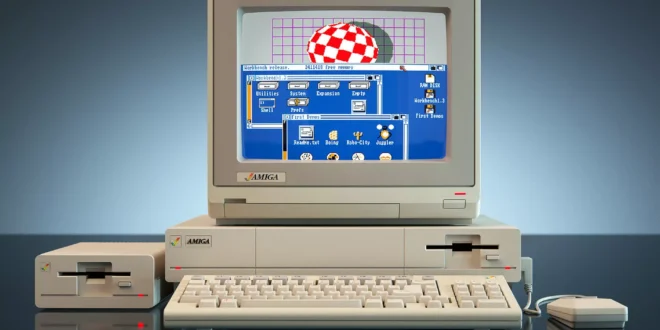
The Amiga is a wonderful fit for Android, but it is not as plug-and-play as an NES or Mega Drive. An Amiga game might expect a joystick in one port, a mouse in another, a keyboard command at the title screen, or several floppy-disk swaps. The payoff is a library with a character all its own: crisp arcade conversions, ambitious platformers, point-and-click adventures, strategy games, demos, and creative software built around the machine’s distinctive graphics and sound.
The best approach in 2026 depends less on raw phone speed than on how much configuration you are willing to do. A simple standalone UAE-derived app can be a pleasant route to a single ADF disk. For a longer-term library with controller profiles, display settings, and save-state management, RetroArch with its PUAE core is the more practical all-round choice. Amiberry is also worth considering when you want a more traditional Amiga-oriented interface and are prepared to configure an Amiga system properly.
Start with the right expectations
Amiga emulation recreates a computer, not merely a fixed games console. The original range spans machines with different chipsets, memory arrangements, CPUs, floppy drives, and Kickstart ROMs. A game made for an Amiga 500 can misbehave if it is launched as a later machine with too much memory; a later hard-drive install may need a more capable configuration. That is normal Amiga territory, not necessarily a fault with your phone or emulator.
Fortunately, most popular games do not require endless tuning. Once you select an appropriate machine preset and set up controls, ordinary A500-era floppy games are generally a light workload for modern Android hardware. More elaborate configurations, high-resolution Workbench use, RTG graphics, JIT options, and demanding demos are where settings and device capability matter more. Do not assume that every title benefits from turning every performance option on: compatibility is usually the first priority.
It also helps to choose a goal. If you want a few joystick-led games such as Sensible Soccer, Turrican II, or Lotus Turbo Challenge 2, start with an A500-style setup and a gamepad. If your target is The Secret of Monkey Island, Beneath a Steel Sky, or drawing and music software, plan around mouse input and a usable keyboard. For more Commodore-era context, our best Commodore 64 emulators for Android guide highlights why keyboard and controller planning matters just as much on older computer platforms.
The best Android routes for Amiga emulation
RetroArch with PUAE: best for a configurable, controller-friendly library
For most people building an Android retro setup, RetroArch plus the PUAE core is the sensible starting point. PUAE is a UAE-family Amiga implementation built for the libretro ecosystem. That means it runs inside RetroArch rather than as a separate Amiga-only app, sharing RetroArch’s input remapping, save states, shaders, playlists, per-game overrides, and display controls.
Its greatest advantage is consistency. If you already use RetroArch for other systems, you can apply the same habits to Amiga: keep software in an orderly folder structure, assign a controller once, create a per-game override for unusual controls, and keep saves where you expect them. That can be much less frustrating than re-learning a different frontend for every machine. It is especially useful for a mixed collection of ADF floppy images, hard-drive images, and WHDLoad-style game installs, assuming each is prepared for the configuration it needs.
The compromise is setup overhead. RetroArch exposes plenty of useful choices, but its menus can be intimidating if all you want is to tap a file and play. Begin with a conservative A500 preset for early games, add your legally dumped Kickstart files where the core expects them, and confirm that one game boots before importing a large library. Save a content- or game-specific override after you have working controls and a suitable machine configuration.
RetroArch’s virtual controls are serviceable for testing, but a physical controller makes the experience far better. PUAE is the recommendation for players who value a reusable setup, enjoy fine-tuning, or already keep their other retro systems in RetroArch. It is not the fastest way to understand every Amiga setting from scratch.
1. Amiberry: best for an Amiga-focused setup
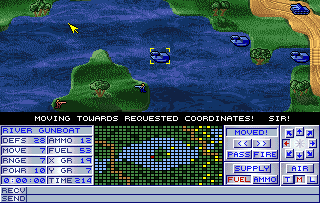
Amiberry is an open-source emulator derived from UAE code, with a focus on performance and practical usability across ARM-oriented hardware and other platforms, including Android. Compared with a libretro core, it is closer in spirit to configuring an Amiga emulator directly: machine options, disks, hard drives, input ports, and other emulation details live in an Amiga-specific environment.
That focus is valuable for enthusiasts. Amiberry supports modern conveniences and options commonly associated with fuller UAE setups, including controller configuration and performance-oriented features. It is a strong choice if you want to move beyond a handful of floppy games, maintain configurations for different Amiga models, or explore Workbench and software alongside games. Its settings make more sense once you understand the basic distinction between an A500-era game machine and a later A1200-style setup.
There is a learning curve. A front end designed around the Amiga’s flexibility necessarily gives you more chances to select the wrong chipset, memory setup, or input port. Treat it as a rewarding second step rather than an obligation for a first-time user. Start with one known-good, legally created disk image and one matching configuration. Once it works, duplicate that profile rather than rebuilding settings every time.
2. UAE4Droid: a simple legacy-style option for basic floppy play
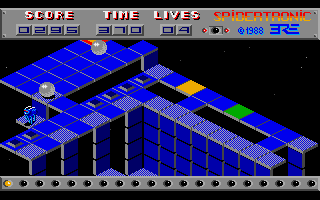
UAE4Droid is a straightforward Android entry in the UAE family. Its appeal is uncomplicated: it was designed around running Amiga disk images on a phone, with ADF support, configurable on-screen buttons, and external-controller support. For someone revisiting a small collection of joystick-driven floppy games, that simplicity can be welcome.
The tradeoff is breadth and polish. Older standalone emulators tend to offer fewer of the library-management, per-game configuration, and cross-system conveniences that make RetroArch attractive. They may also ask you to handle more details manually. Use UAE4Droid as a focused option if its workflow suits you, rather than assuming it is the best foundation for a large collection or advanced Amiga configurations.
3. What about UAE4ARM?
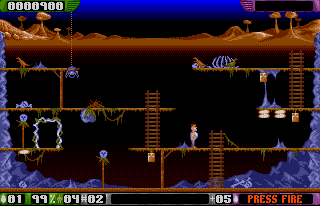
UAE4ARM is an ARM-oriented UAE port and is often mentioned in Amiga discussions. Its code lineage is relevant, but it should not be treated as a blanket recommendation for Android users simply because a project targets ARM hardware. The supplied project reference is a Raspberry Pi-focused repository, and a search result or an unofficial APK listing is not a substitute for a clearly documented Android release.
In practical terms, do not chase random APK mirrors in search of a “better” emulator. If you want a broadly configurable Android route, use PUAE in RetroArch or investigate Amiberry’s documented Android support. Install software only from a source you can verify, and keep the emulator separate from the legal question of acquiring firmware and games.
Formats and terminology that make setup easier
Knowing the file types prevents many false starts. ADF is the familiar floppy-disk image format and is the easiest place to begin. A multi-disk ADF game needs disk changes at the right moments, just as it did on real hardware. DMS is a compressed disk-image format associated with Amiga archiving; support and convenience vary, so converting an archival image you own to a suitable working format can simplify a mobile setup.
HDF generally refers to a hard-drive image. It can hold an installed system and game collection, but it requires a correct virtual hard-drive configuration and may be more involved than a floppy image. WHDLoad refers to a popular Amiga method for installing and launching games from a hard drive. WHDLoad packages can reduce disk swapping and improve the living-room experience, but they are not magical one-click files: they need an appropriate emulated Amiga environment and, in many cases, game data from your own originals.
Finally, Kickstart ROMs are firmware images from Amiga hardware. Many emulators need the appropriate ROM to reproduce a particular model accurately. A missing or mismatched Kickstart is a common reason for a black screen, failed boot, or a game that returns to a boot prompt.
A practical first-time setup
- Choose one emulator path. Start with PUAE in RetroArch if you want a durable all-purpose setup, or Amiberry if you specifically want an Amiga-centric interface. Avoid configuring several emulators at once; it makes troubleshooting harder.
- Make a clean folder layout. Keep firmware, floppy images, hard-drive images, saves, and screenshots separate. Clear names such as “Amiga/ADF” and “Amiga/Kickstarts” are more useful than a single downloads folder.
- Use your own dumps. Create disk images from software you own and obtain firmware by dumping it from hardware you own where lawful. Retain the originals and label the dumps clearly. An emulator is legal software, but copyright and local law still govern the ROMs, disks, and installed game data you use with it.
- Begin with an A500-style game. Pick a one-disk or well-documented title rather than a multi-disk adventure. Select a matching ROM and a conservative machine preset. Confirm that it reaches the title screen before changing advanced graphics or CPU settings.
- Set input deliberately. Assign a gamepad as joystick port one for joystick games. For mouse-led adventures, map a controller stick to mouse movement only if it feels comfortable; a Bluetooth mouse is usually the more natural answer. Keep a way to call up the on-screen keyboard for games that need function keys, passwords from the manual, or text entry.
- Save a working profile. Store the configuration as a per-game or per-machine override. This is particularly important for games with special memory requirements, mouse controls, or disk swapping.
Controllers, touch controls, and display choices
A Bluetooth or USB controller changes Amiga games more than it changes many console libraries. The original single-button joystick setup maps beautifully to almost any modern pad, and a d-pad is ideal for games designed around digital movement. Map the primary fire button to a comfortable face button, reserve another button for the emulator menu or keyboard overlay, and avoid placing critical emulator shortcuts where an accidental press can interrupt play.
Touch controls are acceptable for slower games, menus, and brief testing. They are less convincing for precision platformers, shooters, sports games, and anything that expects rapid directional changes. A phone clip and compact controller make an excellent portable arrangement; a tablet paired with a mouse is often better for adventures, Deluxe Paint-style creative work, and Workbench exploration.
For the display, resist the urge to stretch a 4:3-era image to fill a wide phone screen. Keep the original aspect ratio, then adjust scaling until text is readable without making the image excessively soft. Integer scaling can look clean on a suitable screen, while a mild shader or scanline effect may add texture on a larger display. Heavy shaders are optional decoration, not an authenticity requirement, and they can obscure fine text on a small device.
Android device latency also matters. Disable aggressive Bluetooth power saving if your controller connection is unreliable, use a wired controller when practical, and test on a simple game before blaming emulation accuracy. A game that feels delayed may be suffering from wireless latency, a television’s image processing, or a display setting rather than insufficient emulation performance.
Common problems and sensible fixes
The game will not boot
Check the Kickstart file and machine preset first. An early floppy game normally wants an A500-like setup, while later software may expect a different chipset or more memory. Also verify the disk order; a title with several disks may require a specific disk in the first drive at startup.
The game boots but controls do nothing
Confirm that the controller is assigned to the correct virtual port. On the Amiga, joystick and mouse ports are distinct, and some games expect the joystick in a particular port. If a game was designed around a mouse, a joystick mapping may technically work but still feel wrong.
Audio crackles or play is uneven
Return to a simpler configuration before reducing quality blindly. Disable demanding visual enhancements, avoid unnecessary high-end machine settings, and test without a heavy shader. Standard floppy-era games should not need extravagant settings; stability and accurate timing are the goal.
I am stuck at a password screen
Use the original manual or legitimate documentation that came with your copy. Do not seek cracks or copy-protection bypasses. This is one reason an on-screen keyboard or physical keyboard remains useful even when a game is otherwise played with a controller.
FAQ
Do I need a powerful Android device?
Not for typical A500-era disk games. More advanced Amiga configurations and optional visual processing may ask more of a device, but careful settings matter more than chasing maximum specifications.
Can I play WHDLoad games on Android?
Yes, through an emulator setup that supports the required hard-drive environment, but it is more involved than loading an ADF. Start with floppy images and move to WHDLoad once you are comfortable with machine profiles and legal game data preparation.
Which emulator should a newcomer choose?
Choose PUAE in RetroArch if you want save states, controller mapping, and a library that can grow with you. Choose Amiberry if you want direct access to an Amiga-focused configuration experience. UAE4Droid remains a reasonable simple route for basic disk-image play.
Can I use Amiga emulation for applications and demos?
Yes. The same considerations apply: choose an appropriate machine profile, use a mouse and keyboard where needed, and keep expectations realistic about small phone screens. The Amiga’s demo scene is a major part of its legacy, alongside games and creative software.
Final recommendation
For a first serious Android Amiga setup, use RetroArch with PUAE, a controller, and a carefully organized set of your own ADF dumps and firmware. It gives you the most useful modern conveniences without pretending the Amiga was a cartridge console. When you want deeper machine configuration, installed games, or a more traditional UAE-style experience, move to Amiberry. UAE4Droid still has value when uncomplicated floppy play is the only goal, but it is not necessary to hunt down uncertain builds or unofficial packages.
The Amiga rewards a little patience. Set up one game correctly, save that configuration, and build from there. Once joystick ports, disk handling, and Kickstarts stop being mysteries, Android becomes a remarkably capable way to revisit everything from Lemmings and Shadow of the Beast to the demos and software that made Commodore’s machine far more than a games platform.
More Android Emulator Guides
Choose the system you want to play. These guides compare Android options and link to the matching emulator profiles.



10 comments
Pingback: Best WonderSwan Emulators for Android in 2025 | Retro Replay
Pingback: Best Sega Saturn Emulators for Android in 2026 - Retro Replay
Pingback: Best Wii Emulators for Android in 2025 | Retro Replay
Pingback: Best PS3 Emulators for Android in 2025 | Retro Replay
Pingback: Best N64 Emulators for Android in 2025 | Retro Replay
Pingback: Best Neo Geo Pocket Emulators for Android in 2025 | Retro Replay
Pingback: Best GBA Emulators for Android in 2025 | Retro Replay
Pingback: Best Commodore 64 Emulators for Android in 2025 | Retro Replay
Pingback: Best ZX Spectrum Emulators for Android in 2026 | Retro Replay
Pingback: Best NES Emulators for Android in 2026 | Retro Replay