 Retro Replay Retro Gaming History, Reviews & Emulation
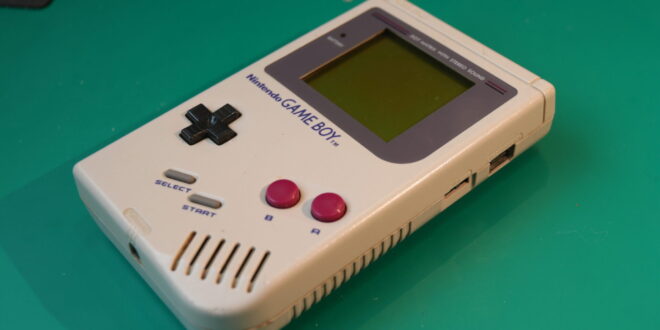
The original Game Boy and Game Boy Color remain unusually comfortable systems to emulate on a phone. Their games were designed around a small screen, short play sessions, and a simple directional pad plus two main buttons. On a modern Android device, that translates into excellent performance, low battery strain, and a library that feels genuinely at home in your pocket rather than merely squeezed onto it.
The choice is less about raw speed than it is about the experience you want. A straightforward dedicated app gets you playing quickly; a multi-system frontend rewards a little setup time with greater control and consistency. This guide focuses on the practical Android choices identified here—My Boy!, John GBC, and RetroArch—plus the settings that make old handheld games feel right without burying you in menus.
What matters in a Game Boy emulator
Game Boy and Game Boy Color emulation is light work for almost any usable Android phone. If a game feels slow, the cause is more likely to be an inappropriate setting, a demanding visual filter, a poorly configured controller, or an issue with the game dump than a lack of processing power. That is good news: you can choose based on interface and features instead of buying hardware for a thirty-year-old handheld.
Start by deciding whether you need Game Boy Advance as well. The original Game Boy, Game Boy Color, and Game Boy Advance are related in name but are different platforms. An emulator that covers all three is convenient, while a GB/GBC-only app can be a cleaner fit for someone who only wants the monochrome and Color libraries. For the latter system, see our separate guide to the best GBA emulators for Android in 2026.
The features worth using
- Battery-backed saves: This is the normal in-game save data, equivalent to saving on a cartridge. Treat it as your primary save whenever a game supports it.
- Save states: A snapshot at any moment. They are superb for difficult sections, but keep more than one slot and do not rely on them as your only long-term save.
- Fast-forward: Useful for dialogue, grinding, and repeated battles. Set it to a comfortable speed rather than the absolute maximum, which can make audio unpleasant and menus difficult to control.
- Controller mapping: Essential if you play longer action games, platformers, or anything with precise movement.
- Display controls: A good palette or LCD-style effect can improve the image. Heavy shaders are optional, not a requirement for authenticity.
Cheat support, screenshots, rewind, and external display support may also matter, but they should not be your first test. Load one of your own games, confirm that its regular save works, map the controls, and play for ten minutes. A pleasant workflow is more valuable than a longer feature list you never touch.
The best choices, depending on how you play
1. My Boy!: the convenient choice if GBA is part of the plan

My Boy! is primarily associated with Game Boy Advance, but the supplied Android listing and the emulator’s established feature set make it the obvious candidate for players who want one app for Game Boy, Game Boy Color, and GBA games. That single-library convenience is its strongest argument. You do not have to learn separate interfaces or maintain separate controller layouts as your collection moves from early Pokémon-era Game Boy games to GBA titles.
Its practical strengths are the things most players notice every day: save states, fast-forward, configurable controls, and link-cable emulation. The latter is especially appealing in theory for games built around trading or battles, but it is worth treating as an advanced feature. Test it with a spare save first and keep normal cartridge-style saves backed up before experimenting. Link features often require two instances, compatible settings, and a little patience.
Choose My Boy! if your priority is a simple all-in-one Nintendo handheld setup and you expect to play GBA as often as GB or GBC. It is less compelling if you only want the earlier systems and would prefer a smaller, more focused setup. Read the specific My Boy! overview for more context before committing your existing saves to a new app.
2. John GBC: the focused Game Boy and Game Boy Color option
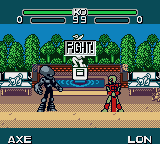
John GBC takes the opposite approach: it is dedicated to Game Boy and Game Boy Color. For a player whose nostalgia ends before the Advance, that focus is a virtue. The app does not need to be an emulation command center; it needs to load games reliably and offer the essentials without making every session feel like configuration.
The supplied listing identifies familiar quality-of-life tools including save states, fast-forwarding, and cheat codes. Those are enough for most GB/GBC play. Save states are ideal for a tricky boss or a game without convenient saves, while fast-forward transforms slower RPG routines into something better suited to a commute. Cheats can be fun for revisiting an old favorite, but they can also corrupt a save or break scripted events. Make a separate state and a backup of the regular save before enabling one.
John GBC is the sensible pick for newcomers who want a dedicated app and longtime players who do not need a whole-house emulation frontend. It is also a better conceptual fit when you want to preserve the distinction between original Game Boy and Color games instead of treating them as a small checkbox inside a broad library. More details are available in our John GBC overview.
3. RetroArch: the flexible option for a wider retro library
RetroArch is not a single Game Boy emulator. It is a frontend that loads emulation “cores,” including Gambatte for Game Boy and Game Boy Color. That architecture is its major advantage and its main complication. Once you understand its conventions, the same controller principles, save locations, shaders, and menus can follow you across many classic systems. Before that point, it can feel less welcoming than a dedicated app.
For GB/GBC, Gambatte is a particularly worthwhile core to try. Its project is accuracy-focused, with attention to timing, palettes, and dependable save behavior; our Gambatte profile explains why it is so widely valued in compatible frontends. RetroArch also gives players access to features such as shader filters, advanced save-state handling, and RetroAchievements integration where supported.
The tradeoff is setup. You need to install a core, point RetroArch at your game folder, and learn its menu vocabulary. A setting can apply globally, to one core, to one content directory, or to an individual game, which is powerful but easy to misplace. Do not change everything at once. Start with one core and default settings, then set your controller and display options. Once that basic configuration is solid, save a core-level override so future GB/GBC games inherit it.
Choose RetroArch if you already emulate several systems, enjoy tuning presentation, or want a consistent long-term library rather than a one-app solution. Skip it for now if the thought of cores and overrides sounds like homework. You can always migrate later; Game Boy performance does not demand RetroArch’s extra complexity.
Accuracy, colour, and the look of the original screens
“Accurate” does not always mean “most enjoyable on this particular screen.” The original Game Boy used a reflective, greenish monochrome LCD; Game Boy Color screens had their own subdued character. A phone’s bright, sharp display can make pixel art look cleaner than it did on original hardware, and that is not inherently wrong. Start with a crisp image and a sensible colour palette. Add an LCD grid or ghosting effect only if it improves the feel for you.
For black-and-white Game Boy games, test a few palettes. A warm pea-green look can evoke the original unit, while a high-contrast gray palette is often easier to read outdoors. For Game Boy Color, avoid excessive saturation. Many games were authored with the limitations of period screens in mind, and harsh colours can make detailed sprites and tile maps tiring to look at.
If faithful behavior is your top priority, it is useful to understand why cores such as Gambatte matter: subtle timing and palette handling are part of the machine’s character, not just visual decoration. The separate SameBoy profile is also a helpful window into the depth of Game Boy and Game Boy Color accuracy, including model behavior, color controls, controller support, and link-cable emulation. On a phone, however, a configuration that is easy to use consistently remains the best configuration.
A clean Android setup in a few steps
- Create a tidy game folder. Use a clearly named folder in storage, then separate Game Boy, Game Boy Color, and Game Boy Advance files if you use all three. Clear organization makes scanning libraries and moving to a new device much easier.
- Import only games you have lawfully dumped from cartridges you own. Keep each dump with its original filename when possible. An emulator can use the file, but it does not grant rights to games you do not own.
- Open one game and verify normal saving. Play until the game offers an in-game save, close the emulator cleanly, reopen it, and confirm the save is present. Do this before relying on save states.
- Set controls deliberately. For touch play, place the D-pad lower than you first expect so your thumb has room, and keep A/B far enough apart to prevent accidental presses. Turn off or reduce haptic feedback if it becomes distracting.
- Back up saves. Copy the emulator’s save folder periodically to storage you control. Save files are small; losing a long RPG file is not.
Most Game Boy and Game Boy Color games do not need a BIOS file for ordinary emulation. If an app provides an optional boot animation or boot-ROM setting, do not download copyrighted firmware from random sites. Use only files you are legally entitled to create from hardware you own, or leave the option disabled.
Controllers and displays: small changes, big improvement
Touch controls work surprisingly well for turn-based RPGs, puzzle games, and slower adventures. They are less satisfying for platformers, shooters, and fighting games, where your thumb obscures the screen and diagonal movement can be inconsistent. A Bluetooth controller with a proper Android-compatible layout makes those games immediately more comfortable. Map the D-pad first, then A and B, followed by Start and Select. Do not assume the labels match Nintendo’s physical button positions—test them in a title you know.
For a larger screen, a wired or wireless display connection can turn a phone into a compact living-room setup. Keep expectations sensible: Game Boy games were designed for a tiny panel. Integer scaling or a simple aspect-preserving image usually looks better than stretching to fill a television. A modest LCD filter can help the image feel less stark, but a clean pixel presentation is often the best choice from the couch.
Audio deserves one check as well. Use wired headphones or a low-latency wireless option if rhythm games or action titles feel late. Do not judge input response solely by Bluetooth audio, since sound delay can be mistaken for controller delay.
Legal and preservation-minded play
Emulators are software that recreates hardware behavior; the games are separate copyrighted works. The responsible route is to dump cartridges you personally own using appropriate hardware and retain the resulting files for your own use. Do not download ROM collections, copyrighted games, BIOS files, or “preconfigured packs” from sharing sites, and do not bypass copy protection.
Keep your original cartridges and make backups of your own saves where your tools allow it. This approach is not only more respectful of rights holders—it also produces a collection you understand, with filenames, saves, and provenance you can manage years from now.
FAQ
Which option should a first-time user choose?
Choose John GBC if you only want Game Boy and Game Boy Color with a dedicated interface. Choose My Boy! if Game Boy Advance belongs in the same library. Choose RetroArch if you are deliberately building a broader multi-system setup and do not mind learning its menus.
Will Game Boy games run on a budget Android phone?
These are low-demand systems, so ordinary play should not require high-end hardware. If performance is poor, return to default settings, disable demanding display effects, and check the controller and game file before assuming the phone is at fault.
Are save states safe?
They are very useful, but use them as a convenience rather than your only backup. Maintain ordinary in-game saves and keep multiple state slots, especially before major choices, trades, or link features.
Do I need a controller?
No. Touch controls are fine for many games. A controller is most worthwhile for fast action games and longer sessions where comfort and precise directional input matter.
The bottom line
For most Android players in 2026, the best Game Boy emulator is the one that fits the rest of their handheld habits. My Boy! is the practical all-in-one route when GBA matters, John GBC is the direct and focused GB/GBC choice, and RetroArch with Gambatte is the strongest fit for enthusiasts building a unified retro setup.
Do not overcomplicate a system whose charm has always been immediacy. Make lawful dumps of your own cartridges, verify regular saves, choose a readable display treatment, and use a controller when the game calls for it. With those basics in place, Game Boy and Game Boy Color libraries remain among the easiest and most rewarding ways to play retro games on Android.
More Android Emulator Guides
Choose the system you want to play. These guides compare Android options and link to the matching emulator profiles.




24 comments
Pingback: Best GBA Emulators for Android in 2025 | Retro Replay
Pingback: Best Atari Emulators for Android in 2025 | Retro Replay
Pingback: Best Dreamcast Emulators for Android in 2025 | Retro Replay
Pingback: Best GameCube Emulators for Android in 2025 | Retro Replay
Pingback: Best NDS Emulators for Android in 2025 | Retro Replay
Pingback: Best Android Emulators in 2026: The Complete System-by-System Guide - Retro Replay
Pingback: Best Sega Saturn Emulators for Android in 2026 - Retro Replay
Pingback: Best Amiga Emulators for Android in 2025 | Retro Replay
Pingback: Best N64 Emulators for Android in 2025 | Retro Replay
Pingback: Best PS3 Emulators for Android in 2025 | Retro Replay
Pingback: Best PS1 Emulators for Android in 2025 | Retro Replay
Pingback: Best ZX Spectrum Emulators for Android in 2025 | Retro Replay
Pingback: Best PSP Emulators for Android in 2025 | Retro Replay
Pingback: Best MSX Emulators for Android in 2025 | Retro Replay
Pingback: Best TurboGrafx-16 Emulators for Android in 2025 | Retro Replay
Pingback: Best Neo Geo Emulators for Android in 2026 - Retro Replay
Pingback: Best Wii Emulators for Android in 2025 | Retro Replay
Pingback: Best NES Emulators for Android in 2025 | Retro Replay
Pingback: Best SNES Emulators for Android in 2025 | Retro Replay
Pingback: Best Neo Geo Pocket Emulators for Android in 2026 | Retro Replay
Pingback: Best WonderSwan Emulators for Android in 2026 | Retro Replay
Pingback: Best Commodore 64 Emulators for Android in 2026 | Retro Replay
Pingback: Best PS2 Emulators for Android in 2026 | Retro Replay
Pingback: Best Sega Genesis Emulators for Android in 2026 | Retro Replay