 Retro Replay Retro Gaming History, Reviews & Emulation

The ZX Spectrum is still one of the easiest old computers to carry in your pocket—and one of the hardest to reduce to a simple “pick an app and press play” recommendation. Its games were built around a distinctive keyboard, joystick standards varied, and many classics assume that you can press more than one key at a time. A good Android setup has to respect those quirks rather than hide them.
The upside is that Spectrum emulation is light work for modern Android hardware. The meaningful differences are usability, input options, and how much control you want over the experience. Speccy is the straightforward starting point, Spectacol is the accuracy-minded alternative built around FUSE, and RetroArch with its FUSE core makes sense for players who already use a multi-system frontend. Here is how to choose, set up, and enjoy each route in 2026.
What makes Spectrum emulation different?
Sinclair’s 8-bit machine has an enormous, inventive software library, from Manic Miner and Jet Set Willy to Knight Lore, the Dizzy games, text adventures, demos, and homebrew releases. It was also a computer. Games often use the keyboard for menu selections, loading options, redefining controls, or actions that do not fit neatly on a gamepad.
That is why an on-screen keyboard is not a cosmetic extra. It is essential for many releases, particularly adventures and programs written in BASIC. The best Android experience usually combines touch controls for occasional keyboard input with a physical controller for play.
You will also encounter several file types. TAP and TZX are tape-image formats, while SNA and Z80 are snapshots that capture a machine state. A snapshot normally gets you into a game quickly; a tape image can better reproduce the original loading process, including title screens, loading music, and multi-load games. Neither is universally better—use the format supplied with a game you own or are otherwise authorised to use.
The three Android options that matter
1. Speccy: the best first stop for most players
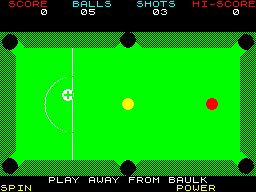
Speccy is the most approachable choice here. The supplied app information describes support for 48K, 128K, and later Spectrum models, plus save states, fast-forwarding, cheats, configurable controls, controller support, and an on-screen keyboard. That combination covers what most people need without asking them to learn a larger frontend first.
Choose Speccy if you want to load a tape or snapshot, map a few controls, make a save state, and get back to the game. It is particularly well suited to someone rediscovering familiar single-screen platformers, arcade adventures, or joystick-led games. Its practical strength is that the Spectrum-specific functions are close at hand rather than buried in a general-purpose interface.
The tradeoff is simple: a dedicated emulator is less attractive if you want one unified library and one settings system for every machine you emulate. If your Android device is already a home for several classic formats, RetroArch may reduce duplication. For a Spectrum-first setup, however, the direct approach is often the better one.
2. Spectacol: a FUSE-based alternative
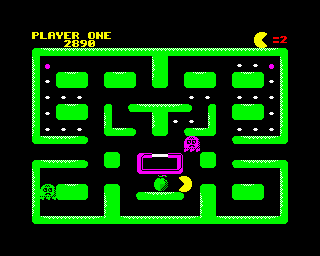
Spectacol is based on FUSE, the Free Unix Spectrum Emulator. The original recommendation highlights broad tape and snapshot support along with save states, cheats, and controller support. It is a sensible option for players who value a FUSE-based implementation but still want an Android app focused on the Spectrum rather than a full multi-platform environment.
In day-to-day use, Spectacol and Speccy address much the same audience. Neither should be treated as a magic compatibility guarantee: Spectrum releases span different machine models, memory configurations, loading methods, peripherals, and timing assumptions. If a title behaves oddly, confirm that you have selected the intended 48K or 128K-style machine and try a different authorised dump before assuming the emulator is at fault.
The worthwhile reason to install both is comparison. A troublesome game, unusual tape, or preferred control layout may feel better in one than the other. For ordinary play, pick the interface you find clearer and spend your time with the software instead of endlessly changing emulators.
RetroArch with the FUSE core: best for an existing RetroArch library
RetroArch can run ZX Spectrum software through its FUSE core. It brings the familiar advantages of a multi-system frontend: consistent controller configuration, extensive video options, rewind, shaders, and a common library workflow across several platforms. If you already use it for consoles and computers, keeping Spectrum titles in the same environment is appealing.
The cost is setup friction. You must install and select the appropriate core, point RetroArch at your files, understand its menus, and configure input carefully. That is not difficult for experienced users, but it is more work than a dedicated Spectrum app. RetroArch’s flexibility is valuable only when you will actually use it.
It is also worth separating accurate presentation from “improved” presentation. Rewind is genuinely helpful in punishing 8-bit platformers. Shaders can make a modern display look more like a CRT. But heavy filtering can blur tiny Spectrum text and soften the sharp colour blocks that are part of the machine’s look. Start with a clean integer-like image, then experiment.
For readers building a broader computer-emulation collection, our Commodore 64 emulator guide and MSX emulator guide cover two more systems where keyboard access and thoughtful input mapping matter just as much as raw performance.
Which one should you choose?
- Pick Speccy if you are new to Spectrum emulation and want the most direct route to playing, with useful built-in conveniences.
- Pick Spectacol if you specifically prefer a FUSE-based Android option and want a dedicated Spectrum interface.
- Pick RetroArch and FUSE if you already know RetroArch, want common settings across systems, or care about its advanced display and rewind tools.
There is no performance contest here. The original Spectrum hardware is modest enough that normal Android phones and tablets should not need specialist hardware for its basic emulation. A more powerful phone will not make Manic Miner more authentic; good input configuration, sensible display scaling, and the right machine model will.
Set up your first Spectrum game properly
1. Organise your own files
Create a clear folder such as Games/ZX Spectrum and keep tape images, snapshots, documentation, and cover scans together where possible. Name files clearly with the game title, intended machine model, and format. This makes it much easier to tell a 48K release from a 128K version later.
Only use software you are entitled to use. The responsible route is to create personal preservation copies from media you own when permitted in your jurisdiction, or use games released by their authors or rights holders as freeware, open software, or with explicit permission. Do not download copyrighted game collections from ROM sites, share copyrighted copies, or bypass copy protection. Emulators are useful preservation tools; they do not grant a licence to software.
2. Match the machine to the game
A 48K title is often happiest on a 48K configuration. Later games may require a 128K machine for extra memory or AY music. If you are loading a tape and see an immediate reset, a frozen screen, missing sound, or unexpected behaviour, machine selection is one of the first things to check.
Do not be surprised if a tape takes time to load. Snapshot files are convenient, but tapes preserve some of the ritual of the original platform. Fast-forwarding is a reasonable compromise when an emulator provides it, especially after you have seen the loader once.
3. Configure input before starting a long game
Many Spectrum games use keys such as Q, A, O, P, Space, M, or the cursor keys rather than a universal joystick layout. Start a game, open its control-definition screen, and map your controller to the scheme it expects. If the game supports Kempston joystick controls, that is often the easiest fit for a modern pad, but the game itself determines what works.
For touch-only play, move or resize virtual controls if the emulator allows it and keep the keyboard button accessible. Touch controls are perfectly fine for slower puzzle games, adventures, and turn-based software. Precision platformers and twitchy shooters are far more enjoyable with a Bluetooth or USB controller. A compact pad plus a phone clip is usually a better investment than hours spent adapting to glass buttons.
Always test every mapped direction and fire button in the title screen before beginning. Spectrum controls can be idiosyncratic, and a game may use “up” to jump, require diagonals, or assign fire to an unexpected key.
4. Use save states with restraint
Save states are one of the biggest modern conveniences. Make a state before a difficult sequence or when closing the app, and use a separate slot for a stable checkpoint. Avoid relying on a single state forever: a bad save, an accidental overwrite, or a later configuration change can spoil a run. Where a game has its own password or save system, retain that information too.
Rewind, where available, can turn harsh 1980s design into a more relaxed evening. It is especially useful for learning collision-heavy platformers. There is no wrong way to revisit an old game, but saving thoughtfully preserves some challenge while sparing you needless restarts.
Display and sound: preserve clarity first
The Spectrum’s native picture is compact by modern standards, and its graphics use bold blocks of colour with characteristic colour clash. Resist the urge to stretch the image to fill every inch of an ultrawide phone screen. Keep the correct aspect ratio, accept side borders, and use integer or nearest-neighbour-style scaling if your chosen emulator offers it. The result is cleaner sprites and more readable text.
A portrait phone can work surprisingly well for games that need the keyboard: reserve the bottom section for keys and keep the display above it. For controller-led play, landscape orientation gives the game image more room. Tablets are excellent for text adventures, strategy games, and BASIC because they make the virtual keyboard much less cramped.
Audio deserves the same restraint. The simple beeper sound is part of 48K software, while compatible later models added AY music. Use the machine setting intended for the release before chasing audio settings. Headphones can reveal music and effects that phone speakers flatten, but low latency and stable controls matter more than elaborate audio processing.
Games worth revisiting—and how to approach them
Manic Miner remains a concise test of timing and route learning; save states can help a newcomer practice individual caverns. Jet Set Willy expands that formula into a famously unruly mansion, making a controller and a backup save state especially welcome. Knight Lore is worth playing with patience: its isometric rooms and object interactions reward observation more than speed.
The Dizzy games show why the Spectrum has such a devoted following. They mix platforming, item puzzles, and personality in a way that feels very different from arcade-first console libraries. Give yourself quick access to the keyboard, since these games and their contemporaries may ask for more than directional movement.
Do not stop at the famous names. The Spectrum was a thriving bedroom-coding culture, so its catalogue contains adventurous conversions, original British design, strange experiments, and a continuing homebrew scene. That breadth is why it is worth treating the platform as a computer library rather than merely a short list of nostalgia hits.
FAQ
Do I need an expensive Android phone for ZX Spectrum emulation?
No. Spectrum emulation is not demanding in the way later 3D console emulation can be. A usable controller, readable screen, and comfortable input layout have more impact on the experience than flagship hardware.
Why does a Spectrum game need a keyboard?
The original Spectrum keyboard was part of the machine’s identity. Games frequently used individual keys for movement, menu choices, or extra actions, and non-game software naturally expects text input. Keep the emulator’s virtual keyboard available even when using a controller.
Should I use TAP/TZX files or SNA/Z80 snapshots?
Use authorised copies in whichever form best suits your purpose. Snapshots usually load quickly. Tape images can reproduce the original loader and are useful for software designed around tape loading. Compatibility may vary by title and intended machine model.
Can I connect a controller?
The recommended Android options are described as supporting Bluetooth or USB controller use. Map controls in both the emulator and the individual game, then test them before playing seriously.
Final verdict
For most Android players in 2026, Speccy is the clearest first recommendation: it pairs Spectrum-specific features with a relatively direct experience. Spectacol is a credible dedicated alternative for those who want its FUSE foundation, while RetroArch with FUSE is the right choice for confident users already invested in RetroArch’s broader ecosystem.
Whichever route you take, focus on the things that genuinely improve Spectrum play: choose the correct machine configuration, keep the keyboard within reach, use a physical controller for fast games, preserve the original aspect ratio, and maintain sensible save-state backups. Do that, and a phone or tablet becomes an excellent way to revisit one of gaming’s most inventive computer libraries.
More Android Emulator Guides
Choose the system you want to play. These guides compare Android options and link to the matching emulator profiles.




11 comments
Pingback: Best MSX Emulators for Android in 2025 | Retro Replay
Pingback: Best Commodore 64 Emulators for Android in 2025 | Retro Replay
Pingback: Best PS3 Emulators for Android in 2025 | Retro Replay
Pingback: Best PS2 Emulators for Android in 2025 | Retro Replay
Pingback: Best Android Emulators in 2026: The Complete System-by-System Guide - Retro Replay
Pingback: Best Sega Genesis Emulators for Android in 2025 | Retro Replay
Pingback: Best TurboGrafx-16 Emulators for Android in 2025 | Retro Replay
Pingback: Best WonderSwan Emulators for Android in 2025 | Retro Replay
Pingback: Best Atari Emulators for Android in 2025 | Retro Replay
Pingback: Best Dreamcast Emulators for Android in 2025 | Retro Replay
Pingback: Best Game Boy Emulators for Android in 2026 | Retro Replay