 Retro Replay Retro Gaming History, Reviews & Emulation

The original PlayStation remains one of the easiest classic consoles to enjoy on Android. Its catalogue covers everything from long-form RPGs and inventive platformers to survival horror, arcade racers, fighters, and oddball Japanese imports. More importantly, PS1 emulation is mature enough that a reasonably current phone or tablet can usually provide a comfortable experience without turning setup into a technical project.
That does not mean every emulator suits every player. Some favour a straightforward library-and-play workflow; others offer careful accuracy, sharper rendering, widescreen patches, CRT-style shaders, or deep controller configuration. The best choice is the one that gets you playing your own games reliably, with only as much tweaking as you actually enjoy. For most people, that means starting with DuckStation, while ePSXe and RetroArch remain worthwhile for different priorities.
What PS1 emulation on Android does well
PlayStation hardware is far less demanding to emulate than later Sony consoles. On many modern Android devices, standard-resolution PS1 games should be the easy part. The heavier options are visual enhancements: increasing internal rendering resolution, applying demanding shaders, enabling geometry corrections, or using widescreen patches. A game that runs perfectly at its original presentation may need more modest settings once those extras are enabled.
The practical benefits over original hardware are substantial:
- Save states let you suspend almost anywhere. They are excellent for short sessions, difficult boss fights, and games with sparse save points.
- Memory-card saves preserve the original style of progression and are often the safer long-term save format. Use them alongside save states rather than replacing them.
- Controller support makes a bigger difference than almost any graphics setting, especially for action games, racers, fighters, and games built around shoulder buttons.
- Display controls can reduce the old console’s shimmer, smooth jagged 3D edges, or instead retain the soft, filtered character of a composite-video television.
- Per-game settings are useful because the PS1 library is not visually uniform. A crisp 2D game and a wobbling early 3D title do not necessarily benefit from the same treatment.
There is no universal “best” enhancement preset. Higher resolution can make a 3D game clearer, but it can also expose texture seams and low-detail models that a CRT once softened. Widescreen patches can be impressive when they work properly, yet some alter the image without expanding the game world correctly, producing stretched menus, misplaced effects, or objects that disappear at the edges. Treat enhancements as optional improvements, not as a checkbox list.
The best choices
1. DuckStation: the best starting point for most players
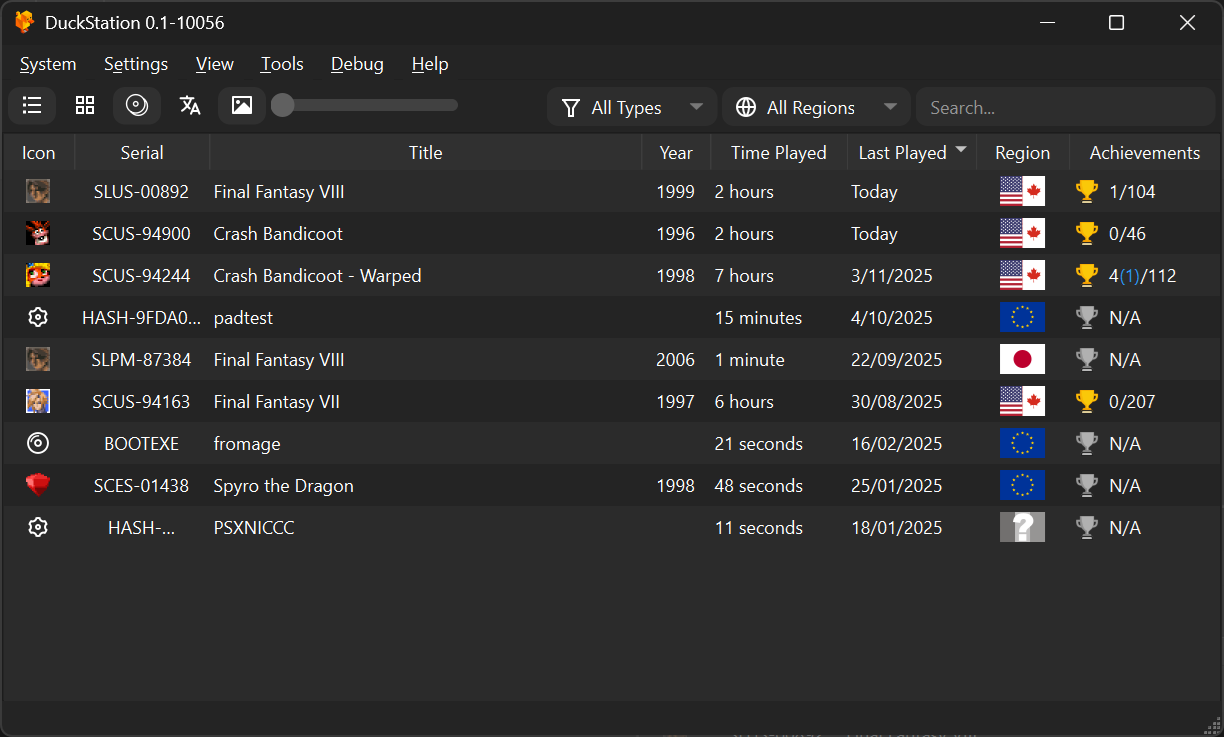
DuckStation is the sensible first stop for players who want a modern PS1 experience without giving up meaningful control. Its emphasis is on accurate PlayStation behaviour alongside a clean workflow for legally dumped games. It also offers the kind of options Android players tend to want: higher internal resolution, texture filtering, widescreen features, controller configuration, memory cards, save states, and settings that can be tailored to individual games.
Its greatest strength is balance. You can load a game with conservative settings and preserve its original look, or raise the internal resolution for a cleaner picture on a tablet or television. Neither approach is automatically more authentic. The former better reflects the intended output of the era; the latter makes the image more legible on a modern high-resolution panel.
Start conservatively: use the standard aspect ratio, leave widescreen patches off, and try a modest rendering-resolution increase only after confirming that the game behaves correctly. If an effect looks wrong, menus flicker, or performance becomes uneven, return that game to default graphics settings. A per-game profile is better than compromising your whole library for one troublesome title.
DuckStation is the recommendation for newcomers who want strong PS1-focused features and veterans who care about correctness but still want presentation options. It is also a better fit than a multi-system frontend if PlayStation is your main goal and you do not want to learn a second layer of menus.
2. ePSXe: an established, focused alternative

ePSXe has long been familiar to Android retro players. It remains a focused choice for someone who values an established PS1 emulator with practical essentials: save states, controller support, cheats, visual options, and split-screen multiplayer in supported games.
Its appeal is directness. If you already know ePSXe, have saves organised around it, or simply prefer its workflow, there is little reason to change just because another emulator is fashionable. It can be especially appealing for a player who wants a dedicated PlayStation app rather than a large all-in-one environment.
The tradeoff is that ePSXe is not the clearest pick for everyone beginning from zero. Its settings and plugin-oriented heritage can feel less cohesive than a newer PS1-specific workflow, and chasing the sharpest possible image can create game-specific compromises. Keep a backup of your memory-card files before experimenting with major settings changes or moving between emulators.
RetroArch: powerful if you want one retro ecosystem
RetroArch is not a single emulator in the usual sense. It is a frontend that runs emulation cores, including PlayStation options such as Beetle PSX. Its main advantage is consistency across systems: one controller layout philosophy, one shader system, one playlist-style library, and one place to configure achievements or other frontend features where supported.
That makes RetroArch appealing for people building a broad Android collection. If your phone also handles Game Boy Advance, Mega Drive, arcade, and PS1 games, its shared interface can be rewarding. Players exploring several generations may also find our guide to GBA emulators on Android useful when choosing a companion setup.
The cost is complexity. RetroArch separates global settings, core settings, content directories, input settings, and overrides. That flexibility is valuable once understood, but it is easy for a new user to change the wrong layer and wonder why a controller mapping or video option did not stick. Do not alter everything at once. Load one game, map one controller, set one preferred save location, and confirm that those basics work before investigating shaders and overrides.
Beetle PSX is a compelling route for players who value its accuracy-oriented lineage and RetroArch’s extensive controls. It is not automatically the most convenient Android answer, however. Choose it because you want the frontend’s ecosystem, not because you assume a more complicated setup must produce a better game session.
FPse: a legacy option for players who already prefer it
FPse earned a following through its performance options and extensive customization. It can still make sense for players who know its settings, have an existing setup, or specifically like how it handles their personal library.
For a fresh setup, it is harder to make it the default recommendation than DuckStation or a carefully configured RetroArch install. Its depth is useful, but more controls do not always mean a smoother path for a newcomer. Consider FPse a viable personal preference rather than the first app every PS1 player needs to try.
A sensible first-time setup
PS1 emulation does not need an afternoon of tuning. A clean library and a repeatable routine will save more frustration than any advanced graphics option.
- Choose one emulator first. Avoid installing three apps and importing the same library everywhere. Learn one interface, then compare only if it fails to meet a real need.
- Create a simple folder structure. Keep disc images in one clearly named folder and saves in a separate folder if your emulator lets you choose. Multi-disc games should have their discs together.
- Use good disc dumps. Rips with accompanying cue sheets are often preferable for disc-based games because they describe the disc layout and audio tracks correctly. Keep the matching files together and do not casually rename one half of a set.
- Configure a memory card before starting a long game. Make sure it is assigned, then save in-game and verify that the save appears after restarting. This is a five-minute check that can prevent a painful surprise later.
- Add save states as a convenience. Keep several rotating slots rather than repeatedly overwriting one. Do not rely on a state made during a cutscene, disc swap, or save screen.
- Map controls deliberately. Test the D-pad, analogue stick, L and R buttons, Start, Select, and the four face buttons in an actual game. Menu navigation alone does not prove that the mapping feels right.
- Only then change the picture. Raise rendering resolution gradually, test a busy area, and stop when the gain is no longer worth the battery use or visual oddities.
Controllers, touch controls, and playing on a TV
A touchscreen is perfectly usable for turn-based RPGs, visual adventures, and slower puzzle games. It is much less satisfying for Tekken 3, Ridge Racer Type 4, platformers, or anything needing quick shoulder-button use. If PS1 will be a regular part of your Android library, a Bluetooth or USB controller is the best quality-of-life purchase you can make.
Choose a pad with a reliable D-pad and four face buttons positioned in a familiar diamond. Analogue sticks matter for games designed around the Dual Analog or DualShock-era control schemes, but a good D-pad still matters for the vast amount of the library that began with the original digital controller. Map the buttons to what your hands expect, not merely to an on-screen diagram.
For touch play, resize and reposition virtual buttons before judging an emulator. Make the D-pad large enough to hit consistently, move shoulder buttons away from the edge of a case, and reduce opacity only as far as you can still see them. A landscape phone clip can turn a controller-and-phone combination into an excellent portable PS1 machine; a tablet is particularly nice for RPG menus and strategy games.
On a television, resist the urge to max out every enhancement. A modest resolution increase and sensible aspect-ratio setting often look better than aggressive filtering. Start with the original 4:3 ratio. If you use a CRT shader, remember that it may be attractive on a large display but can make a small phone screen unnecessarily dark or soft.
Performance and graphics: fix the right problem
If a game feels slow, first turn off optional enhancements rather than assuming your device cannot handle PS1 emulation. Return internal resolution to a conservative setting, disable widescreen patches, and remove demanding shaders. Test the same section of the game again; busy races, transparencies, and full-motion video are more revealing than a title screen.
If the game runs at the right speed but looks rough, decide what kind of roughness you are seeing. Pixelated 2D artwork may benefit from leaving texture filtering off. Jagged 3D edges may improve with higher internal resolution. Texture wobble, flickering geometry, and odd depth effects are often part of the original machine’s quirks or a compatibility edge case, not necessarily a sign you chose the wrong emulator.
Audio crackling, missing music, or broken CD-audio tracks often points to a disc-image issue or an incorrectly handled cue sheet, not graphics performance. Recheck your own dump before spending hours changing audio settings. Likewise, a problem isolated to one title is a reason to use a per-game setting or try another emulator—not a reason to destabilize every other game in the library.
Use your own games and system files
Emulators are software; games and console firmware are separate copyrighted materials. The responsible route is to dump discs you own and, where an emulator requires it, obtain any required firmware from your own PlayStation hardware. Keep personal backups private and follow the law where you live.
Do not download game collections, BIOS files, or “preconfigured” packs from ROM sites and file-sharing pages. Apart from the copyright issue, those bundles are a common route to mislabeled files, unwanted software, and damaged saves. Avoid tools or instructions that bypass copy protection. A clean personal dump, clearly named and backed up, is the foundation of a dependable library.
For multi-disc games, preserve each disc image and its companion metadata together. Use the emulator’s disc-change function when prompted instead of trying to force a new file over the old one. Make an in-game memory-card save before the swap point when possible.
FAQ
Do I need a controller for PS1 games on Android?
No. Touch controls work for many games, especially slower ones. A controller is strongly recommended for fast action, racing, fighting games, and longer sessions because the PS1’s original layout relies heavily on physical buttons and shoulder controls.
Should I use save states or memory cards?
Use both. Memory cards are closest to the original experience and make a good primary record of progress. Save states are excellent backups and convenience saves. Keep more than one state slot and do not depend exclusively on them for a long RPG.
Why does a widescreen option make my game look wrong?
Not every PS1 game was built to render a wider view. Some patches work well; others may stretch the presentation or create visual errors. Disable widescreen for that game and use the original 4:3 ratio when in doubt.
Can I move saves between emulators?
Memory-card saves can often be moved when the emulators support compatible card formats, but save states are usually emulator-specific and may depend on settings. Back up the original files first and test with a copy, never the only save you have.
Final verdict
For a new Android PS1 setup in 2026, begin with DuckStation: it offers the strongest all-round balance of accuracy-minded emulation, approachable setup, and modern display options. Pick ePSXe if its established focused workflow fits you better, and choose RetroArch with a PlayStation core if you genuinely want one configurable home for several systems. FPse remains an option for experienced users who already enjoy its particular approach.
Whichever route you take, keep the first session simple: use your own clean dumps, verify in-game saving, connect a controller if possible, and leave ambitious enhancements until the game is already working well. The original PlayStation library does not need to be transformed to remain great. A stable setup, a comfortable pad, and an image that suits your screen are enough to make those games feel at home again.
More Android Emulator Guides
Choose the system you want to play. These guides compare Android options and link to the matching emulator profiles.


16 comments
Pingback: Best Neo Geo Pocket Emulators for Android in 2025 | Retro Replay
Pingback: Best MSX Emulators for Android in 2025 | Retro Replay
Pingback: Best PS2 Emulators for Android in 2025 | Retro Replay
Pingback: Best Sega Saturn Emulators for Android in 2026 - Retro Replay
Pingback: Best N64 Emulators for Android in 2025 | Retro Replay
Pingback: Best SNES Emulators for Android in 2025 | Retro Replay
Pingback: Best Amiga Emulators for Android in 2025 | Retro Replay
Pingback: Best WonderSwan Emulators for Android in 2025 | Retro Replay
Pingback: Best GBA Emulators for Android in 2025 | Retro Replay
Pingback: Best TurboGrafx-16 Emulators for Android in 2025 | Retro Replay
Pingback: Best Atari Emulators for Android in 2025 | Retro Replay
Pingback: Best NDS Emulators for Android in 2025 | Retro Replay
Pingback: Best NES Emulators for Android in 2025 | Retro Replay
Pingback: Best Sega Genesis Emulators for Android in 2026 | Retro Replay
Pingback: Best Wii Emulators for Android in 2026 | Retro Replay
Pingback: Best Game Boy Emulators for Android in 2026 | Retro Replay