 Retro Replay Retro Gaming History, Reviews & Emulation
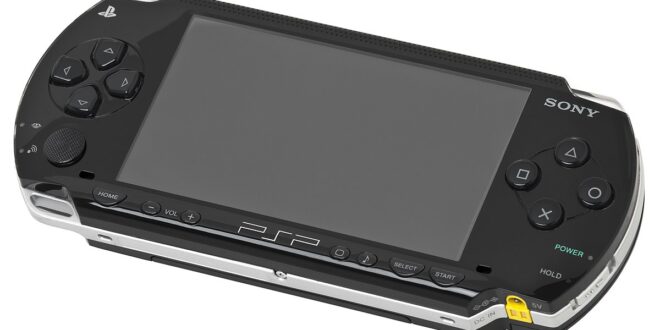
The PSP remains one of the easiest ways to turn an Android phone or tablet into a genuinely satisfying retro handheld. Its library sits in a sweet spot: big RPGs, inventive rhythm games, serious racing games, and compact action adventures designed around short sessions. More importantly, PSP emulation can add conveniences that the original hardware never had, including sharper rendering, flexible controls, and dependable save states.
For most people, the answer is refreshingly simple: start with PPSSPP. It is a mature open-source PSP emulator with high-resolution rendering, broad controller support, and reliable save-state and texture workflows. RetroArch is worthwhile for players who already use its all-in-one ecosystem, but it is not the simpler route. This guide explains the difference, how to set up a legal personal library, and which settings are worth changing before you disappear into Patapon, Daxter, or Monster Hunter Freedom Unite.
The short recommendation
1. Best for nearly everyone: PPSSPP
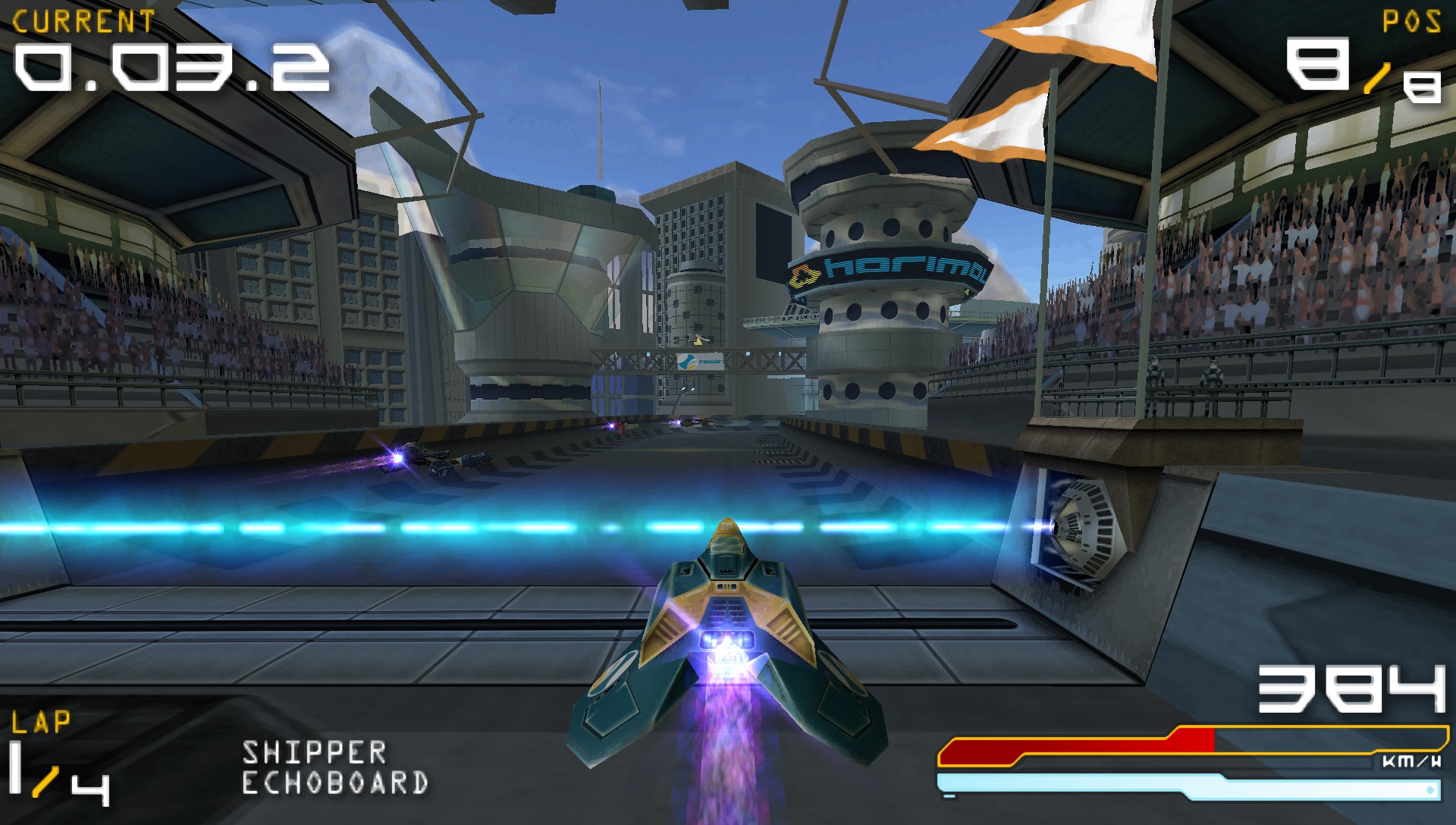
PPSSPP is the practical first choice for Android PSP play. Its interface is focused on one machine, so getting from a game file to a playable game is straightforward. It supports the features most people actually use: save states, resolution scaling, texture scaling, button remapping, external controllers, per-game settings, and optional widescreen patches.
That focus matters. PSP games often need a little individual attention: one title may be happy with a higher internal resolution, while another benefits from leaving effects closer to their original settings. PPSSPP makes those adjustments accessible without asking you to learn a larger frontend first. If you want one recommendation, use PPSSPP and spend your time playing.
The standard app is available through PPSSPP on Google Play. A paid Gold edition is also intended to support the project; it is not a separate compatibility tier. Choose it if you want to contribute, not because you expect different game support.
2. Best for an existing multi-system setup: RetroArch with the PPSSPP core

RetroArch can run PSP games through its PPSSPP core. Its appeal is consistency: one menu system, one controller philosophy, shared shaders, playlists, achievements where supported, and broader save-management options across many classic systems. If your Android device is already a carefully arranged RetroArch machine, adding PSP to that setup makes sense.
The tradeoff is friction. Core installation, directories, playlists, input configuration, and menu terminology introduce more steps than the standalone app. It can also be less pleasant when you want to change a PSP-specific graphics setting quickly. RetroArch is powerful, but its power is most valuable to players already committed to it. Newcomers should not feel they are missing a better PSP experience by choosing PPSSPP directly.
Why PSP games work so well on Android
The original PSP was built around a wide screen, a conventional face-button layout, and games that had to look good on a small display. Those traits translate well to modern phones. On a compact handset, the PSP image often feels natural at its original proportions; on a tablet or television, rendering at a higher internal resolution can clean up geometry and text dramatically.
PSP emulation is generally less demanding than later PlayStation platforms, but it is not automatic. Simple 2D games and many early 3D titles are forgiving. Dense action games, demanding racing games, and titles with heavy effects can expose the limits of a modest device or an overly ambitious graphics setup. The sensible expectation is smooth original-style play first, then visual upgrades if the game holds its speed.
That makes the PSP a more predictable Android project than tougher systems. If you are building a wider mobile collection, it is a useful middle ground between the lightweight libraries covered in our Game Boy Advance emulator guide and the substantially more demanding expectations around PS2 emulation on Android.
Set up PPSSPP the sensible way
Start with your own game backups
Emulators are legal software in many places, but game ownership and copying rules vary by country. The responsible route is to use games you own and make personal backups through lawful means available where you live. A PSP game is commonly stored as an ISO or CSO image after being dumped from your own UMD using appropriate hardware and software.
Do not download games from unauthorized ROM sites, and do not seek out BIOS files or tools meant to evade copy protection. PSP emulation does not normally require a separate PSP BIOS download. Keep the original discs, label your backups clearly, and treat the files as a personal archive rather than something to distribute. That approach protects both your collection and the preservation work you are trying to enjoy.
Organize files before scanning
Create one clearly named folder for your PSP backups in device storage, then keep each game image there. A flat folder is fine at first; a subfolder structure becomes useful once the library grows. Avoid extracting an ISO from a ZIP or RAR archive and expecting the emulator to run the archive itself. The emulator needs the actual disc-image file.
Open PPSSPP, browse to that folder, and select a game. Once it launches successfully, add it to your recent list or favorites. This sounds mundane, but a stable folder plan makes later moves to a new phone, a tablet, or a handheld much less confusing.
Keep the first launch close to default
Load a game before changing a screenful of options. Confirm that it boots, that the controls respond, and that it reaches gameplay. Then make one change at a time. This gives you a known-good baseline and prevents the classic emulation problem of wondering whether a bad setting, a controller profile, or the game backup itself caused a glitch.
Use the in-game save system as your main record of progress. Save states are excellent for quick breaks, retries, and testing a setting, but they are snapshots tied to emulator behavior. Keeping a normal in-game save alongside them is good long-term housekeeping.
Graphics settings: improve the image without chasing numbers
Rendering at a higher internal resolution is the upgrade most players will notice. It can make 3D models, HUD text, and distant scenery look far cleaner on a phone, tablet, or TV. Start conservatively, play through a busy section rather than an opening menu, and raise the resolution only if performance stays consistent. There is no prize for selecting the highest option when it makes a racing game stutter or turns your device uncomfortably warm.
Anisotropic filtering can improve angled ground textures and roads, while texture scaling may help certain games look less soft. Both are optional refinements, not universal improvements. Texture scaling in particular can alter the intended artwork or add processing overhead. Try it with a familiar title and decide with your eyes, not a checklist.
Widescreen patches deserve caution
The PSP’s native display is already widescreen. Optional patches can extend some games to fill a modern television or ultrawide screen, but they are not the same as a developer-authored widescreen mode. Depending on the game, they may stretch HUD elements, reveal scenery that was never meant to be visible, or create camera oddities.
Use widescreen patches on a per-game basis and turn them off if anything looks wrong. For purists, the original aspect ratio is always the safe presentation. For couch play, a well-behaved patch can be a welcome bonus.
Fix trouble with small, reversible changes
If a game has visual errors or runs poorly, first return internal resolution and enhancement options toward their defaults. Try a different graphics backend only if the emulator offers one on your device, then test the same scene again. Per-game settings are preferable to changing global settings for one troublesome title. They let a demanding game use a conservative profile without making every other game look worse.
Do not assume every issue is raw performance. Misconfigured frameskipping, aggressive hacks, and texture options can cause their own artifacts. Patient testing beats copying a massive settings list intended for someone else’s phone.
Controls: touchscreen, clip-on pad, or full controller?
Touch controls are perfectly usable for menu-heavy RPGs, visual novels, turn-based tactics, and slower platform games. PPSSPP lets you move, resize, and reduce the opacity of on-screen buttons, so take a minute to keep the D-pad and face buttons away from the part of the screen you need to see. The PSP’s single analog nub maps naturally to a virtual stick, although fast action games are where touch controls feel most compromised.
For God of War, Gran Turismo, shooters, and monster-hunting games, a physical controller is the meaningful upgrade. A Bluetooth pad works well for relaxed play, while a telescopic controller makes a phone feel closer to a modern handheld. A USB controller can be preferable when you want to avoid Bluetooth pairing and battery concerns. Map the analog stick, D-pad, face buttons, shoulder buttons, Start, and Select deliberately; then check the mappings in one game before building custom layouts elsewhere.
The PSP did not have a second analog stick, so games often use face buttons for camera control. Modern controllers can make that feel awkward at first. Resist the temptation to force a right-stick camera mapping unless it genuinely works for the game. A title designed around shoulder buttons and face-button camera input may play best when left close to its original controls.
Display and audio advice for phones, tablets, and TVs
On a phone, the original 16:9-style PSP framing is an excellent fit, though very tall displays will show unused space. Leave it alone rather than stretching the picture. On a tablet, a higher internal resolution can make sense because the larger panel reveals more detail. On a TV, a controller and a modest resolution increase are often more valuable than elaborate filters.
Use integer-like scaling only when it gives a pleasing result; PSP output is not as simple as scaling 8-bit pixel art. Avoid heavy blur if you want the clear look that higher-resolution rendering provides. Conversely, a subtle shader or filter can soften harsh edges if you prefer something closer to the original LCD character. This is a matter of taste, and PPSSPP’s renderer gives you room to experiment.
Headphones remain the easiest way to avoid audio delay during rhythm games such as Patapon. Wireless audio can add latency depending on the device and codec. For action games it may be tolerable; for precise timing, wired headphones or the device speakers are the safer choice.
Features worth using—and ones to use carefully
- Save states: Great for short mobile sessions, difficult bosses, and testing. Keep normal in-game saves too.
- Per-game profiles: The best way to give demanding games lower graphics settings without sacrificing image quality elsewhere.
- Texture replacement: A rewarding enthusiast feature when a game has a reputable community-made pack, but it increases storage use and may change the original art direction.
- Cheats: Useful for accessibility, experimentation, or reducing grind, but they can destabilize a save or spoil game balance. Back up your save first.
- Fast-forward: Helpful for slow dialogue and repeated battles. Use it lightly in games with streaming audio or timing-sensitive sequences.
Common problems and practical fixes
The game is slow
Lower internal resolution first. Then disable optional texture enhancements and test again in a demanding area. Close background apps, let the device cool down, and avoid judging performance from a single cutscene. If original-speed performance is still inconsistent, prioritize a stable experience over visual extras.
The controller is connected but does not work correctly
Check Android’s controller connection first, then visit PPSSPP’s control mapping screen. Clear conflicting bindings, map the essentials, and test in gameplay rather than only in menus. If a controller has an unusual layout, save a dedicated profile after it works.
The picture looks stretched or the UI is off-screen
Restore the original aspect ratio and disable widescreen patches. On televisions, inspect the TV’s own overscan or picture-size setting as well. Some display problems originate outside the emulator.
A save state will not load
Try your regular in-game save. Save states are convenient but should not be your only archive. When updating or moving devices, copy your ordinary savedata along with any states you care about, and avoid deleting the emulator’s data folders until you know the transfer succeeded.
FAQ
Do I need a PSP BIOS for PPSSPP?
No separate BIOS download is normally required for PSP play in PPSSPP. Avoid sites offering questionable “required BIOS packs.”
Is PPSSPP or RetroArch better?
PPSSPP is better for a direct, focused PSP setup. RetroArch is better only if its unified multi-system interface, playlists, and broader frontend features are already part of how you play.
Can a budget Android phone run PSP games?
Many PSP games are approachable, but results vary by title and device. Begin at conservative settings and treat higher rendering resolution as an optional upgrade, not a requirement.
Should I use CSO instead of ISO?
CSO can reduce storage consumption, while ISO is the straightforward uncompressed format. Keep whichever lawful personal backup format works reliably for your own collection, and retain an archival copy where practical.
Conclusion
PPSSPP is the decisive recommendation for PSP emulation on Android in 2026. Its single-system focus, visual options, controller flexibility, and per-game controls serve both a first-time emulator user and a long-time PSP collector. Start with a legal backup of a game you own, confirm it works at default settings, then add resolution scaling and a controller only where they improve your experience.
RetroArch remains a capable alternative for established multi-platform setups, but it should not distract from the simple truth: the standalone PPSSPP route is usually the shortest path to excellent portable PSP play. Preserve your own library carefully, keep in-game saves alongside save states, and let each game—not a settings checklist—tell you how far to push the enhancements.
More Android Emulator Guides
Choose the system you want to play. These guides compare Android options and link to the matching emulator profiles.


14 comments
Pingback: Best Amiga Emulators for Android in 2025 | Retro Replay
Pingback: Best PS2 Emulators for Android in 2025 | Retro Replay
Pingback: Best PS1 Emulators for Android in 2025 | Retro Replay
Pingback: Best SNES Emulators for Android in 2025 | Retro Replay
Pingback: Best Android Emulators in 2026: The Complete System-by-System Guide - Retro Replay
Pingback: Best Sega Saturn Emulators for Android in 2026 - Retro Replay
Pingback: Best Sega Genesis Emulators for Android in 2025 | Retro Replay
Pingback: Best Neo Geo Pocket Emulators for Android in 2025 | Retro Replay
Pingback: Best GBA Emulators for Android in 2025 | Retro Replay
Pingback: Best Commodore 64 Emulators for Android in 2025 | Retro Replay
Pingback: Best Atari Emulators for Android in 2025 | Retro Replay
Pingback: Best PS3 Emulators for Android in 2025 | Retro Replay
Pingback: Best Neo Geo Emulators for Android in 2026 - Retro Replay
Pingback: Best NES Emulators for Android in 2026 | Retro Replay