 Retro Replay Retro Gaming History, Reviews & Emulation
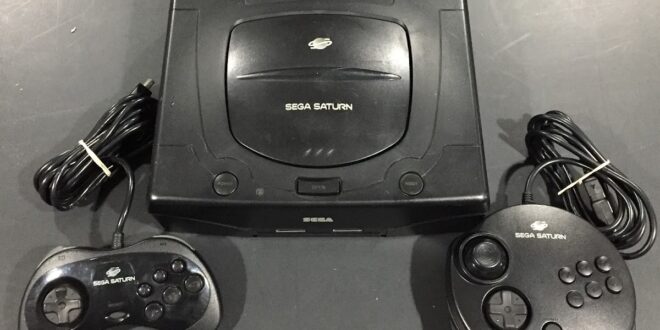
The Sega Saturn remains one of the most rewarding consoles to revisit, but it asks more of both the emulator and the person setting it up than a typical 16-bit machine. Its library ranges from glorious 2D arcade conversions to striking early 3D experiments, lavish RPGs, shooters, and imports that never received broad releases. Games such as NiGHTS into Dreams, Virtua Fighter 2, Daytona USA, Shining Force III, and Panzer Dragoon Saga show why the system still commands such affection.
For Android players, the sensible approach in 2026 is not to chase a long list of questionable apps. Start with a dedicated Saturn option, Yaba Sanshiro 2, if you want the least intimidating route. Choose RetroArch if you already use it for several systems and value its deeper configuration tools. Neither turns every Saturn game into a one-tap experience, but both can make a properly dumped library practical on a capable phone or tablet.
Why Sega Saturn emulation needs patience
The Saturn’s reputation for being difficult to emulate is deserved. Its design combines dual main processors with separate sound and video hardware, and its games often use that hardware in unusual ways. The complexity that made development challenging in the 1990s also means an emulator has a lot to reproduce accurately.
That does not mean Saturn emulation is out of reach on Android. It means expectations should be different from those for systems such as the Game Boy Advance or Mega Drive. A game can boot and still need adjustments for stable speed, correct graphics, or dependable audio. Another title may work well immediately but become unreliable when you raise internal resolution or enable demanding visual enhancements.
Think of the Saturn as a system where per-game testing is part of the hobby. Begin with default settings, play beyond the opening screen, and save your working setup before changing anything. This method is less exciting than toggling every enhancement at once, but it produces a far better handheld experience.
The short answer: which emulator should you use?
1. Yaba Sanshiro 2: the practical dedicated choice
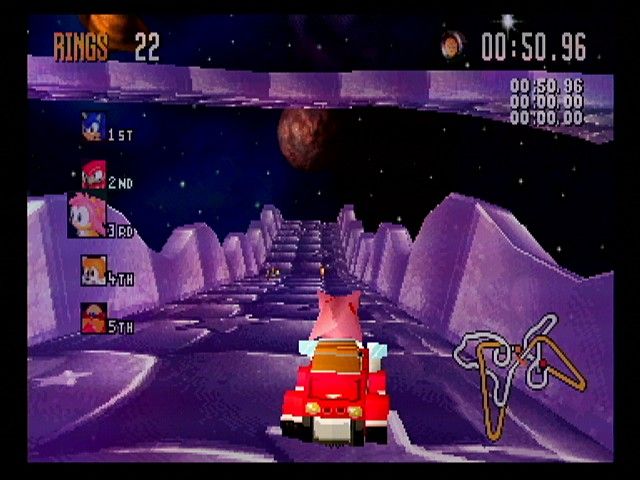
Yaba Sanshiro 2 is the straightforward recommendation for someone whose main goal is playing Saturn games on Android rather than building a universal emulation setup. The original Yabause lineage is an open-source Saturn emulation project, and Yaba Sanshiro 2 presents that work in a more direct mobile-focused package.
The appeal is simple: it puts Saturn-specific controls and options in front of you without requiring you to learn a large frontend first. Features described for the app include save states, configurable on-screen controls, external controller support, and cloud-save functionality. Those are meaningful conveniences for a console whose original memory management could be awkward and whose controller layout is not especially friendly on a touchscreen.
It is the better first stop for players who want to load their own game dump, pair a controller, and start experimenting. A dedicated app also makes it easier to keep Saturn settings separate from the rest of a retro collection. The tradeoff is that compatibility and performance still vary by game and device. It is not a guarantee that every title will be accurate or full speed, and it should not be treated as one.
Use conservative settings first. If a game is already smooth, resist the urge to add scaling or visual changes just because the menu offers them. If it struggles, return to defaults before assuming the game image is bad. A stable standard-resolution experience is generally more enjoyable than a sharper-looking game with uneven motion or crackling sound.
2. RetroArch with Saturn cores: best for the experienced tinkerer
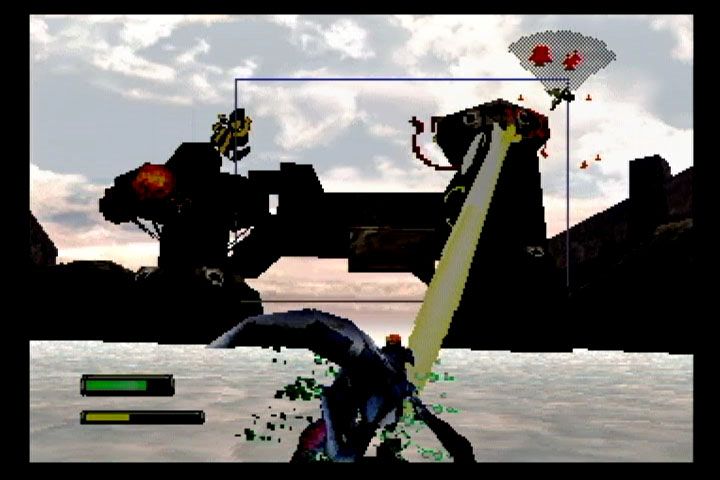
RetroArch takes a different approach. It is a frontend that runs emulation “cores,” allowing one application to cover many systems. For Saturn, its relevant options include Yabause and Kronos cores. The project profiles for Yabause and Kronos are useful background reading if you want to understand the emulation projects behind those names.
RetroArch is worth the effort if you want one controller profile, one library workflow, and a consistent set of tools across several platforms. It can provide shader options for a CRT-inspired presentation, detailed input remapping, rewind in supported circumstances, and RetroAchievements integration. It also gives advanced users more room to compare cores and change settings for individual games.
Its weakness is the learning curve. Core selection, content scanning, controller mapping, shader presets, and per-game overrides are powerful precisely because there are more decisions to make. A newcomer can absolutely use RetroArch, but should configure only the essentials at first: one Saturn core, one game folder, one controller, and one save location. Add shaders and overrides after a game is working.
Do not assume that a different core will automatically solve every problem. Switching cores can be a useful troubleshooting step, particularly if one title has visual or timing issues, but each core can have its own strengths and limitations. Keep notes on which game works with which configuration rather than applying global changes that accidentally disrupt other titles.
Yaba Sanshiro 2 vs. RetroArch
| Priority | Better fit | Why |
|---|---|---|
| Getting one Saturn game running with minimal setup | Yaba Sanshiro 2 | A dedicated Saturn interface is easier to approach. |
| Using one app for many retro systems | RetroArch | Its core-based design unifies a larger collection. |
| Fine control over shaders and input profiles | RetroArch | It offers a broader set of frontend-level tools. |
| Quick portable Saturn sessions | Yaba Sanshiro 2 | Less frontend administration gets in the way. |
| Testing alternate Saturn emulation paths | RetroArch | Its Saturn core options make comparison possible. |
There is no need to pledge allegiance to one app. Many longtime players keep a dedicated emulator for quick sessions and RetroArch for the systems they organize more carefully. The useful question is which workflow makes you more likely to play the game rather than endlessly adjust menus.
A sensible Android setup, step by step
1. Prepare your own game dump
Use games you own and create your own backups from the original discs where permitted by the law where you live. Saturn games are CD-based, so your dump should preserve the disc data and the accompanying cue information needed to describe its tracks. Keep each game’s files together in its own clearly named folder. Do not download copyrighted game images, BIOS files, or “preconfigured packs” from random sites, and do not bypass copy protection.
Some Saturn emulator setups may require system firmware files. If your chosen setup asks for them, dump the required data from hardware you own and follow that emulator’s documentation for file names and placement. Treat firmware with the same care as game media: it is not a generic download to grab from an unofficial archive.
2. Start with one known-good personal dump
Before importing an entire collection, test a single disc you have dumped yourself. Confirm that it boots, that in-game controls respond, that saving works, and that audio remains stable for more than a few minutes. This narrows down problems. If you add dozens of games and several controller profiles at once, it becomes much harder to tell whether an issue comes from the app, the dump, storage permissions, or a setting.
3. Configure saves before playing seriously
Save states are convenient, especially for short mobile sessions, but they should complement rather than replace normal in-game saves when a game supports them. Use both. Make a regular in-game save at major milestones, then use a state for the immediate pause-and-resume convenience. Keep save files backed up when changing devices or reinstalling an app.
Avoid loading an old save state after substantially changing emulator settings or switching cores. States can be sensitive to the environment in which they were created. When testing a new configuration, make a fresh state rather than overwriting your only working one.
4. Set controls for the Saturn, not for a generic gamepad
The Saturn’s six-button layout matters for fighters and some arcade ports. On a touchscreen, start by making the directional pad and the most-used face buttons large enough to hit reliably. Do not crowd every optional button into the centre of the screen; a cleaner layout is often better for action games.
A Bluetooth or USB controller is a major upgrade. Map the six face buttons in a way that reflects the Saturn pad’s top and bottom rows, then test the shoulder buttons in a game that uses them. For 3D titles, an analog-capable controller can be more comfortable, but confirm the game’s preferred control mode instead of assuming analog input is required.
If you use RetroArch, save a controller remap specifically for Saturn content. A global remap that feels sensible for a Super Nintendo game can be awkward for a Saturn fighter. Players building a broad Android library may also want to compare this setup with the simpler systems covered in our Sega Genesis emulator guide.
Performance and display advice
Modern, higher-powered Android hardware gives Saturn emulation more headroom, but raw device strength is not the entire story. The game, the core or emulator, thermal conditions, background apps, and visual settings all affect the result. A title that appears fine in a short test may reveal slowdowns or graphical oddities in later stages. Test the games you actually intend to play.
For a first pass, use the native rendering resolution and default video settings. If performance is reliable, try modest enhancements one change at a time. When you see stutter, audio breakup, input delay, or visual corruption, undo the most recent change first. Raising resolution may sharpen some 3D scenes, but it cannot transform low-resolution source artwork into modern high-definition art, and it can make a difficult game less stable.
Saturn software also benefits from respecting its original look. Pixel-art-heavy games frequently look best with integer-style scaling and no aggressive filtering. Early polygonal games may look cleaner with a small resolution increase, but shimmering textures and blocky models are part of the era’s visual language. A subtle CRT-style shader in RetroArch can soften hard pixel edges and blend dithering, though shaders consume resources and can reduce battery life.
On a phone, portrait mode leaves little room for a usable image and touch controls at the same time. Landscape is normally the better choice. A tablet or a phone mounted to a controller gives a more comfortable view of menus, subtitles, and fighting-game HUDs. For television play, use a controller first, keep scaling modest, and test latency before committing to a long session.
Common problems and what to try
The game will not appear or will not boot
Check that all files from the same disc are in the same folder and that the cue information still points to the correct track files. Do not rename individual tracks casually after dumping. Also confirm that the app has permission to read the folder you selected. If the emulator documents a firmware requirement, verify your personally dumped files are in the documented location.
Audio crackles or the game slows down
Return to default graphics settings, disable enhancements, close demanding background apps, and test again. If the problem remains, try an alternate Saturn core in RetroArch or compare the title in Yaba Sanshiro 2. This is troubleshooting, not a promise that another core will fix the game, but it is a reasonable way to isolate a configuration issue.
Touch controls feel unusable
Resize and reposition them rather than trying to adapt to a bad layout. For fighters, favor a six-button arrangement you can reach without covering the action. For longer games, pair a controller. The Saturn was designed around a physical pad, and no touchscreen layout is equally comfortable for every genre.
FAQ
What is the best Sega Saturn emulator for Android?
Yaba Sanshiro 2 is the clearest starting point for a dedicated, approachable Saturn experience. RetroArch is the stronger choice for players who want multi-system organization and deeper configuration through its Yabause and Kronos cores.
Does every Sega Saturn game run perfectly on Android?
No. Saturn emulation remains demanding, and results can differ between games, apps, settings, and devices. Test each game you care about and prioritize stable defaults over ambitious enhancements.
Should I use save states?
Yes, for convenience, but also maintain normal in-game saves where possible. Keep backups and avoid relying on a single state across major emulator-setting changes.
Can I use Bluetooth controllers?
Both the dedicated-app approach and RetroArch are described as supporting external gamepad use. Map controls per game or per system, paying particular attention to the Saturn’s six-button layout.
Final verdict
Saturn emulation on Android is no longer just a curiosity, but it rewards a measured setup. Choose Yaba Sanshiro 2 when you want the most direct route to playing your own Saturn backups. Choose RetroArch when its controller profiles, shaders, multi-system library, and core choices justify the extra setup time. In both cases, start at default settings, use a real controller when possible, preserve your saves, and judge compatibility game by game.
That practical approach lets the Saturn’s best qualities come through: its superb 2D work, unusual arcade conversions, and a catalogue unlike any other console of its generation. The rough edges are real, but for players willing to spend a little time configuring responsibly, Sega’s most idiosyncratic machine remains very much worth carrying in a pocket.
More Android Emulator Guides
Choose the system you want to play. These guides compare Android options and link to the matching emulator profiles.



11 comments
Pingback: Best Commodore 64 Emulators for Android in 2025 | Retro Replay
Pingback: Best Dreamcast Emulators for Android in 2025 | Retro Replay
Pingback: Best NDS Emulators for Android in 2025 | Retro Replay
Pingback: Best Game Boy Emulators for Android in 2025 | Retro Replay
Pingback: Best Android Emulators in 2026: The Complete System-by-System Guide - Retro Replay
Pingback: Best MSX Emulators for Android in 2025 | Retro Replay
Pingback: Best N64 Emulators for Android in 2025 | Retro Replay
Pingback: Best ZX Spectrum Emulators for Android in 2025 | Retro Replay
Pingback: Best Neo Geo Emulators for Android in 2026 - Retro Replay
Pingback: Best SNES Emulators for Android in 2025 | Retro Replay
Pingback: Best PS3 Emulators for Android in 2026 | Retro Replay